
Lunch menu
Publish the lunch menu so families can see it on the portal and the app: dishes per day, week cycles and special menus per tag.
2026-07-30
Before you start
- Only directors can create and manage menus. Educators do not have access.
- A menu is a template with a validity range and a week cycle: you define the dishes for one or more weeks and the system rotates them automatically while the menu is active, so you never enter a dish for a specific date.
- You can create several menus at once. For example, a general menu for everyone and a special menu (puréed, gluten-free…) restricted to a specific tag: each family sees every menu that applies to them.
- A menu is only visible to families once it is published. While it is a draft, only you can see it.
- For families to see menus on the portal and the app, the school must add the Lunch menu section to the portal menu. Check the Navigation menu page if it isn't enabled yet.
Step by step
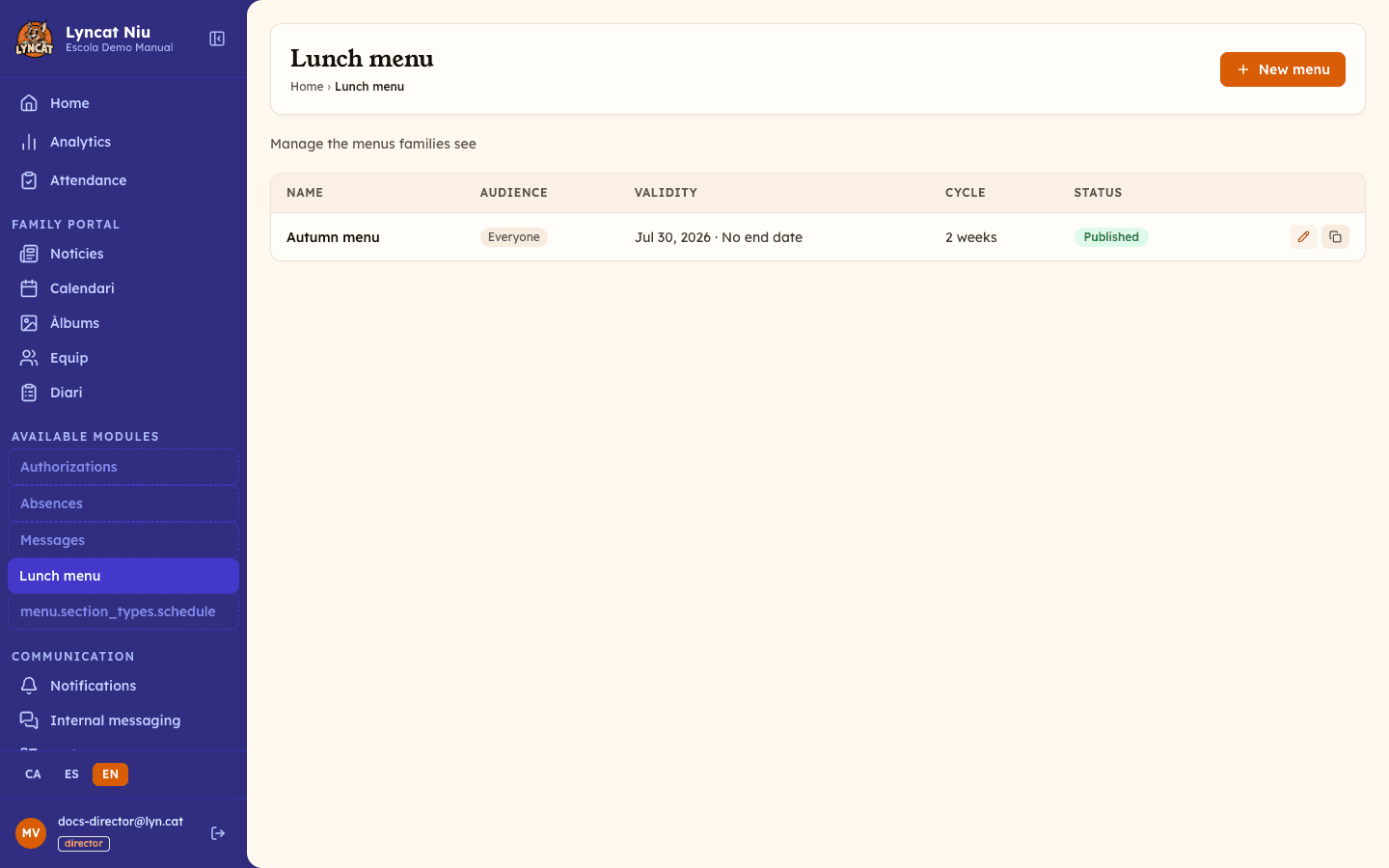
Open Lunch menu
In the panel, go to Lunch menu in the sidebar. You'll see the list of menus already created, with the name, audience, validity, week cycle and status of each one.
Create a new menu
Click New menu. The menu form will open.
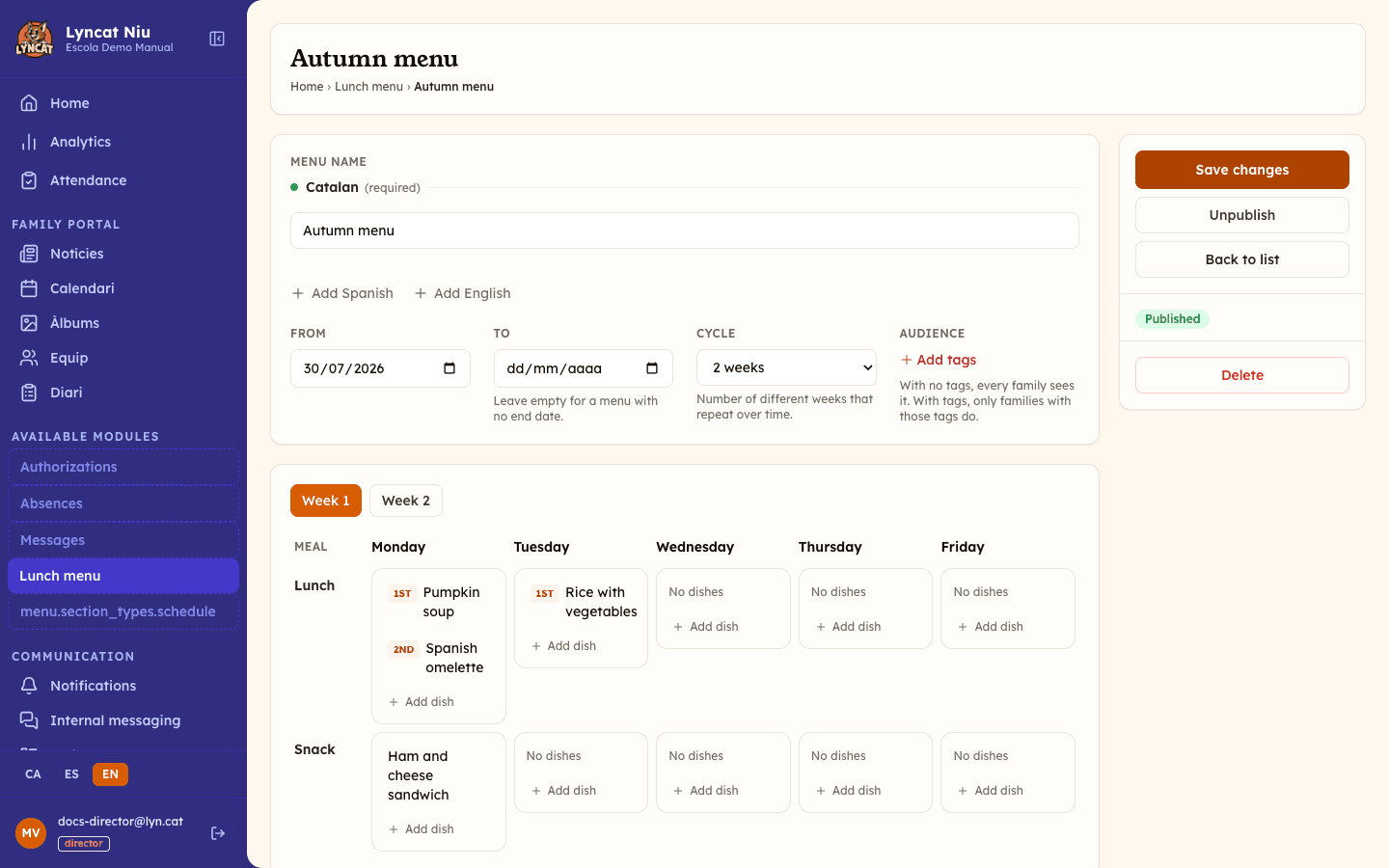
Enter the name and validity
Enter the Menu name (for example, "Autumn menu"). You can add it in more than one language if the school's portal is multilingual.
Choose the From date (required) and, optionally, a To date. Leave it empty for a menu with no end date.
Set the week cycle
In the Cycle field, choose how many different weeks the menu has (from 1 to 8). With a 2-week cycle, for example, you define the dishes for week 1 and week 2, and the system alternates between them while the menu is active.
Choose the audience (optional)
If you don't select any tags, the menu is visible to every family. If you select one or more tags, only families of students with those tags will see it. This is useful, for example, to publish a special menu for students with a specific diet.
Add each day's dishes
Once the menu is saved, you'll see a grid with the weekdays (Monday to Friday) as columns and the meals (Lunch and Snack) as rows. In the cell for the day and meal you want, click Add dish to enter the dish name and, optionally, its course (Starter, Main, Dessert or Other). You can add more than one dish to the same cell.
If the cycle has more than one week, switch the week tab (Week 1, Week 2...) at the top of the grid to edit each week separately.
Publish or save as a draft
Click Publish so families see the menu on the portal and the app, or Save draft if you don't want it visible yet.
Truc
If a day has the same dishes as the rest of the week, fill it in once and click Copy to the rest of the week. The dishes on the other weekdays will be replaced with those of that day.
Duplicating a menu
In the menu list, click the Duplicate icon on a menu's row to create a copy with the same name, audience, validity, cycle and dishes. The copy is always created as a draft, so you can adjust it (for example, changing the validity dates for the next term) before publishing it.
What to do if...
I published a menu by mistake. Open the menu from the list and click Unpublish. It will go back to draft and stop being visible to families, without losing any data.
I want to delete a menu. Open the menu and click Delete in the record's sidebar. This is permanent and cannot be undone.
I reduced the cycle from 3 to 2 weeks and want to go back to 3. You can extend the cycle at any time: the dishes from week 3 aren't deleted when you reduce the cycle, they just stop showing, and they'll reappear if you set the cycle back to 3 weeks.
Frequently asked questions
Do families see every published menu? Each family sees the published menus with no audience restriction (visible to everyone) plus any menus whose tags match their student's tags.
Can I schedule a menu to publish on a future date? Not directly. The menu is published the moment you click Publish. If you want it to apply from a specific date, use the From date as the start of its validity and publish it whenever you want it to start showing.
What happens if the cycle doesn't line up with the current week? The system automatically works out which cycle week applies based on the From date and the current week, so you don't need to manage it manually.
Can I offer breakfast in addition to lunch and snack? At the moment the editor only lets you add dishes for Lunch and Snack.