Notifications
Send direct alerts to your school's families: instant messages, scheduled for a specific time, or saved as drafts.
2026-09-09
Before you start
- You need the director role to write, send, schedule, cancel, or duplicate notifications. Educators can view the three tabs (Scheduled, Drafts, Sent) but cannot take any action on them.
- Notifications are delivered to families' mobile devices. Keep your message clear and concise: the title allows up to 60 characters and the body up to 200.
Step by step
Open the composer
In the panel, go to Notifications in the sidebar. Click the New notification button in the top-right corner.
Write the title and message
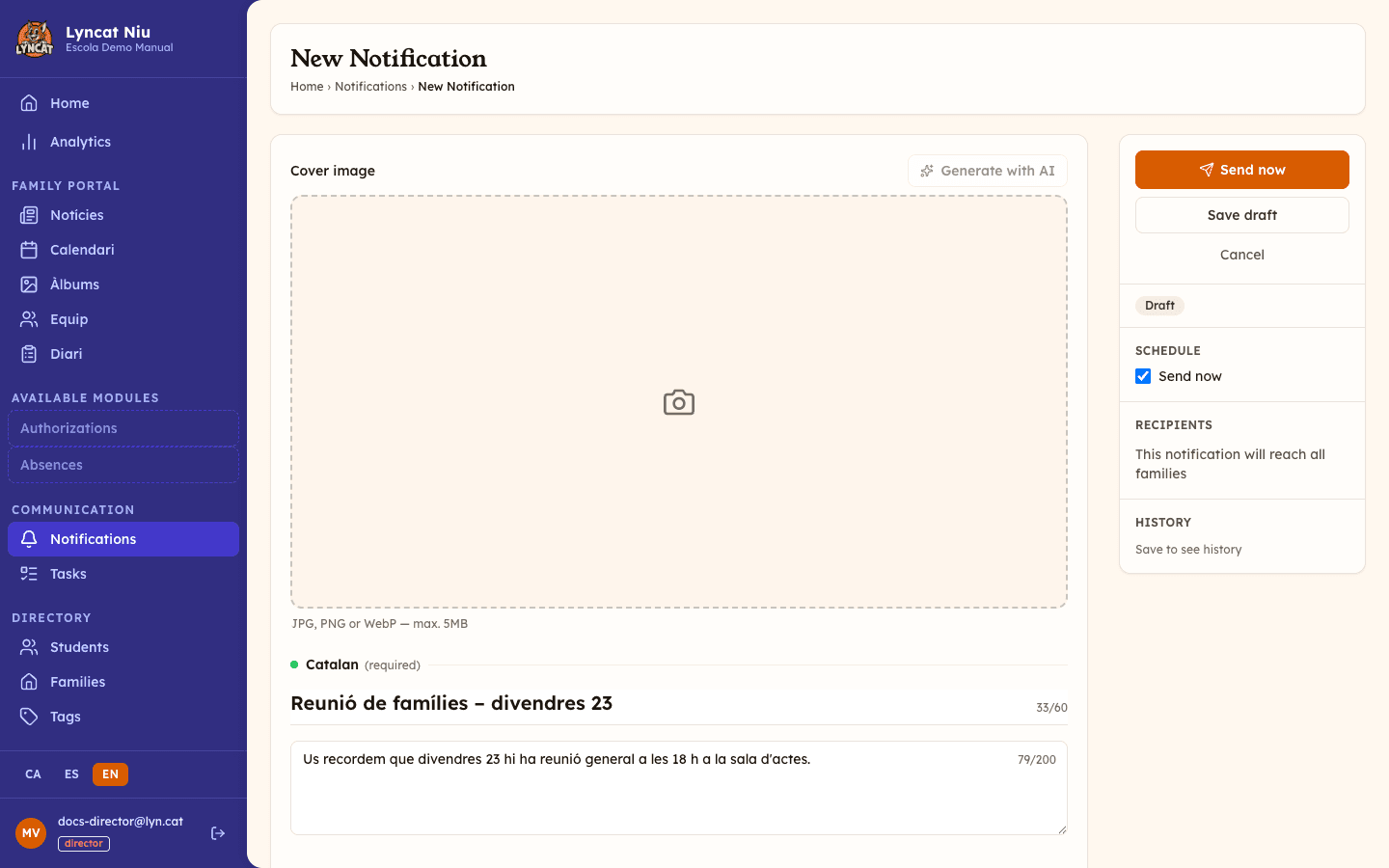
Enter a Title (required, maximum 60 characters) and, optionally, a Message body (maximum 200 characters). Both fields show a live character counter.
The text is requested per language. At the top you get the block for your school's main language, marked (required); below it, an Add [language] button for each other language your school has active. Optional blocks can be collapsed or removed with the cross. To send or save, only the title in the main language is required.
Add a cover image (optional)
At the top of the composer there is a Cover image block. You can upload a JPG, PNG or WebP file of up to 5 MB, or click Generate with AI to have the system create one from what you have written.
The AI button only becomes available once the notification has been saved (autosave does this on its own after a few seconds) and there is a title or body text in the main language. Each generation uses up part of your school's AI task quota.
Choose recipients
In the right sidebar, under Recipients, choose between:
- Send to all families — reaches everyone.
- Selecting one or more tags — reaches students with those tags and their families.
Decide when to send
Under Schedule, leave the Schedule the send checkbox unchecked to send the notification the moment you click the button, or check it and pick a Date and time to schedule it for later.
Send or save
Click Send now: a confirmation window will show how many families will receive the alert, to avoid mass sends by mistake. Confirm to complete the send. If you scheduled a future date, the button reads Schedule and no extra confirmation is needed. If you want to keep editing it later, click Save draft.
Truc
The composer saves your draft automatically as you type. If you accidentally close the window, you will find the notification in the Drafts tab.
Managing scheduled notifications
The Scheduled tab shows all notifications set to be sent in the future. To cancel one, click the Cancel schedule icon on the right side of the row and confirm. The notification moves back to Drafts, where you can pick it up again with the Edit icon or copy it with Duplicate.
Important
Cancelling a scheduled notification does not delete it — it moves it to Drafts. A draft cannot be deleted from the panel: the only permanent delete action applies to a notification that has already been sent, from its detail view. If you no longer want to send it, simply leave it in Drafts.
Sent notifications
The Sent tab holds the history of all delivered notifications. Click a title or the View Details button to see the details: delivery date, sender, and recipients.
At the top of a sent notification's detail view you get two delivery figures: Target families (how many families it was addressed to) and Notifications sent (how many alerts were actually delivered to devices). They may differ: a family without the app installed, or with alerts turned off, counts as a target but receives nothing on their phone.
From a sent notification's detail view you can Archive it (it disappears from the main list but stays in the history) or Delete it permanently.
Avís
Deleting a sent notification cannot be undone.
Duplicating a notification
From the Drafts or Sent tab, click the Duplicate icon (copy icon) on a notification's row to create a copy in draft status, with the same title, message, image and recipients. The copy appears at the top of the Drafts tab, ready for you to review and send again.
Frequently asked questions
Can I send the same notification in multiple languages?
Yes. In the composer, below the main language block, click Add [language] for each language you need. Only the languages your school has active are offered. Families will receive the version in the language they have chosen in the portal.
Can I edit a notification that has already been sent?
No. Once sent, the message cannot be edited. If you need to make a correction, create a new notification.
How many characters can the title have?
The title allows up to 60 characters and the body up to 200. The composer shows a live counter to help you stay within the limit.
Can any team member send notifications?
No. Only the director can write and send notifications. Educators can view the three tabs in read-only mode, but have no actions available there. Sent notifications show the sender's name in the Sent by column of the Sent tab.