
Attendance
Record daily attendance by time slot and export it to Excel.
2026-09-09
Before you start
- Both the director and educators can take attendance.
- Attendance is different from the Daily report: here you record present/absent by time slot, while the daily report tells the story of each child's day (meals, naps, activities...).
- If you have assigned tags (for example, you are the lead teacher of a group), the list is automatically filtered to your students. You can widen the filter if needed.
Step by step
Mark today's attendance
Open Attendance
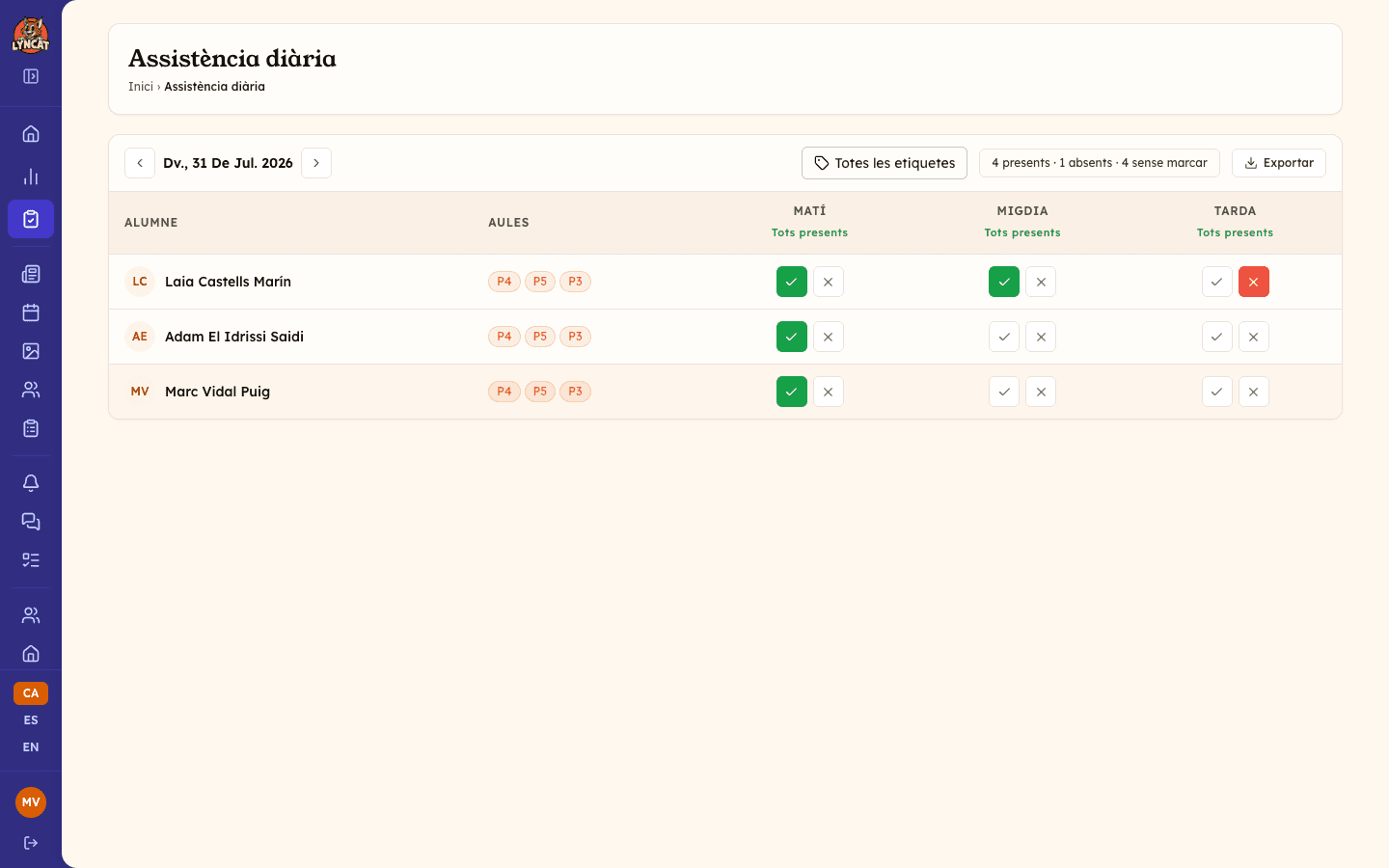
In the side menu, click Attendance. Today's date is shown by default.
Mark present or absent
For each student and time slot (Morning, Midday, Afternoon), click the ✓ icon to mark them present or the ✗ icon to mark them absent. Click the same icon again to clear the mark.
Mark everyone present at once
If most students are attending, click All present in the time slot header to mark everyone present in one step. You can then correct individually who is missing.
Check the day's summary
At the top, a box shows the count of present, absent and unmarked students for the selected day.
Change the day
Use the arrows on either side of the date to move to the previous or next day. If you are not on today's date, a Today button appears to jump back directly.
Filter by tag
If the school organises students with tags (groups or classrooms), you can filter the list with the All tags selector. Educators with their own assigned tags see those groups preselected.
Truc
If a family has already declared their child's absence for that day, the student appears with an amber icon next to their name, even if you have not manually marked them absent yet.
When you mark an absence nobody told you about
If you mark a student as absent and the family has not reported any absence for that day, a window opens headed [Name] is not in, and we had no notice. The attendance mark is already saved: the window is only there to decide what to do with the family.
- Notify the family — sends the family an alert letting them know their child has not come in.
- They already told us — opens a second step to record the absence on behalf of the school: pick the Reason and, if you want, add some Notes. Click Record the absence to save it; the family is told it has been logged.
- Do nothing — closes the window without any action.
If you close it with the cross without choosing, the panel will ask again the next time you mark a time slot for that student and day. Once you pick an option, it stops asking.
Export attendance to Excel
Click Export
At the top of the screen, click the Export button.
Choose the date range
Select the start and end date of the period you want to export. Both default to the day you had open.
Choose the time slots and group
Select which time slots (Morning, Midday, Afternoon) to include — all three are ticked by default — and, in the Group/class dropdown, pick a specific group or leave Whole school.
Generate the Excel file
Click Generate Excel. The document contains one sheet with the per-student, per-day detail, plus an additional sheet with aggregated statistics by group and time slot.
Important
The exported document contains student data. Use of the file is the school's responsibility.
What to do if...
I marked a student by mistake
Click the same icon (✓ or ✗) again to clear the mark, or click the other icon to change it.
A message says the mark could not be saved
Try again; if the error persists, check your connection. In the meantime, the mark reverts to its previous state so the list does not show incorrect data.
I don't see all the school's students
Check the tag selector: if one is selected (your own or chosen manually), you will only see students from that group. Clear the filter to see them all.
The export doesn't generate a file
If there are no records for the chosen range and time slots, the export will tell you there is nothing to export. Widen the date range or review the selected time slots.
FAQ
Who can take attendance? Both the director and educators can mark attendance.
What's the difference with the Daily report? Taking attendance is the present/absent control by time slot. The daily report is the story of each child's day (meals, naps, activities...). They are independent features.
Can I take attendance for past days? Yes. Use the navigation arrows to go to any past day and mark or correct attendance.
Do families see the attendance I mark? No. Attendance is an internal school record. If you want to inform a family about their child's day, use the daily report instead.