
Photo gallery
Publish photo albums for school families, organised by activity or group.
2026-09-18
When to use the gallery
Use the gallery for sets of related photos: photos from a field trip, the Christmas concert, or a sports tournament. If you just want to add a single cover image to a news post or event, you don't need to create an album — upload it directly in the news or event editor.
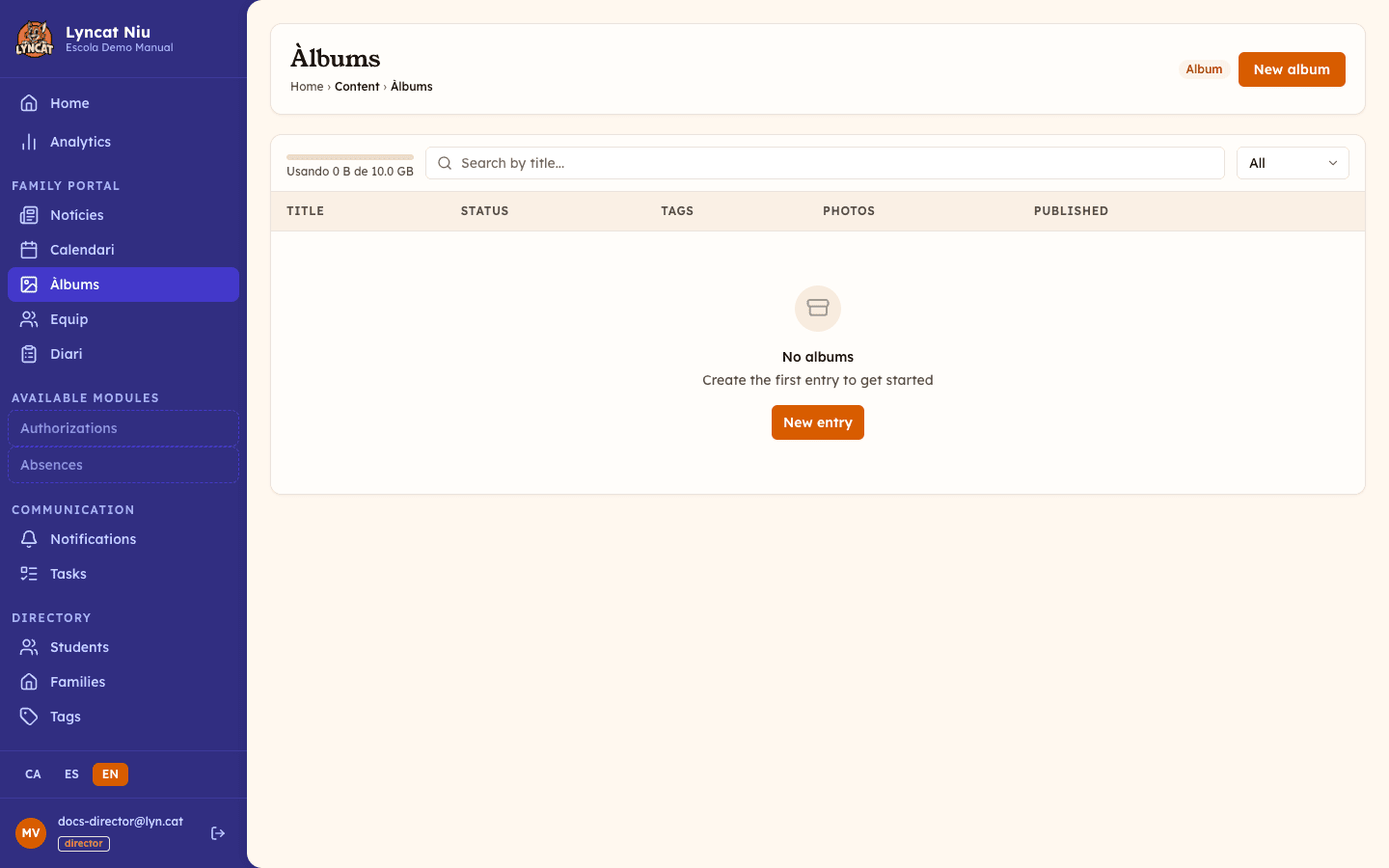
Step by step
Create a new album
In the sidebar, click the name of your gallery section (under Family portal). Then click the New album button in the top-right corner.
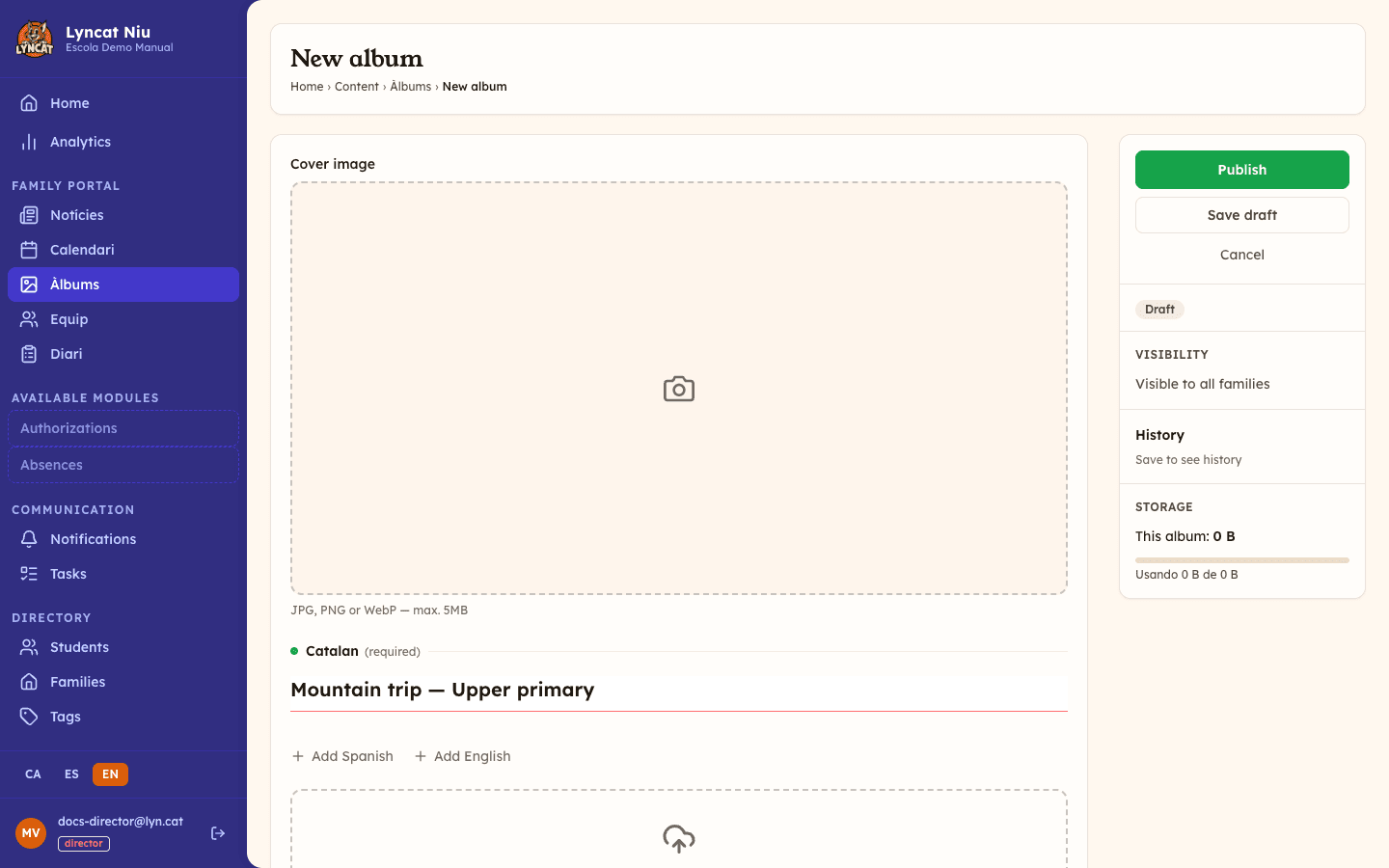
Give the album a title
Write a title families can understand at a glance: for example, «Mountain trip - Upper primary» or «Science Fair 2025».
The editor shows one title block per language the school has active. The title in the main language is required before you can publish.
Choose a cover image (optional)
Just above the titles you will find the Cover image field. This is the image that identifies the album in the portal list. JPG, PNG, or WebP files up to 5 MB are accepted.
Upload the photos
In the central area of the editor you will see the upload zone. You can drag photos here or click to select from your computer. JPG, PNG, and WebP files up to 10 MB each are accepted. You can select multiple photos at once.
Add captions (optional)
Each photo has a Caption field where you can write a brief description. At the bottom of each photo there is one tab per school content language —the main language comes first— and you can write the text in each of them.
Set visibility
In the right-hand panel, select the family groups that should be able to see the album. If you select none, the album is visible to all families at the school.
Set the publication date (optional)
At the top of the editor you will find the Publication date field. Leave it empty and the album is published the moment you click Publish. Enter a date and the album keeps that publication date.
Publish the album
When you are happy with the photos and title, click Publish. The album will appear on the school portal. If you want to prepare it and publish later, click Save draft.
Truc
You can select and upload multiple photos in one step. Reorder them afterwards using the ↑ and ↓ arrows on each card.
Reordering and deleting photos
Once uploaded, you can change the order of photos using the ↑ and ↓ buttons on each card. To delete a photo, click the bin icon and confirm.
Avís
Deleting a photo is irreversible: it cannot be recovered. If in doubt, archive the whole album first and decide later.
Storage space
At the top of the album list you will see a bar showing how much storage you have used. Inside the editor, the right-hand panel also shows how much this particular album takes up, under Storage. If you are approaching the limit, upgrade your plan or delete older photos you no longer need.
What to do if...
I cannot upload a photo: check that the format is JPG, PNG, or WebP and that the file size does not exceed 10 MB. If the problem persists and the storage bar is full, delete older photos or upgrade your plan.
The album does not appear on the portal: make sure the album is published (not a draft). Also check that the gallery section is visible in the portal navigation menu.
I want to edit a published album: click the album row —once published, the icon shows View instead of Edit. It will open in read-only mode; click Edit inside the editor to start a working draft. Changes will not be visible until you click Publish changes.
Frequently asked questions
Can I have multiple galleries? Yes. The school can have as many gallery sections as needed; each one is added to the portal navigation menu from Settings → Portal Menu.
Do families receive a notification when I publish an album? Notifications depend on the portal configuration. If you want to make sure families know about it, also publish a news post to let them know.
Can I restrict an album to one group? Yes. Select the groups in the visibility panel on the right. Families not belonging to those groups will not see the album.