
AI tasks
View the status of your school's AI tasks: cover image generation, automatic translations, and legal documents. Manage your monthly quota.
2026-09-13
Before you start
- AI tasks are created from other sections of the panel (news editor, calendar, legal texts…), not from this page.
- You need an active paid plan. Each task consumes a portion of your school's monthly AI quota.
- Access from the sidebar → Tasks.
Step by step
Viewing active tasks
Open the Tasks section
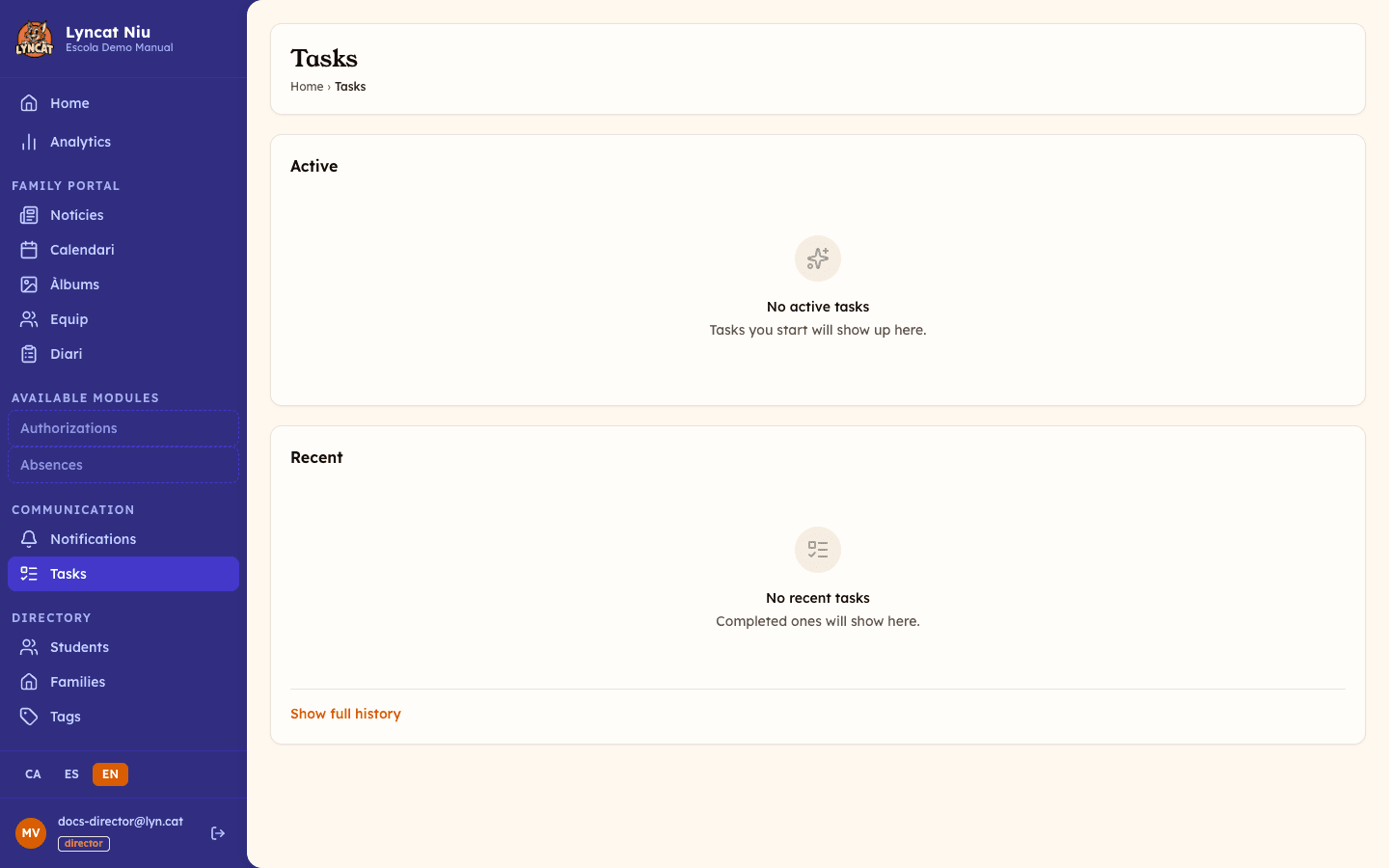
In the sidebar, click Tasks. At the top of the page you will see the Active card listing tasks that are queued or currently processing.
Check each task's status
Each row shows the task type (for example, "Cover image" or "Content translation"), the affected content, and the current status:
- Queued — the task is waiting its turn; it will be processed shortly.
- Running — the AI is processing it right now.
Typical processing time is between 30 and 60 seconds per task.
Cancel a task if needed
If a queued task is no longer needed, you can cancel it by clicking Cancel in its row. This frees up quota for other tasks.
Reviewing recent tasks
Check the Recent card
Below the "Active" card you will find the Recent card listing completed, failed, or cancelled tasks from the past few days.
View the result of a completed task
When a task has the Done status, a View button appears. Click it to go directly to the updated content (news article, legal document…).
Retry or discard a failed task
If a task shows the Failed status, click View error details to read the reason, then click Retry to requeue it. If you don't want to retry it, click Discard to remove it from the list — it stays available in the full history. If the error keeps occurring, see the "What to do if…" section below.
Managing your AI quota
Check available quota
At the top of the Tasks page you will find the AI quota indicator. It shows the units consumed against your plan's monthly limit.
Read the indicator colour
- Orange — you have plenty of quota (under 75% used).
- Yellow — you are approaching the limit (75–89% used); consider moderating use until the next monthly reset.
- Coral (reddish) — you have used 90% or more of your quota. Once you reach 100%, new tasks cannot be launched until the quota resets or you add extra capacity.
Add extra capacity if needed
If you have used up your monthly quota, you can purchase a permanent top-up pack from your account. The extra balance never expires and is drawn on once the monthly quota runs out.
Truc
Each task type shows how many units it costs: "Cover image" and "Lunch menu translation" cost 3 units, "Content translation" and "Schedule translation" cost 2, and legal documents (privacy policy, terms of use) cost 1 each. Plan accordingly if your quota is tight.
What to do if…
A task stays "Queued" for a long time
Tasks usually start within a few minutes. If a task has been queued for more than 10 minutes, try cancelling it and relaunching it from the original section (news, calendar, etc.).
A task keeps failing
Click View error details to read the message. The most common causes:
- Content is empty — add a title and body to the content before generating an image or translation.
- Content didn't pass the AI filter — edit the content to remove any phrasing the model may block, then retry.
- Service rate limit exceeded — wait a few minutes and retry.
- Response timeout — the task is automatically cancelled; retry.
I can't see the Tasks section in the menu
Check that you have an active paid plan. Go to My Account → Plan to see your current plan.
I've run out of monthly quota
New tasks cannot be launched until the monthly quota resets or you purchase extra capacity. Go to My Account to see your extra capacity options.
Frequently asked questions
Which plan includes AI tasks? AI tasks are available on all paid plans: Llavor (~3 tasks/month), Brot (~15 tasks/month), and Arrel (~60 tasks/month). The actual counter is per unit — see the note on the cost of each type in the Managing the AI quota section. The "tasks per month" figure is an indicative average for a typical mix of images, translations, and documents.
When does the monthly quota reset? The quota resets every month on the date configured in your account. You can check the exact date in the Tasks section.
Do unused quota units carry over to the next month? No. Unused monthly quota is lost on reset. Permanent top-up quota you have purchased is kept.
Can I see who launched each task? The Tasks page does not currently show which user initiated each task. All school tasks appear together.
How long are tasks kept in the history? Completed tasks appear for 48 hours. Failed tasks are kept for 7 days. You can show all available history by enabling the Show full history option.