
Configure school
Update your school's name, logo, primary colour and contact details from My Account.
2026-09-11
Before you start
- You must be signed in to the admin panel as a director.
- The details you gave us when the centre was set up (name, address, language) will already be pre-filled.
Important
The portal identifier (slug) was set when the centre was created and cannot be changed from this page. If you need to change it, please contact support.
Step by step
Go to My Account
In the sidebar, under the Settings group, click My Account (the gear icon). You will land on the school settings page.
Open the School Information tab
At the top of the page you will see several tabs. Select School Information (it opens by default).
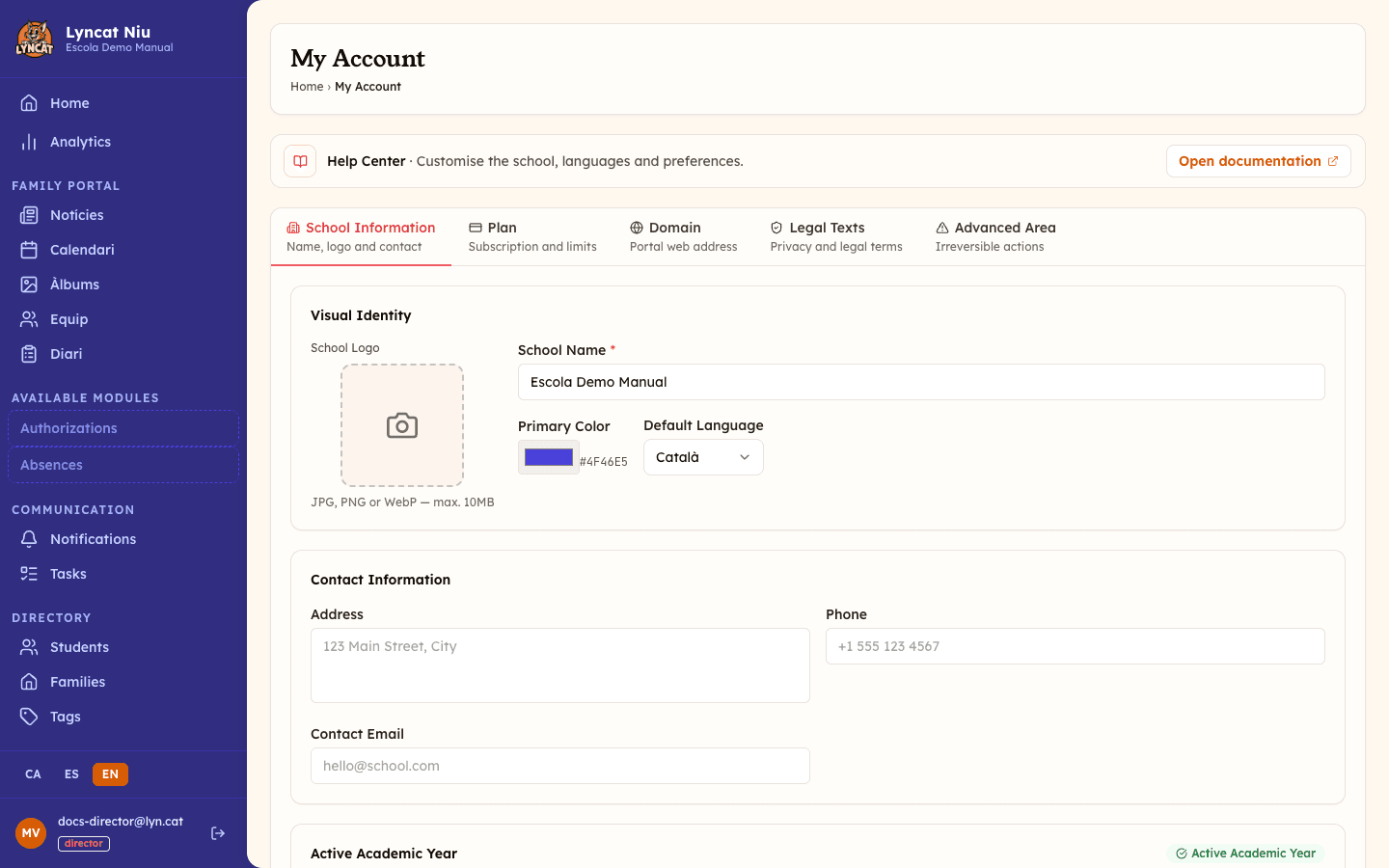
Update the visual identity
In the Visual Identity section you will find:
- School Logo: click the upload area to load a new image (JPG, PNG or WebP, up to 5 MB). The logo is saved as soon as you upload it, without waiting for the save button.
- School Name: the name shown in the family portal header.
- Primary Colour: the brand colour used for buttons and highlighted elements.
- Default Language: the language in which the portal is shown to families. The dropdown only offers the languages your school has enabled in the Languages tab.
Review the contact details
In the Contact Information section you can add or correct:
- Address: the school's physical address.
- Phone: public contact phone number.
- Contact Email: the address families can use to write to the school.
Further down, the same tab shows a card with the Active Academic Year and its dates. It is informational: the academic year is set from tag management.
Save your changes
Click Save Changes at the bottom of the page. A Cancel button appears next to it while you have unsaved changes; it discards them and restores the previous values. Once everything has gone well, you will see the Changes saved message.
Truc
The logo and primary colour appear both in the admin panel and in the public family portal. Changing them here updates both places at once.
Public app access
At the bottom of the same tab you will find the Public app access card, with a toggle. If you turn it on, anyone can open your school's app without an account and see published content that has no tags, the school's information and the team.
When you turn it on, a confirmation window tells you how many content items will become visible without signing in. You have to click Enable public access to confirm. Tagged content and family sections (daily reports, authorizations, absences…) stay private.
While it is on, the card shows the note Active: untagged content is visible without signing in.
Important
This option only applies to the white-label app. The toggle is saved instantly, without going through the Save Changes button; if you turn it off, access without an account closes straight away.
What to do if...
The "Save Changes" button is not active. The button activates when you modify a field. If you have not changed anything, the button stays inactive because there is nothing to save.
The logo does not upload. Check that the file is under 5 MB and in JPG, PNG or WebP format. If the problem persists, reload the page and try again.
Changes are not showing in the family portal. It may take a few seconds to propagate. Refresh the portal (your-slug.lyn.cat) a moment after saving.
Frequently asked questions
Can I change the portal identifier (slug)?
Not from this page. The identifier (for example yourschool) is the part of the URL yourschool.lyn.cat and was set when the centre was created. To change it, contact support.
Does the default language affect the admin panel? No. The default language determines the initial language of the family portal. The admin panel has its own selector: the CA / ES / EN buttons at the foot of the sidebar. The choice is personal and is remembered in the browser you use, without affecting the rest of your team or families.
Can I upload an animated logo (GIF)? No. Use JPG, PNG or WebP for the best visual result.