
Authorizations
Send digital authorization forms to families, collect their responses, and check the status of each authorization in real time.
2026-09-07
Before you start
- Both the director and educator roles can create, publish, close, and archive authorizations.
- Editing an already published authorization is limited to the director role: with an educator role the Edit button does not appear on the detail page.
- You can filter recipients by tags (groups, year groups) if you want to send an authorization to only part of the school.
Step by step
Create a new authorization
Open the Authorizations section
In the sidebar, click Authorizations under Family portal.
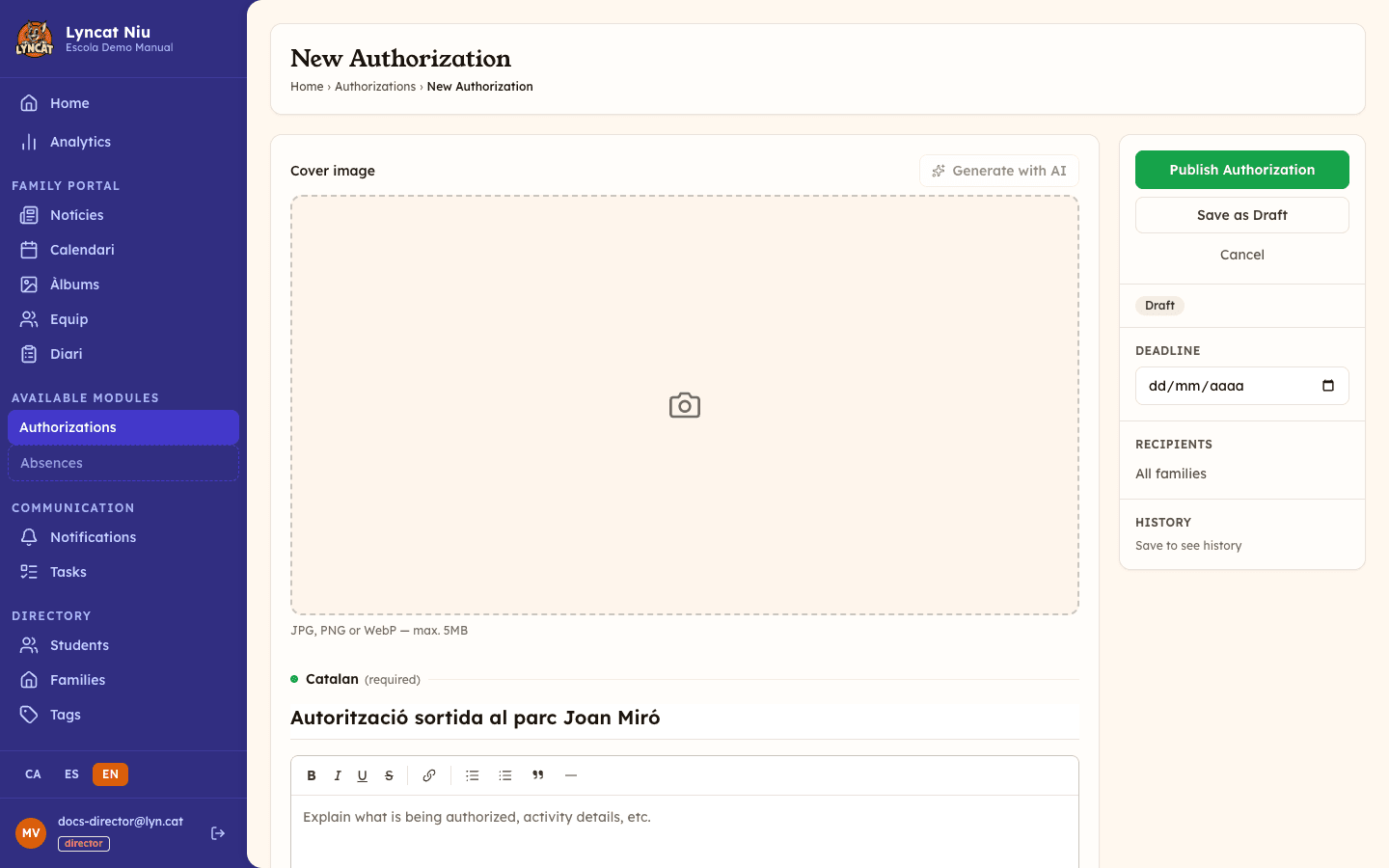
Start a new authorization
Click New authorization (button in the top-right corner).
Fill in the form
- Cover image — optional, but helps families identify the activity at a glance. You can upload a photo (up to 5 MB) or click Generate with AI.
- Title — a short, descriptive name (e.g. Museum field trip authorization). It is requested per language: the title in the school's main language is required in order to publish.
- Description — explain the activity, dates, cost, and any information families need to know.
- Consent label — optional text shown next to the accept and decline buttons (e.g. I authorize the trip). It is also written per language.
- Form fields — beyond the mandatory yes/no response, you can add extra fields (text, long text, number, date, dropdown, multiple choice, or checkbox) to collect additional information such as allergies or an emergency phone number. Each field can be marked as required.
Attach a document and require a signature (optional)
Under Document to validate you can upload a Word, PDF, PNG or JPG file for the family to read before responding. If you turn on Require the family's signature, families must sign with a finger or the mouse to accept; declining never requires a signature. Requiring a signature needs the Brot plan or higher: on the Llavor plan, the checkbox appears disabled.
Configure the sidebar
- Form type — Authorization (consent) or Questionnaire (collect answers). You can change it while it is a draft; it is locked once published or once there are responses.
- Response scope — questionnaires only: One response per family or One response per child. Authorizations are always one response per child.
- Deadline — the date after which families can no longer respond (optional).
- Recipients — by default the form goes to all families. To restrict it, select the relevant tags.
- History — a log of the form's changes (created, published, closed).
Publish or save as draft
- Save as Draft — saves the authorization without sending it. You can keep editing it later; while you edit an existing draft, changes are saved on their own and you can follow them in the save indicator.
- Publish Authorization — asks for confirmation and, once you accept, notifies the recipient families and activates the authorization.
Important
When you open a published authorization, the panel still shows a notice saying that it cannot be edited once published. That text is pending an update: directors can indeed edit it with the Edit button, as explained just below.
Edit a published authorization
With the director role, open the authorization detail and click Edit in the sidebar. The same form opens again, with a banner reminding you that you are editing a published form.
- Changes are applied straight away with the Save changes button, and families see them in the portal.
- No new notification is sent: if the change matters (a new date, a new price), share it through another channel.
- If the authorization already has responses, the structure of the extra fields is locked so those responses stay valid: you can correct field labels, but not add, remove, or change the type of a field.
- Form type and Response scope cannot be changed once published either.
Duplicate an authorization
In the list, authorizations that are not drafts have a Duplicate icon. It creates a draft copy with the same content, fields, and recipients — the title carries the (copy) suffix — and opens the editor straight away. It is the practical way to repeat a trip every year without rebuilding the form.
Questionnaires (no consent needed)
If you want to collect information from families without a yes/no response — for example, a preferences survey — create a questionnaire instead of an authorization: click New Questionnaire in the Authorizations list. The form is set up the same way, but families only submit answers, with no signature or consent. By default it collects one response per family; if you need one response per child, change it under Response scope in the sidebar. Questionnaires appear in their own portal section (Questionnaires), separate from authorizations.
Check response status
Open the authorization detail
In the authorization list, click the title or the View detail icon on the row you want to check.
Review the stats
At the top you will find three counters: Authorized, Not authorized, and Pending. They show the number of responses out of the total families targeted.
Check individual responses
Below the stats you will find the response list. For each family you can see whether they accepted or declined, and any answers to additional fields. If you required a signature, you will also see the electronic signature captured when they accepted.
Export the results if you need to
If the authorization has extra fields, the Results section shows an aggregated summary of the responses (counts or averages depending on the field type). Click Export CSV to download all individual responses as a spreadsheet.
Close, reopen, archive, or delete
The list is split into three tabs — Active, Closed, and Drafts — and each row shows the actions available for that status.
| Action | When to use it |
|---|---|
| Close | When the deadline has passed or you no longer accept responses. Families will not be able to respond. Available on active forms. |
| Reopen | If you need to accept responses again for a closed authorization. |
| Archive | To hide the authorization from the closed list once it is no longer needed. |
| Delete | Drafts only: removes a form you have not published yet. |
Avís
Archiving removes the authorization from the main list. This action is not reversible from the panel.
What to do if...
Families did not receive the authorization notification. The notification is sent automatically on publish. If a family did not receive it, check that they have the app installed and notifications enabled. You can share the authorization through another channel so they can access it from the family portal.
I need to edit a published authorization. With the director role, open it and click Edit: you can correct the title, description, deadline, or recipients and then click Save changes. Remember that no notification is re-sent and that, if there are already responses, the field structure is locked. If the change affects the meaning of the consent, it is cleaner to close the authorization and create a new one (you can duplicate it to save work).
The progress bar does not reach 100% even though everyone has responded. The total is calculated against the number of active students in the school. In questionnaires with the One response per family scope, the total is the number of families. Families without a portal account are counted as pending.
Frequently asked questions
Can I send an authorization to only one class or group? Yes. When creating or editing the draft, use the Recipients selector to choose the tags for the relevant group or year. Families without that tag will not see the authorization.
Can families change their response after submitting? No. The response is final once submitted. If a family needs to change it, you must close and reopen the authorization so it appears for them again.
Do families need to sign to respond to an authorization? Only if you turned it on when creating it (Require the family's signature). If you did, the family must sign with a finger or the mouse from the portal or the app to accept; declining never requires a signature. If you did not turn it on, families respond without signing.
Where is the electronic signature stored? Inside each response you will find the signature captured at the moment of submission. It is kept as evidence and can be reviewed from the panel at any time.
Which role is needed to manage authorizations? Both director and educator can create, publish, close, and archive authorizations. Editing a published one is reserved for the director role.