
Daily report
Record each student's daily activity and publish the report so families can view it in the app.
2026-09-03
Before you start
- Any team member with panel access can fill in and publish daily reports.
- You can filter the grid by tags (groups, classrooms) to see only the students in your group.
- Families receive a notification when you publish their child's report.
Step by step
Filling in a student's report
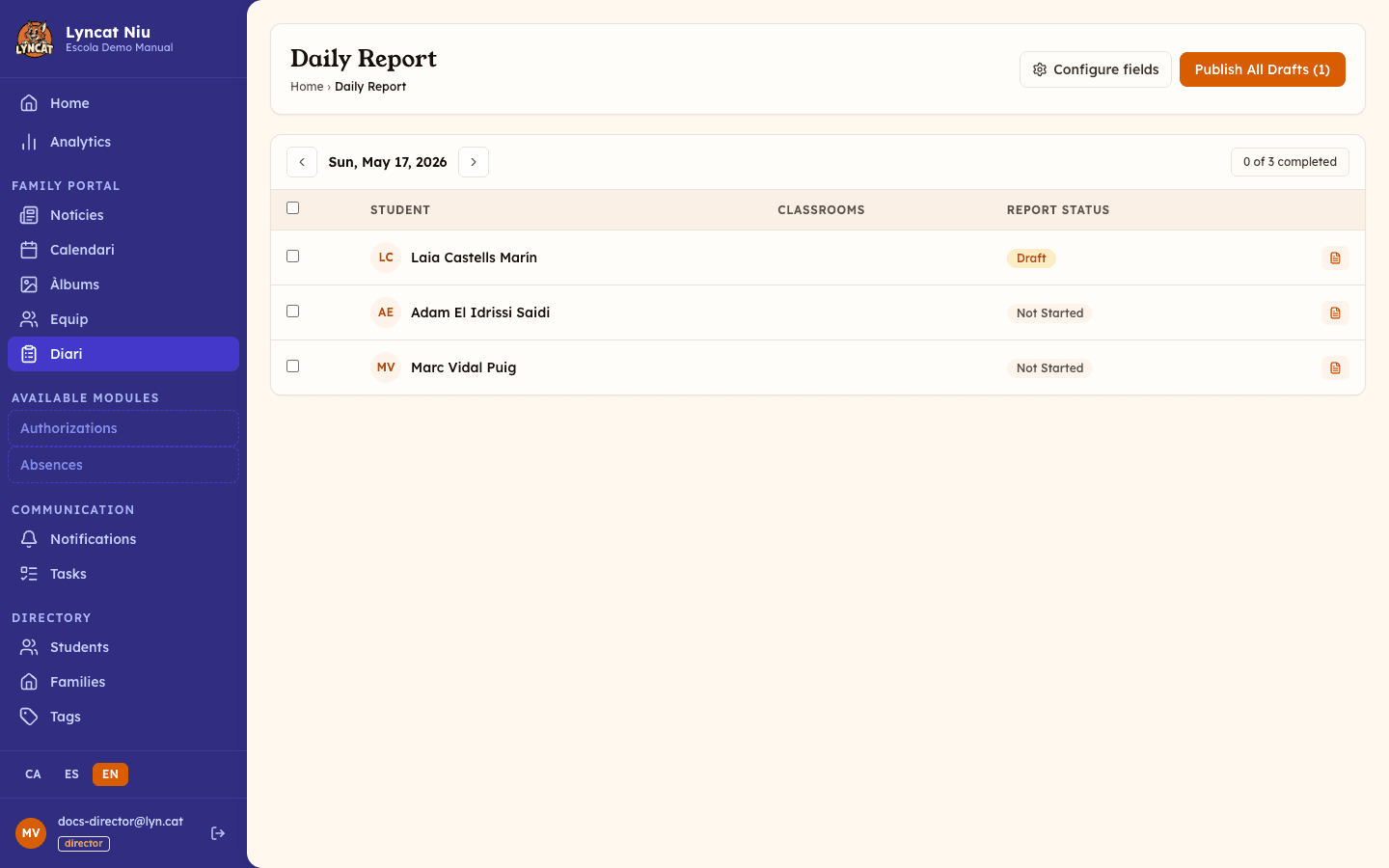
Open the Daily report section
In the left-hand menu, click Daily report under Family portal.
Select the day
Today's date is shown by default. Use the ◀ ▶ arrows to navigate between days, or click Today to return to the current date.
Filter by group if needed
Use the tags selector at the top to see only the students in one group or classroom.
If you sign in with an educator account that has tags assigned, the grid already arrives filtered by yours and the selector only offers those: next to it you will read Showing students from your tags. With a director account, every school tag is listed and no filter is applied by default.
Open a student's report
The grid shows all students with their current status: Not Started, Draft, or Published. Click the student's name (or the document icon at the end of the row) to open the report editor.
On the right of the toolbar, an X of Y completed counter tells you how many reports are already published under the active filter. If a student has a severe allergy recorded in their health record, a warning badge appears next to their name.
Fill in the fields
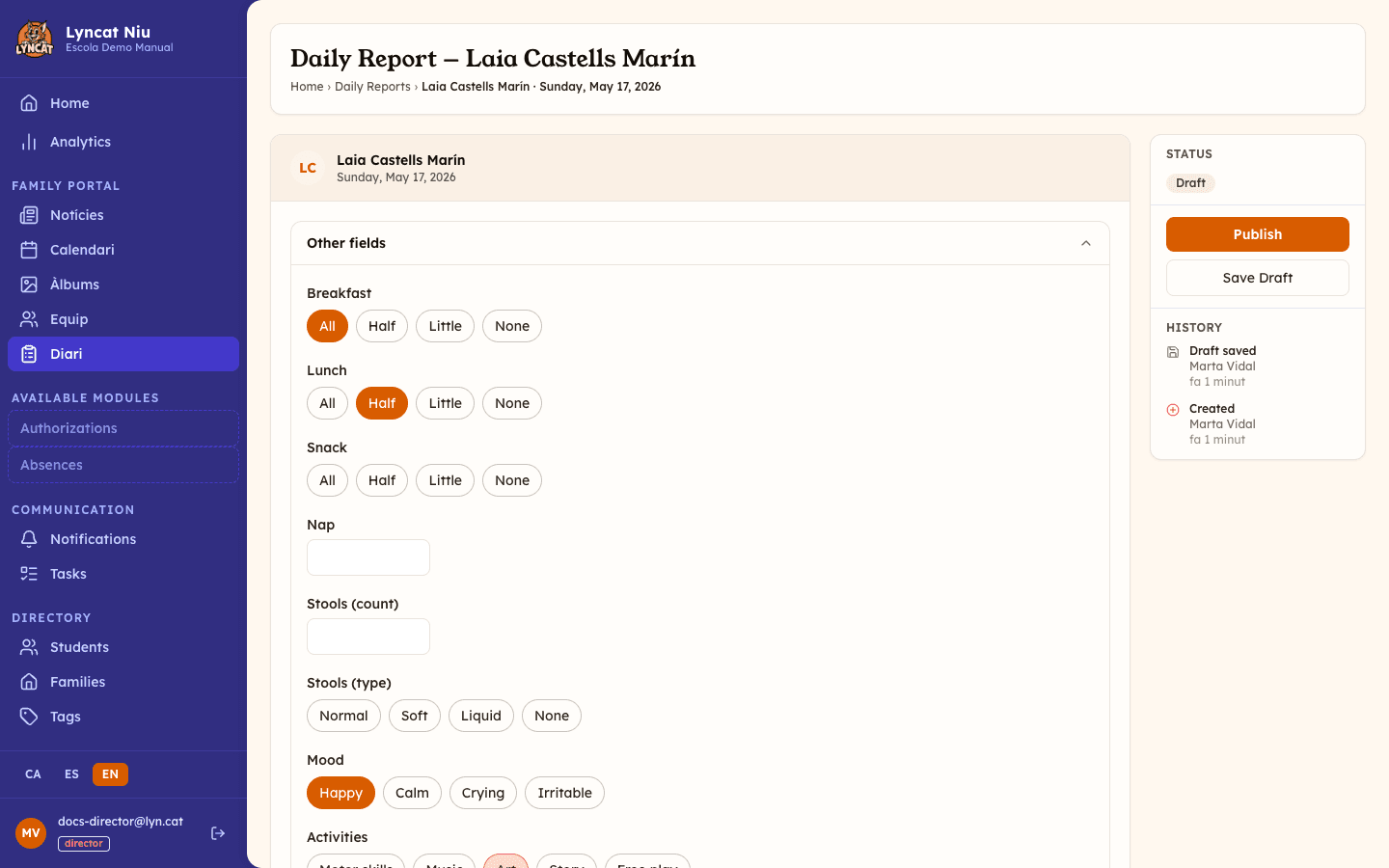
Complete the available sections: meals (breakfast, lunch, snack — with the levels All, Quite a bit, A little or None), mood, activities, sleep (morning, midday and afternoon tracked separately), and stools (also morning, midday and afternoon), plus the Reminders / Notes section with the fields School observations and Materials to bring. Available fields may vary if your school has customised the configuration.
Save or publish
- Save draft — saves the data without publishing. Families cannot see it until you publish.
- Publish — sends the report to the family and marks the student as Published.
- Publish & Next → — publishes and automatically opens the next pending student's report.
Truc
Use Publish & Next → to go through all students in your group without returning to the grid between each one. It respects the active tag filter and only jumps to students in your group.
Editing multiple students at once
Select students
In the grid, check the boxes next to the students you want to edit together. The header checkbox only selects students on the current page; if the filter matches more, a banner appears with the link "Select all X students in filter" to extend the selection to all of them.
Click Edit
A floating action bar will appear. Click Edit to open the bulk editor.
Fill in the shared fields
Complete the fields you want to apply to all selected students. Fields you leave blank will not be updated in the individual reports.
Save as draft
Click Save draft for N students (the button shows how many you selected) to save the changes. You can then publish each report individually or use Publish All Drafts from the grid.
Publishing all drafts at once
From the main grid, click Publish All Drafts (N) —top right, with the number of drafts in brackets— to publish every report with a Draft status in one go. The button only appears when there is at least one draft. Families receive their notification at the moment of publication.
Important
Bulk publishing affects all drafts visible with the active filter. If you have a specific group selected, only that group's drafts will be published.
Family observations
Besides the report the school fills in, families can write a note for the day from the portal or the app (for example, "woke up with a fever today" or "grandpa is picking up today"). It is independent of the report: a family can write one even if the school has not published anything that day, and several guardians can write notes, with an edit history.
These observations appear in the student's daily report view, and staff get a notification (push or email) when a new one arrives.
Important
This feature requires the Brot plan or higher. On the Llavor plan, families do not see the option to write a note.
What to do if...
A student does not appear in the grid. Check that the tag filter is not excluding the student's group. If you have a filter applied, remove it to see all students in the school.
I published the report and it contains a mistake. Once published, the report is locked: if you open it, the fields are greyed out and the publish and save buttons are gone. The family can already see it, so the way to put it right is to tell them directly — for example, with a message from the messaging section — and note the correction in the next day's report. If this happens often, review the report before publishing: while it is a draft you can change it as many times as you need.
The fields I need are not showing in the editor. Report fields can be customised from the settings (available to school directors). If you need a new field, contact the person responsible for your school's configuration.
Frequently asked questions
Do families see the report straight away when I publish it? Yes. As soon as you publish, families receive a notification in the app and can view the report immediately.
Can I fill in reports for previous days? Yes. Use the navigation arrows to go to any previous day and edit or create a report from there.
How long are reports kept? Reports are kept indefinitely in the panel. Families can also view the full history from the family app.
Can I see who filled in or published a report? Yes. Inside each report editor you will find a history log showing who created, saved, and published the document.
Do I have to fill in every field? No. All daily report fields are optional. Fill in only the fields that are relevant to the day's activity.