
Student management
Create and manage student profiles at your school: general data, tags, health records and absences.
2026-08-04
Before you start
- You need the director role to create, deactivate, or reactivate students. Educators can edit the general profile fields (name, tags, photo, notes), but cannot create or deactivate students. They can view Health data in read-only mode, but only the director can edit it.
- To link a student to a family, the family must already exist in the system. You can create one from Directory → Families.
Step by step
Create a new student
Open the Students section
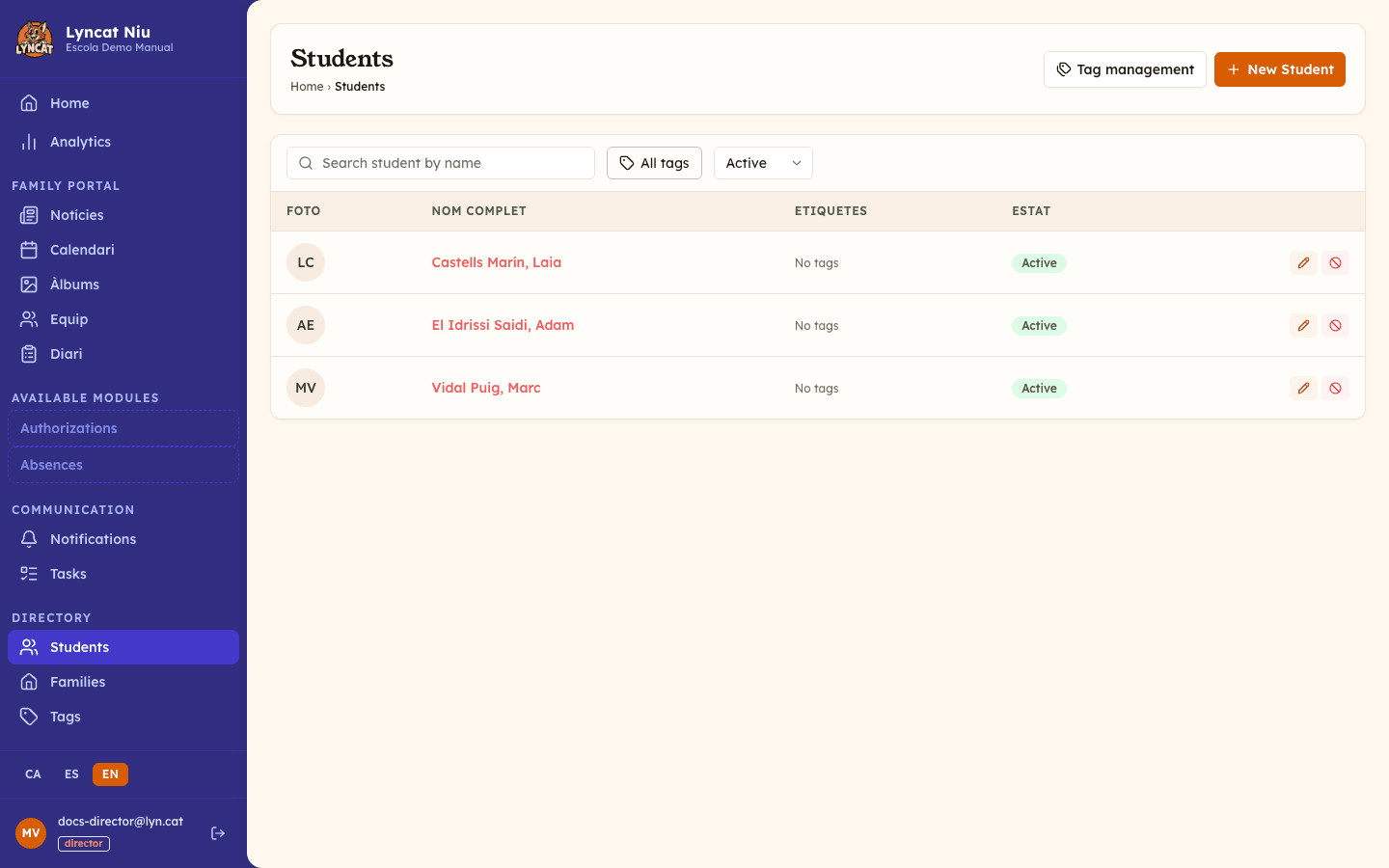
In the sidebar, go to Directory → Students. You will see the full list of students at your school.
Click New student
The New student button is in the top-right corner. If your school's plan has reached the active student limit, the button will inform you and suggest upgrading your plan.
Fill in the general information
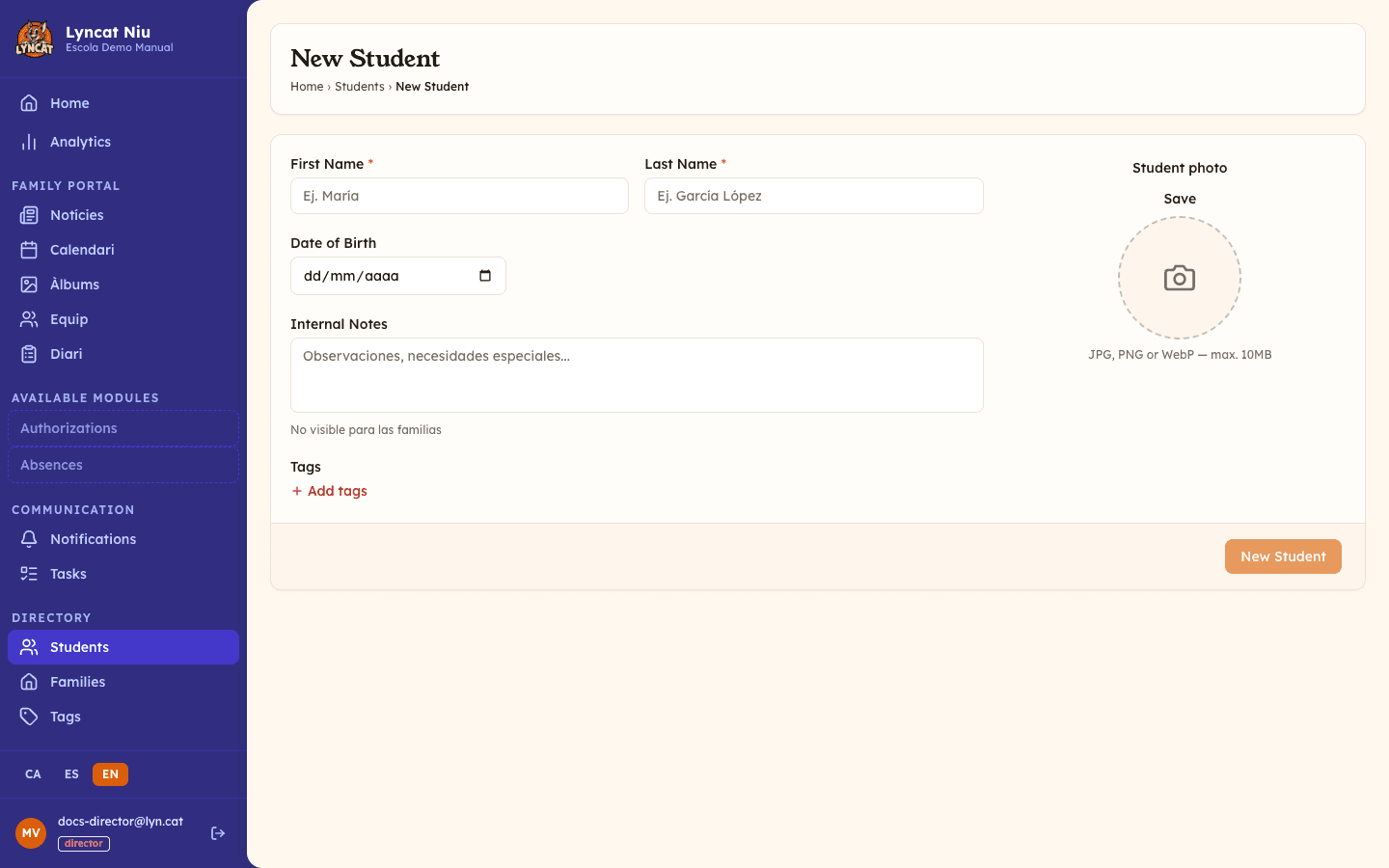
Complete the form fields:
- First name and Last name — required.
- Date of birth — optional; age is calculated automatically.
- Internal notes — free text for team observations. Families cannot see this field.
- Tags — assign one or more tags to group the student by class, group, or year.
- Photo — upload a JPG or PNG image.
Save the profile
Click the New student button at the bottom of the form to save the data and create the student. You will be redirected to the list.
Edit or expand a student profile
From the list, click the pencil icon on any student to open their profile in edit mode. In addition to general information, you will find two extra tabs:
- Health — record allergies and intolerances (with severity: mild, moderate, or severe), regular medications, and relevant medical conditions. Includes emergency contacts specific to the student, in addition to those already in the family profile.
- Absences — the student's absence history.
Deactivate or reactivate a student
A deactivated student does not count toward plan limits and does not appear in the default filters, but their data is preserved. To deactivate, click the ban icon (⊘) in the list. To reactivate, first filter by Inactive and click the check icon (✓).
Filtering the list
The list offers three filtering tools:
- Search by name — type part of the first or last name.
- Filter by tag — select one or more tags to see only students in a specific group or class.
- Filter by status — active students are shown by default; you can switch to Inactive or All.
Exporting data to Excel
In the top-right corner of the list, the Export button (visible to directors only) opens a dialog to generate an Excel document with school data:
- Emergency contacts — contacts marked as emergency, per student.
- Allergies/health — allergies, medications, and medical conditions (marked as sensitive).
- Class roster — students in the group with basic info and phone.
- Family directory — family members with contact details.
Select the lists you need, optionally filter by group/class, and check Include inactive if needed. Click Generate Excel to download the document.
Important
The document contains personal data of minors and, if you include Allergies/health, health data. Use of the file is the school's responsibility.
What to do if...
I can't see the "New student" button
You must be signed in as a director. Educators can edit an existing profile's general information, but cannot create new students.
I've reached my plan's student limit
The system will show a red warning message. You can deactivate students who have left the school to free up places, or upgrade to a higher plan from My Account → Plan.
Health data is not being saved
Make sure to click Save health record inside the Health tab — it has its own save button, separate from the general information form.
Frequently asked questions
Can I link a student to more than one family? No, a student can only be linked to one family at a time. If there is shared custody or several responsible people, add them all as users or contacts within the same family profile instead of creating a second one. See Families for details.
Can families see the internal notes? No. The Internal notes field is only visible to school staff in the admin panel.
Can I recover a deactivated student? Yes. Filter by Inactive in the list and click the reactivation icon. Student data is never deleted.
Can I change a student's photo? Yes. Open the student's profile in edit mode, go to the General tab, and upload a new image in the Student photo field.