
Configure the daily report
Customise which fields and sections make up your school's daily report: create fields, write them in your school's languages, reorder them and turn sections on or off.
2026-09-18
Before you start
- This screen is for directors only. Everyone sees the Configure fields button, but if an educator opens it, the dashboard sends them back to the daily report screen.
- Order and on/off changes (for both fields and sections) are saved instantly; each field editor has its own Save button.
- Field labels are written in your school's content languages. The one in the school's main language is required, and it is what shows for any language you leave blank.
How to get there
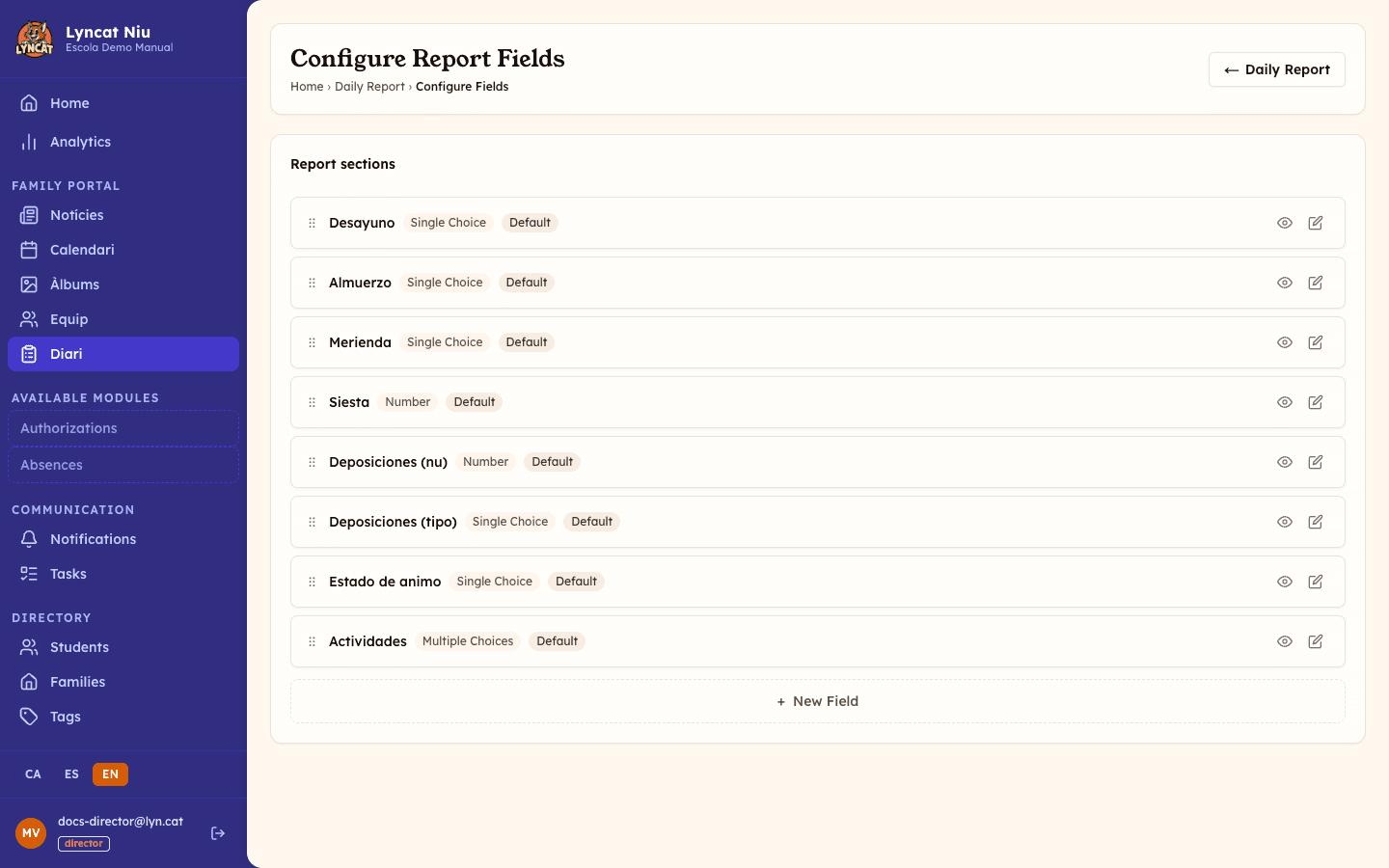
Open the daily report screen from the sidebar and click Configure fields, at the top right. The screen is called Configure Report Fields.
Report sections
At the top you have Report sections (for example meals, sleep, activities). Each section has a switch to turn it on or off: if you turn it off, it stops appearing in the report editor and in the families' app, and so do the fields that belong to it.
Avís
System sections can't be created or deleted from here; you can only turn them on or off. If you need a section that doesn't exist, open a support ticket.
Report fields
Below the sections is the list of fields. Each field shows its label in the language your dashboard is set to, a badge with its type, and a Default badge if it's a standard system field.
Create or edit a field
Open the editor
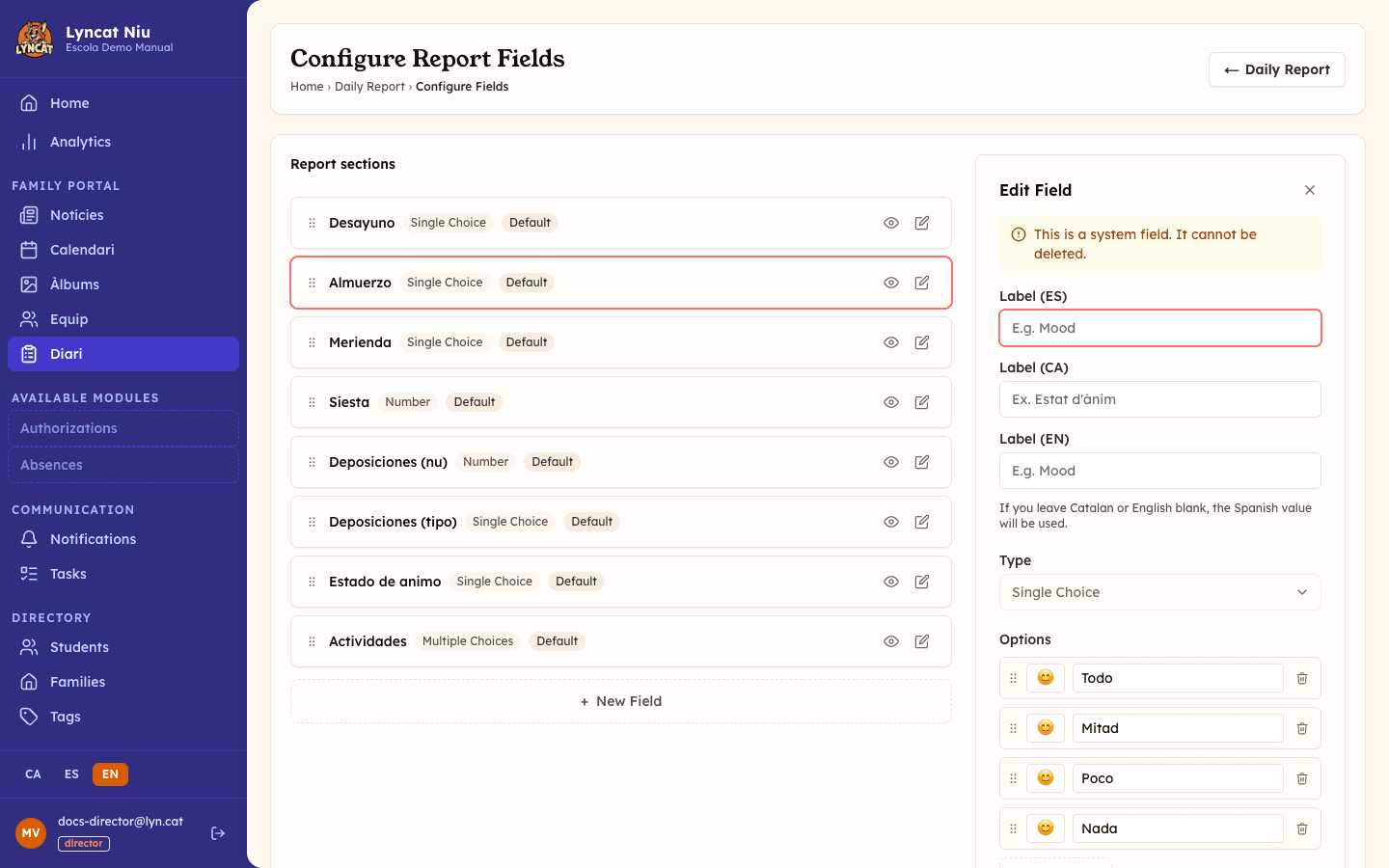
Click New Field to create one, or the pencil icon on an existing field to edit it. The editor opens in the right-hand panel, titled New Field or Edit Field.
Write the field label
Under Field label there is one block per school content language. The main language block opens expanded and marked (required); the rest appear as (optional) and you can collapse them, or add them with the Add [language] button.
Languages you leave blank will show the label in the main language. Removing a language with the cross clears its text.
Choose the field type
- Single Choice — the user picks one.
- Multiple Choices — the user can pick several.
- Number — a numeric value (for example, nap minutes).
- Free Text — a written note.
On Default fields the type is fixed and can't be changed. On your own fields, choose carefully when you create them: once saved, the type stays as it is.
Choose the section
Select the Report section the field belongs to. The dropdown only offers active sections; if the field you are editing points to a disabled one, you'll see it in the list marked (disabled) so that it doesn't change on its own.
A field without a section isn't shown to families, either in the portal or the app. That's why new fields are pre-set to Reminders / Notes, the catch-all section of the report. On Default fields the section is fixed too.
Define the options (if needed)
For the Single Choice and Multiple Choices types, add the options with Add Option. Each option has an emoji and a label, and you can drag them by the handle (⠿) to reorder them, or remove them with the bin icon.
Save
Click Save to store the field, or Cancel to discard the changes.
Turn on, turn off and reorder
- Click a field's eye icon to turn it on or off. A field that's turned off doesn't appear in the report editor or in the families' app.
- Drag a field by the handle (⠿) to change its order. The order is saved automatically and determines how fields are shown when filling in the report and in the family app.
Important
No field is deleted from this screen: the only row actions are the eye (turn on or off) and the pencil (edit). If you no longer want a field, turn it off. On Default fields you also can't change the type or the section.
What to do if...
I click Configure fields and end up back on the daily report screen. This setting is exclusive to directors. The button is still visible on an educator account, but the screen sends you back. Ask the person in charge of the school to make the change.
I turned off a field and families no longer see it. That's the expected behaviour: turning off a field or section hides it both in the editor and in the family app. Turn it back on to restore it.
I want the same field in every school language. Fill in the label block for each language in the field editor. If you only fill one, remember the required one is the main language, and that's what shows as the fallback.
I added a new language to the school and the old fields don't have it. Open each field, add the new language block with Add [language] and write the label. Until you do, those fields show in the main language.
Frequently asked questions
Do the changes affect already-published reports? Configuration changes apply to reports filled in from now on. Already-published reports keep what was recorded.
Can I reorder the fields without saving anything? The order is saved automatically as you drag; no extra action is needed.
Can I delete a field I no longer use? Not from here. Fields are turned off, not deleted, so older reports keep whatever was recorded in them.
Who sees the fields I configure? Educators when they fill in the report and families when they read it in the app. That's why the configuration is shared across the whole school.