
Account settings
Update your personal details, change your password, and configure your school's name, logo and contact information — all from one place.
2026-08-19
Before you start
Settings are split into two areas:
- My profile — available to all users. Changes affect only your own account.
- School account — only accessible to users with the Director role. Changes affect the whole school.
Step by step
My profile
Open your profile
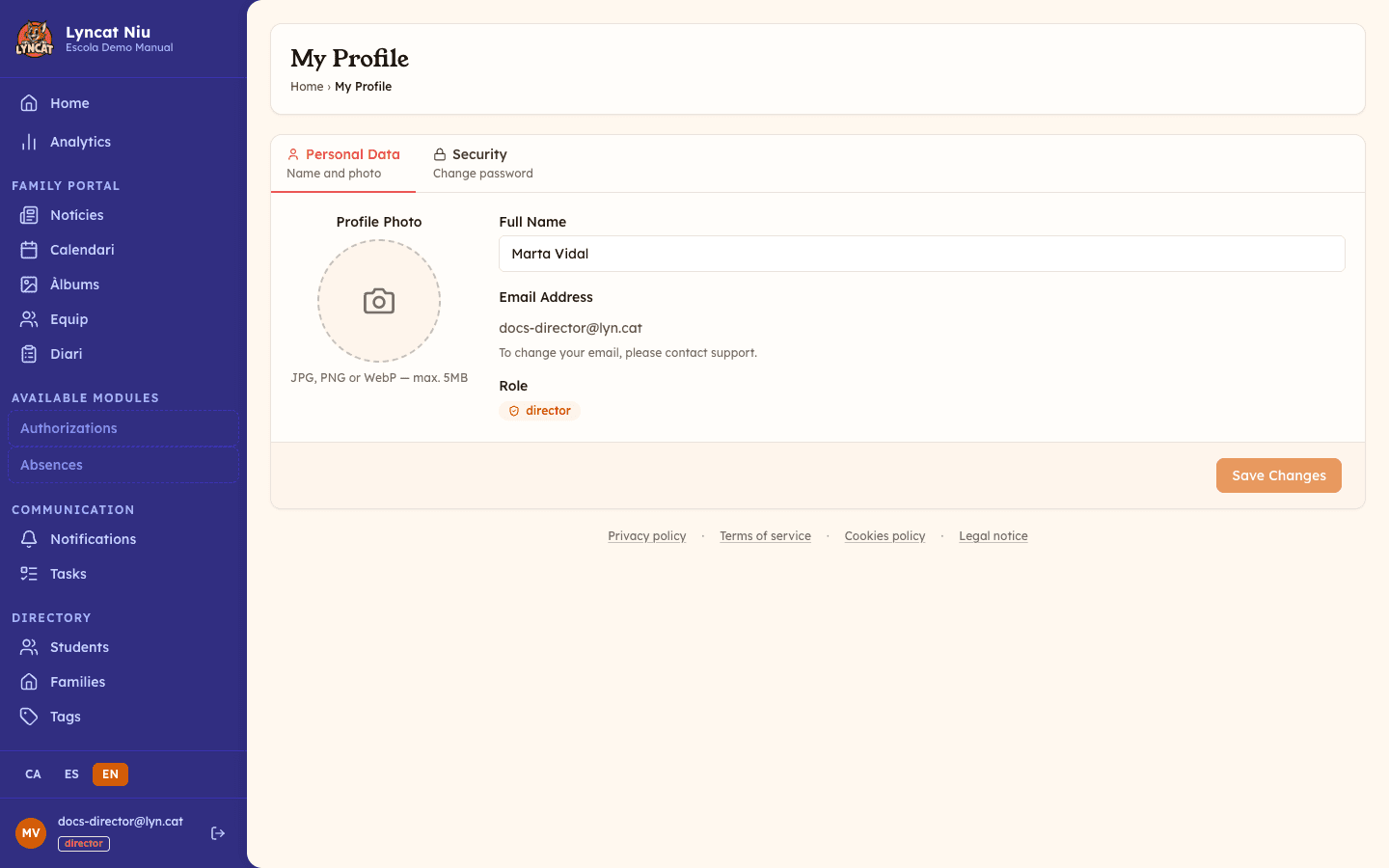
At the bottom of the sidebar, click your name or avatar to open your personal profile.
Update your name and photo
On the Personal data tab:
- Full name — the name other team members will see.
- Profile photo — click the avatar to upload a JPG, PNG or WebP image (max 5 MB).
Your email address is shown as read-only. To change it, contact support.
Click Save changes to apply.
Change your password
Go to the Security tab. Type your new password (minimum 8 characters), confirm it in the second field, and click Change password.
You will need to use the new password the next time you sign in.
Manage your tags (optional)
On the Tags tab you can select the groups you are assigned to. These tags are used as automatic filters in sections like the daily report — for example, to show only the students in your group.
If no tags have been created in your school yet, this tab will not appear.
School account
Important
This section is only visible to users with the Director role.
Open school settings
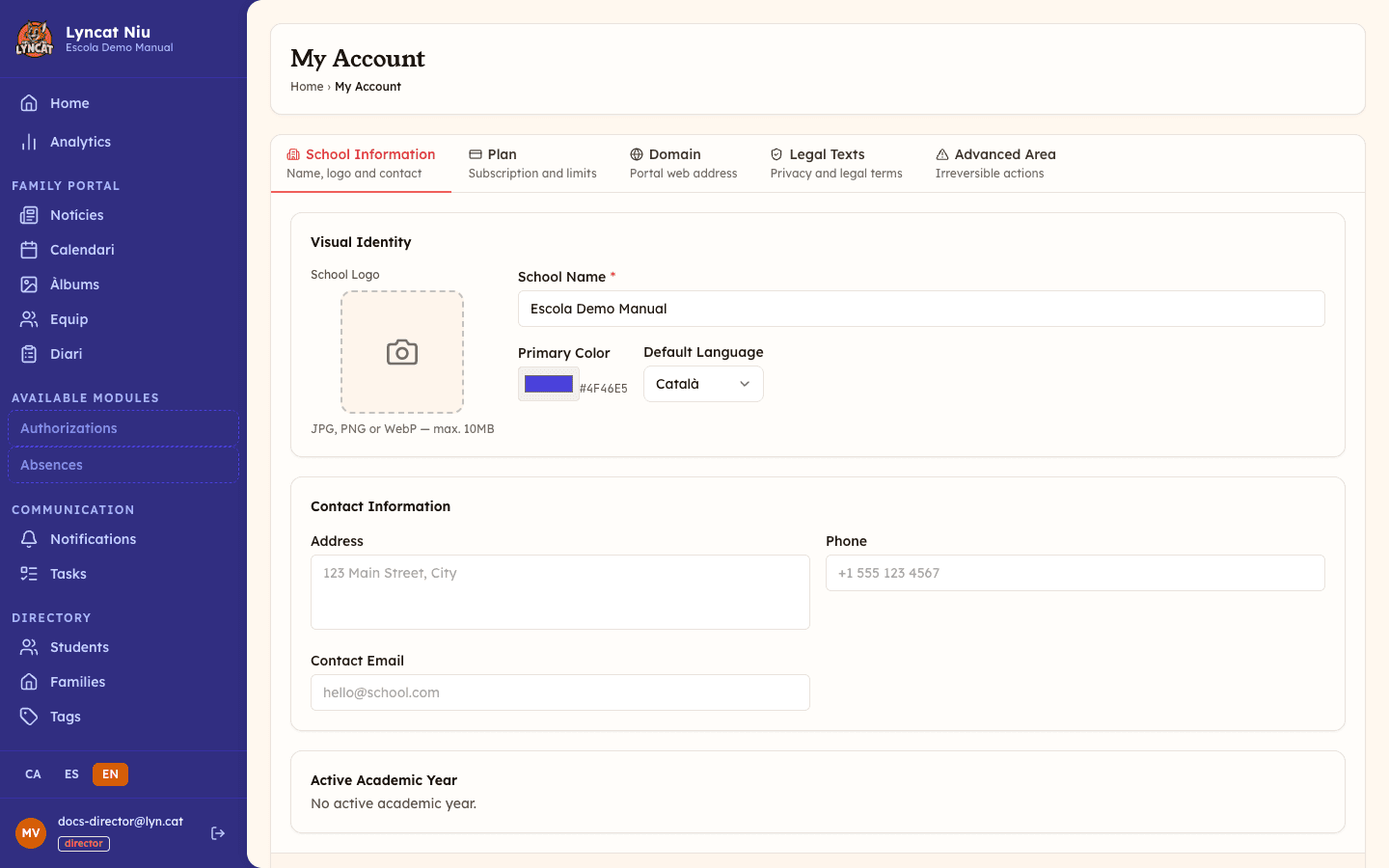
In the sidebar, click My Account. You will see six tabs: School Information, Plan, Domain, Languages, Legal Texts and Advanced Area.
Update school data
On the School Information tab you can edit:
- School name — shown in the family portal and in documents.
- Logo — upload a JPG, PNG or WebP image (max 5 MB). The logo appears in the public portal and in emails.
- Primary colour — sets the brand colour of the portal.
- Default language — the language shown to families in the portal. The dropdown only offers the languages your school has enabled on the Languages tab.
- Contact details — address, phone number and contact email.
Further down you will also see your school's active academic year, shown for reference.
Click Save changes to apply.
Review your plan and invoices
The Plan tab shows your current subscription: active plan, monthly price, and usage (students and storage). From here you can manage your subscription or view recent invoices.
The same tab shows your school's AI capacity and, if the school has an active payment method, an AI capacity top-up card to buy an extra pack that never expires.
Set up a custom domain (optional)
On the Domain tab you can connect the family portal to your own domain, for example portal.yourschool.com. See the Custom domain guide for the full step-by-step process.
Choose your school's languages (optional)
On the Languages tab you can choose which languages your school works with, beyond Catalan, Spanish and English — for example French, Arabic, Chinese, Romanian, Portuguese or Ukrainian. The primary language (the one you write original content in, and which AI translation works from) cannot be disabled. Enabling a right-to-left language, such as Arabic, shows a warning. Click Save languages to apply your changes.
Languages you enable here appear as extra translation blocks in the news, event, notification, authorization, portal menu and staff editors.
Complete your legal texts
On the Legal Texts tab, enter your entity details (legal name, tax ID, legal address, contact and DPO emails) and generate or edit your privacy policy and terms of use. When the text is ready, click Approve and publish to make it available in the portal.
Advanced zone (data and irreversible actions)
The Advanced Area tab contains two actions:
- Export all data — generates a single Excel file with all the school's active data: students, health, families and guardians, emergency contacts, staff, groups, absences and authorisations. Intended for the final export at the end of the contract or before deactivating the school. The document contains personal data of minors and health data; storing and using it in line with GDPR is the school's responsibility. It does not include attachments or photographs.
- Deactivate school — suspends access for all families and educators. It cannot easily be undone from the panel.
Both actions ask for explicit confirmation before running. For Deactivate school you must also type your school identifier into the field shown in the confirmation window: until it matches, the button stays disabled.
Truc
If you are unsure what to write in your legal texts, click Generate with AI — Niu will draft a starting point based on your school data. Review and adjust it before publishing.
Important
If your school has the white-label option, the same School Information tab has a Public app access toggle: it lets anyone open the school's app without an account and see published content without tags, the school's information and the team. Family sections (daily reports, authorizations, absences…) and tagged content stay private. Only applies to the white-label app.
What to do if…
I cannot save my name
The full name must be at least 2 characters long. Make sure the field is not blank or filled with spaces only.
I cannot access "School account"
This section requires the Director role. If you need access, ask whoever manages the school to grant you the right role.
The photo does not upload
Make sure the image is in JPG, PNG or WebP format and under 5 MB. If the problem persists, try a different browser or contact support.
Frequently asked questions
Can I change my email address? Not from the panel. Your email is your login identity and cannot be changed directly. Contact support at suport@lyn.cat if you need to update it.
Do changes to the school name appear immediately? Yes. As soon as you save the changes, the new name is shown in the family portal and in all system-generated emails.
Can I upload a logo with a transparent background? Yes, PNG images with an alpha channel (transparency) work correctly. A transparent PNG is the best option if you want the logo to look good on both white and coloured backgrounds.
Who can change the school's primary colour? Only users with the Director role.