
Support
Open support tickets with the Lyncat Niu team, track them and reply right from your school dashboard.
2026-08-31
Before you start
- Both directors and educators can access it.
- The list shows every ticket from your school, including those opened by someone else on your team. You never see tickets from other schools.
- Before opening a ticket, take a look at the Help Center: many questions are already answered there with step-by-step guides.
How to get there
In the sidebar, under the Help section, click Support.
Step by step
Open a new ticket
Open the Support section
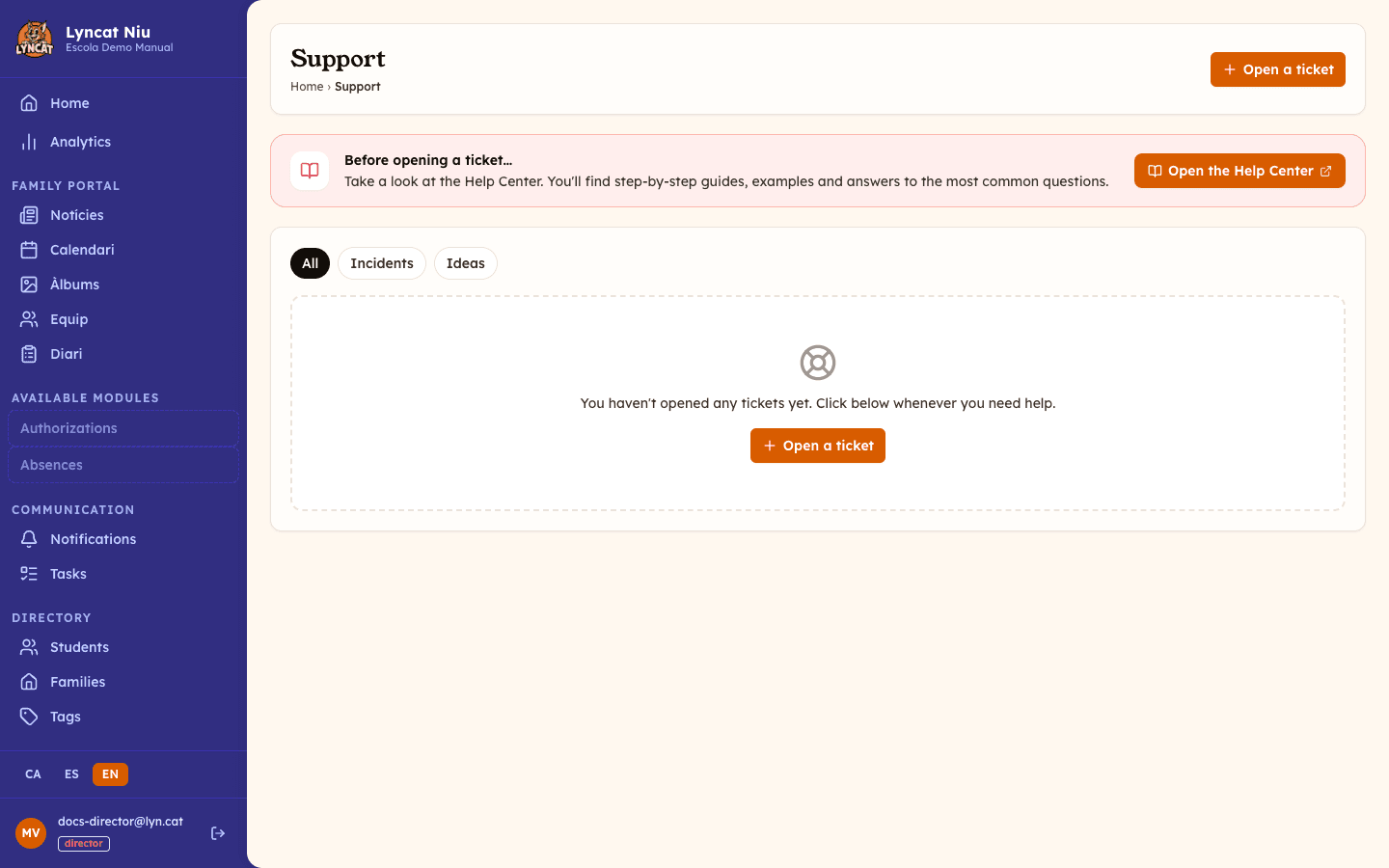
In the sidebar, under Help, click Support. You'll see the list of your school's tickets with a counter per status (Open, Responded, Closed) and the All / Incidents / Ideas filters.
Click Open a ticket
Press the Open a ticket button. If you don't have any yet, the button also appears in the middle of the empty screen.
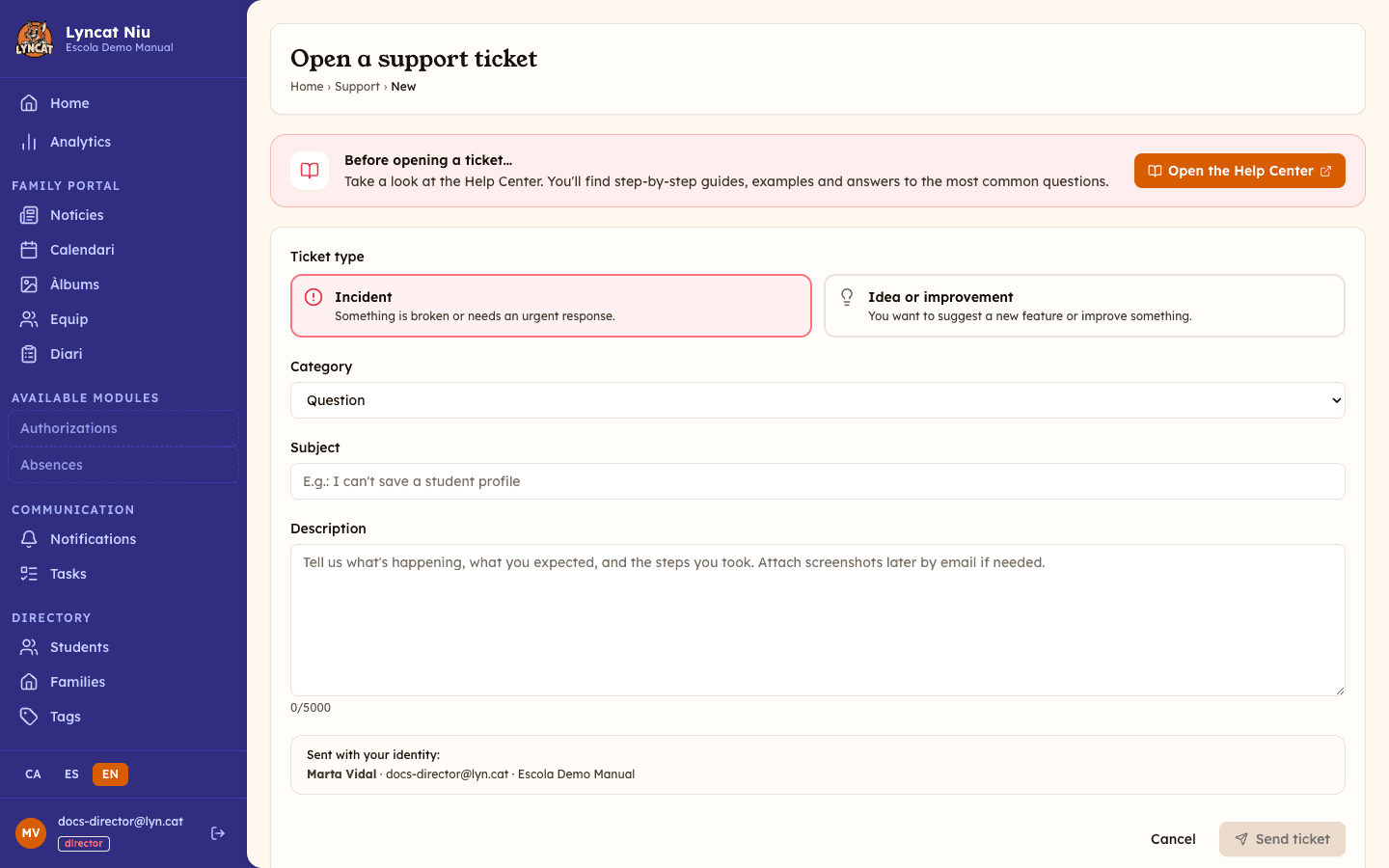
Choose the type
- Incident — something is broken or needs an urgent response.
- Idea or improvement — you want to suggest a new feature or improve something.
Choose the category
Pick the one that fits best: Error / bug, Question, Billing, Feature or Other.
Write the subject and the description
Add a clear subject (at least 3 characters) and a description (at least 5 characters). The more specific you are —what happens, what you expected and the steps you took—, the faster we can help.
Send the ticket
Click Send ticket. It is sent with your name and email, and we'll notify you by email when we reply.
Truc
You can't attach files from the form. If you have screenshots that help explain the problem, email them after creating the ticket.
Track and reply to a ticket
Open the ticket
In the list, click any ticket to open it. You'll see the full conversation: your messages and the replies from the Lyncat Niu team.
Add a reply
Write your message in the Add a reply field and click Send reply. When you reply, the ticket is marked as Open again so your reply reaches us.
Only the person who opened the ticket can reply to it. The rest of the team can read it, but any attempt to send a reply returns an error; in that case it is better to open a ticket of your own.
Important
Once we close a ticket, no more replies can be added. If you need new help about an already-closed topic, open a new ticket.
Ticket statuses
- Open — you sent it (or replied) and it's awaiting our response.
- Responded — the Lyncat Niu team has answered and is waiting for your reaction.
- Closed — the conversation is considered resolved. You don't close tickets; we do, once the topic is settled.
What to do if...
I can't find the Support button in the menu. Make sure you're signed in to the school dashboard. The Support section is inside the Help group of the sidebar.
I want to attach a screenshot or a document. The form doesn't support attachments. Create the ticket and then reply to us by email with the files.
The ticket shows as Closed but the topic isn't resolved. Open a new ticket explaining that the problem continues; you can summarise or link the previous ticket in the description.
Frequently asked questions
Who receives the tickets I open? The Lyncat Niu team. They are not visible to the families at your school.
How do I know I've been answered? You'll get an email notification and the ticket will move to the Responded status in the list.
Can I reopen a closed ticket? Not directly. Open a new ticket; if you like, reference the old one in the description so we have the context.