
Public site
Set up and publish your school's public website: hero image, multilingual text, photo gallery, and visibility options.
2026-09-09
Before you start
- You need the Director role to access this section.
- The site is available at
your-school.lyn.cat. If you have set up a custom domain, that will be used instead. - The Hero title field for the default language is required: you cannot save the draft or publish without filling it in.
- If you want to show a photo gallery on the public site, you first need at least one published album with no user tags (created from a gallery section in the Navigation menu).
Step by step
Open Public website
In the panel's side menu, click Public site. If the site has never been published, you will see the form in draft mode.
Upload the hero image
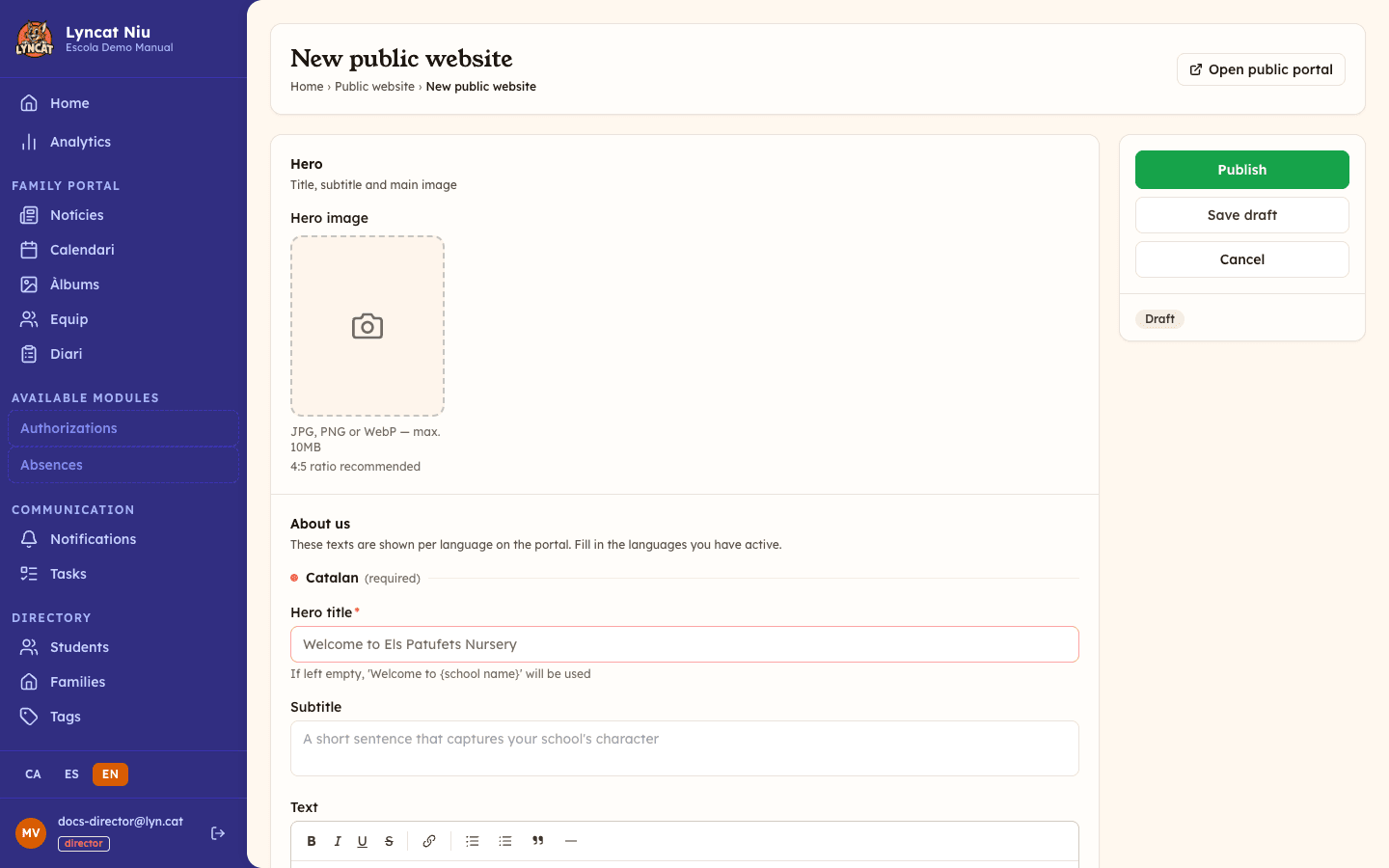
In the Hero section, click the upload area and select the cover image for your school: a JPG, PNG or WebP file of up to 5 MB. A 4:5 ratio is recommended (for example, 800 × 1000 pixels).
Write the title and subtitle
Under About us there is one text block per language your school has active, led by the block for the default language.
Fill in the Hero title field with the school's name or tagline (up to 120 characters). The Subtitle is optional: a short sentence that captures the character of your school, up to 200 characters.
Add an 'About us' text (optional)
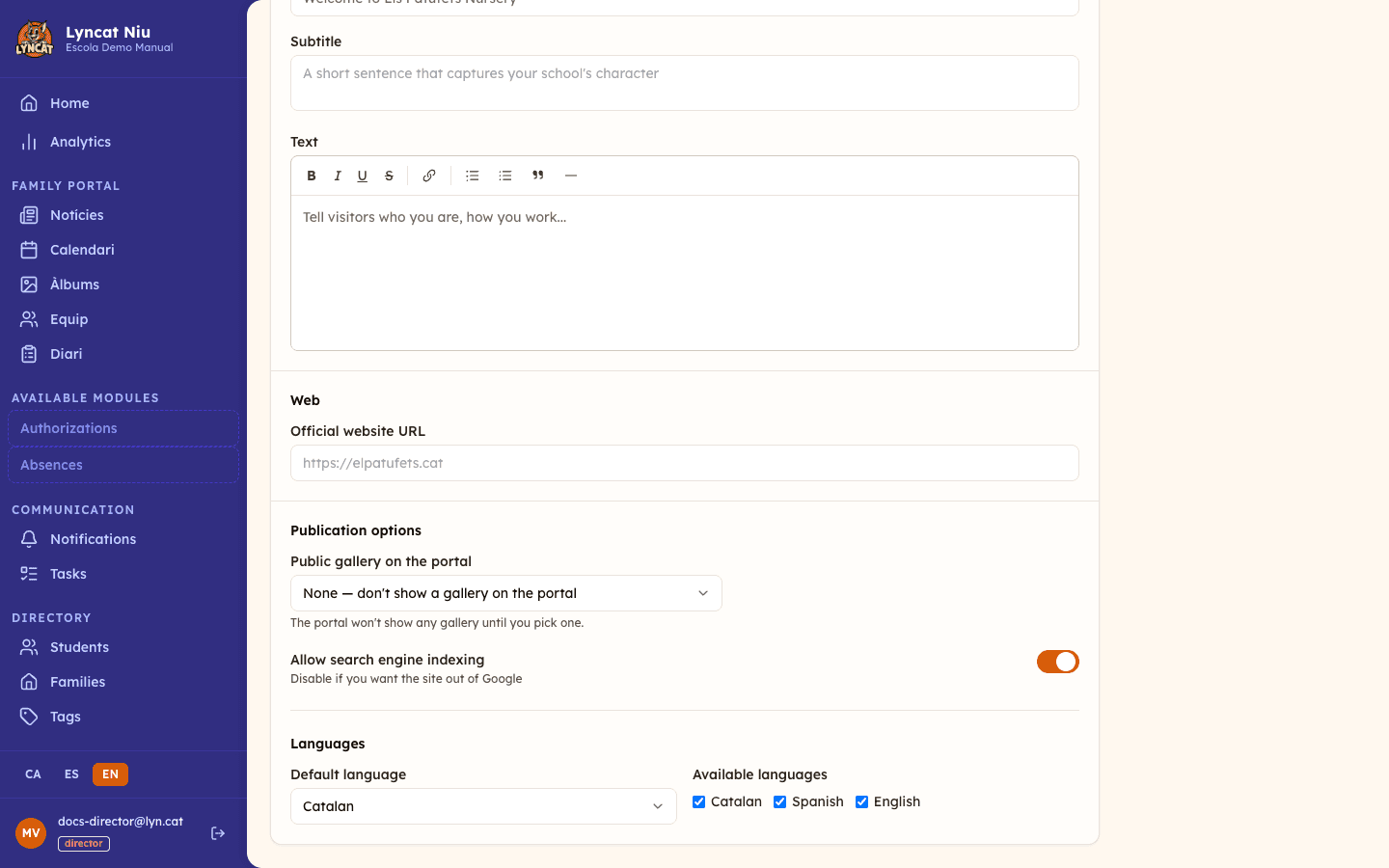
In the same block for each language, the Text field accepts rich content: who you are, how you work, and what your teaching approach is. It holds up to 4,000 characters.
Configure publication options
- Official website URL (Web section): if the school has an external website, add its address. It must start with
https://. - Public albums: if you want to show a photo gallery on the site, click Add albums, search them by title and confirm your selection. You can only pick published albums with no user tags; by default none are shown. The cross on each row removes it from the public website.
- Allow search engine indexing: enable or disable whether Google and other search engines can find the site.
Choose the languages
At the bottom of the form, inside Publication options, you will find the Languages block.
Under Default language, choose the site's main language; the dropdown offers Niu's eleven content languages (Catalan, Spanish, English, French, Arabic, Chinese, Romanian, Portuguese, Ukrainian, German and Italian). Under Available languages, tick the other languages you want to offer: each one adds its text block above. The default language's checkbox is ticked and locked, because it must always be one of the available languages.
Publish the site
When the content is ready, click Publish. The site will be accessible to everyone immediately.
If you prefer to save your work without publishing, click Save draft. While the site is unpublished, an amber banner at the top reminds you that families still cannot see it and that saving the draft does not make it visible.
Truc
To preview the site as families see it, click the Open public portal button in the top-right corner of the page.
Editing the site after publishing
Once published, the site is shown in read-only mode. To make changes:
- Click the Edit button (in the coral banner or in the right sidebar).
- Make the changes you need in the form.
- Click Save changes to apply them immediately, or Discard changes to revert to the published version.
Important
Changes are published immediately when you click Save changes. There is no preview step before they go live.
The sidebar also has a Public site active switch, independent of the form: turn it off to make the site instantly inaccessible (families will still see the content in the app and the private portal), with no need to discard any changes in progress. Turn it back on to restore it, also instantly.
What to do if…
The site is not accessible at the expected address
Check that the site status shows Published in the sidebar. If you have set up a custom domain, verify that the DNS configuration is complete in the Custom domain section.
The gallery is not showing on the public site
Verify that you have added at least one album under Public albums and that it is still published. If a selected album no longer meets the requirements (for example, if you add a user tag to it or unpublish it), it will show as "No longer public" and won't display on the site until you remove it or make it eligible again.
I cannot save or publish because the hero title is required
The title is mandatory for the default language, both to save the draft and to publish. Fill in the Hero title field on the default language tab and try again.
I cannot untick the default language under "Available languages"
That is intentional: the default language must always be one of the available ones, which is why its checkbox is ticked and locked. If you want to drop it from the website, pick a different Default language first, then untick the previous one.
I changed the default language and the previous one's text looks lost
It is not lost. Saving keeps the text of every language you have filled in, even if you untick one. Tick it again under Available languages and the title, subtitle and text are still there.
Frequently asked questions
Where do families see the public site?
At your-school.lyn.cat (or your custom domain if you have configured one). No login is required to access it.
Can I keep the site accessible by direct URL but out of search results? Yes. Disable Allow search engine indexing and the site will remain accessible by direct link but will not appear in search results.
Can I publish the site in a single language? Yes. In the Available languages checkboxes, leave only the language you need active.
Is the gallery shown on the public site the same one families see in the private portal? Not exactly. In the private portal, families see all published albums for their tags. On the public site, only the albums you explicitly choose under Public albums are shown — and only those with no user tags, since the public site is visible to everyone.