
Create event
Add an event to the portal calendar so families can see it with date, time and location.
2026-09-26
When to use an event
Use an event when the communication has a specific date: a field trip, a parents' meeting, a school celebration. For announcements without a fixed date or location, use Publish news.
Step by step
Open the calendar section
In the left menu, click the Calendar section (under Family portal). If the school has no calendar section yet, you will first need to create one from Navigation menu.
Create a new entry
In the top right corner of the section, click the New entry button. The event editor will open.
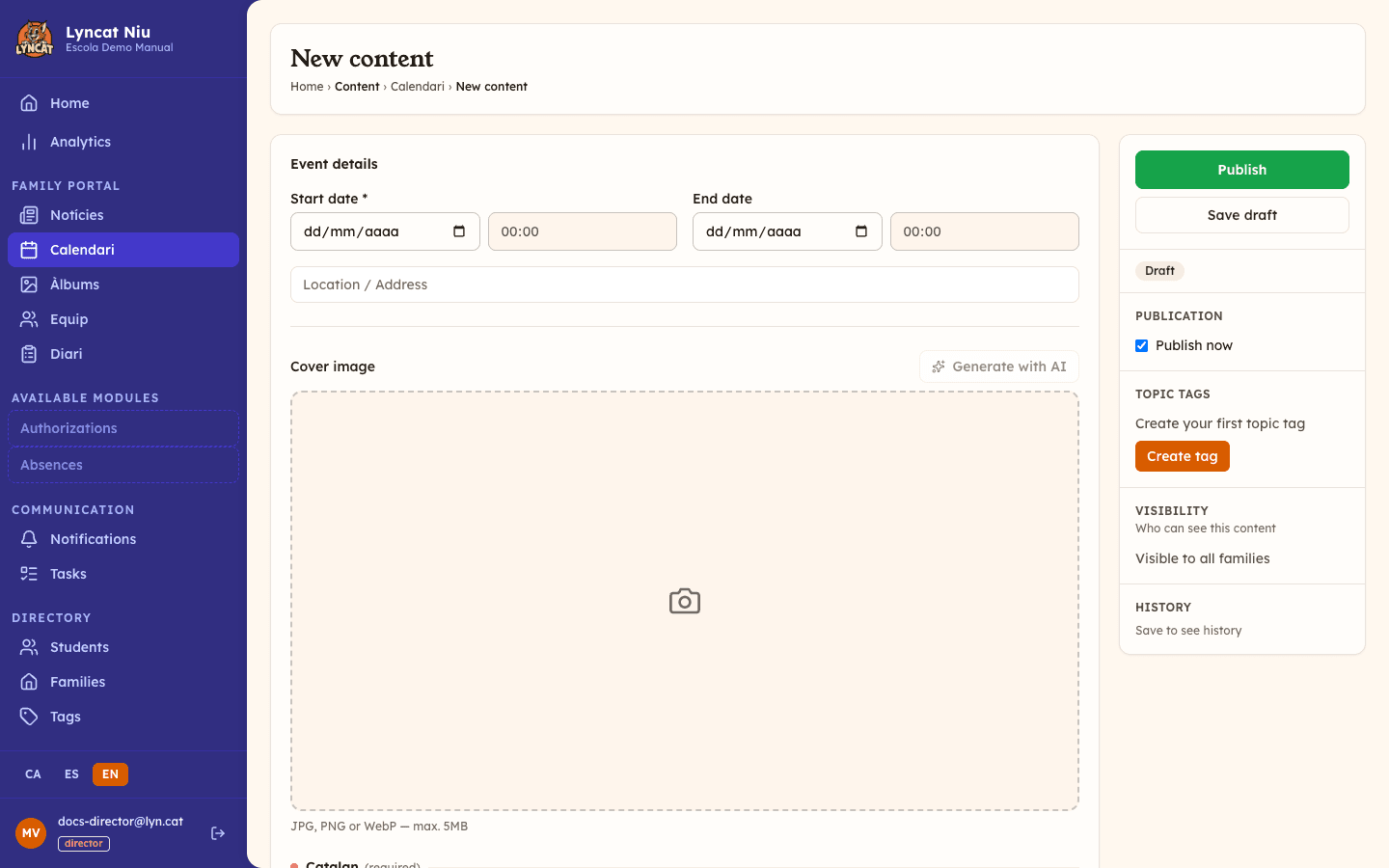
Fill in the event details
At the top of the editor you will find the calendar-specific fields:
- Start date — required. Set the day and time the event begins.
- End date — optional. Fill it in if the event lasts a full day or several days.
- Publication date — optional. Leave it empty to make it visible as soon as you publish it; set a future date and time if you want it to appear later.
If you set an end date earlier than the start date, the editor warns you and will not let you publish.
Add a cover image (optional)
Below the details there is a Cover image field: this is the image shown with the event in the portal calendar. Files up to 5 MB are accepted. If you have none, click Generate with AI and Niu will suggest one based on the title and text (the content must be saved and have a title or body first; it uses one of the month's AI tasks).
Write the title, location and content
Write the event title. Right below it there is a Location / Address field, optional: for example, Assembly hall or Town park. The body is optional too: you can add a description of the activity, required materials or directions.
If your school works in more than one language, the editor shows one block per active language, and the title, location and body are asked for inside each block. The title in the main language is required; you can fill in the rest by hand or with the Generate translations button.
Add photos (optional)
Below the content body you'll find the Photos block, where you can upload several images that will show as a gallery inside the event itself.
Choose visibility
In the right panel, under Visibility, select the groups that should see the event. If you choose none, it will be visible to all families in the school.
Right above it there is an optional Topic tags field: it lets families filter content by subject on the portal. You can read more in Tags.
Publish the event
Click Publish. If you left the Publication date field empty (step 3), the event will be visible immediately. If you had set a future date, it will be scheduled and appear automatically at that time.
Truc
If you want to prepare the event in advance without making it visible, click Save draft. You can publish it whenever you are ready from the same page.
Edit or archive an event
To edit a published event, open it and click Edit. A private draft will open for you to modify. When ready, click Publish changes to apply the modifications.
To archive an event, open it and click Archive. It will disappear from the portal but remain in the panel for reference.
Avís
Deleting permanently an event is irreversible: it disappears from the portal and the panel. To confirm, you will have to type the word ELIMINAR in the window that appears. Only director accounts see this option. If in doubt, archive it first and delete it later.
What to do if...
The "New entry" button does not appear. Check that you have permission to publish content in that section. If you are an educator, your school may restrict publishing to the management team.
I cannot find any calendar section in the menu. The school has no Calendar section configured yet. Go to Navigation menu to create one.
The event does not appear on the portal even though it is published. Check that the calendar section where you created the event is visible on the portal and that it is not deactivated or limited to a group the family does not belong to.
Frequently asked questions
Are families notified when I publish an event? Yes. When you publish, families who have access to the event receive a push notification and an email.
Can I have more than one calendar section? Yes. A school can have several calendar sections for different purposes, for example a general school calendar and one for extracurricular activities.
Can I attach a document to the event? Yes. Below the content you'll find the Actions section, where you can add a Document button and upload the file directly (as well as phone call, WhatsApp, email, map, link, photo album, or another calendar event).