
Navigation menu
Create and organize the sections that will appear in the families' portal: news, calendar, gallery and more.
2026-09-13
Before you start
- Only directors can access and modify the navigation menu.
- Changes to the menu take effect in the families' portal as soon as you publish each section.
- A section can exist but remain hidden: families do not see it until you mark it as visible.
Step by step
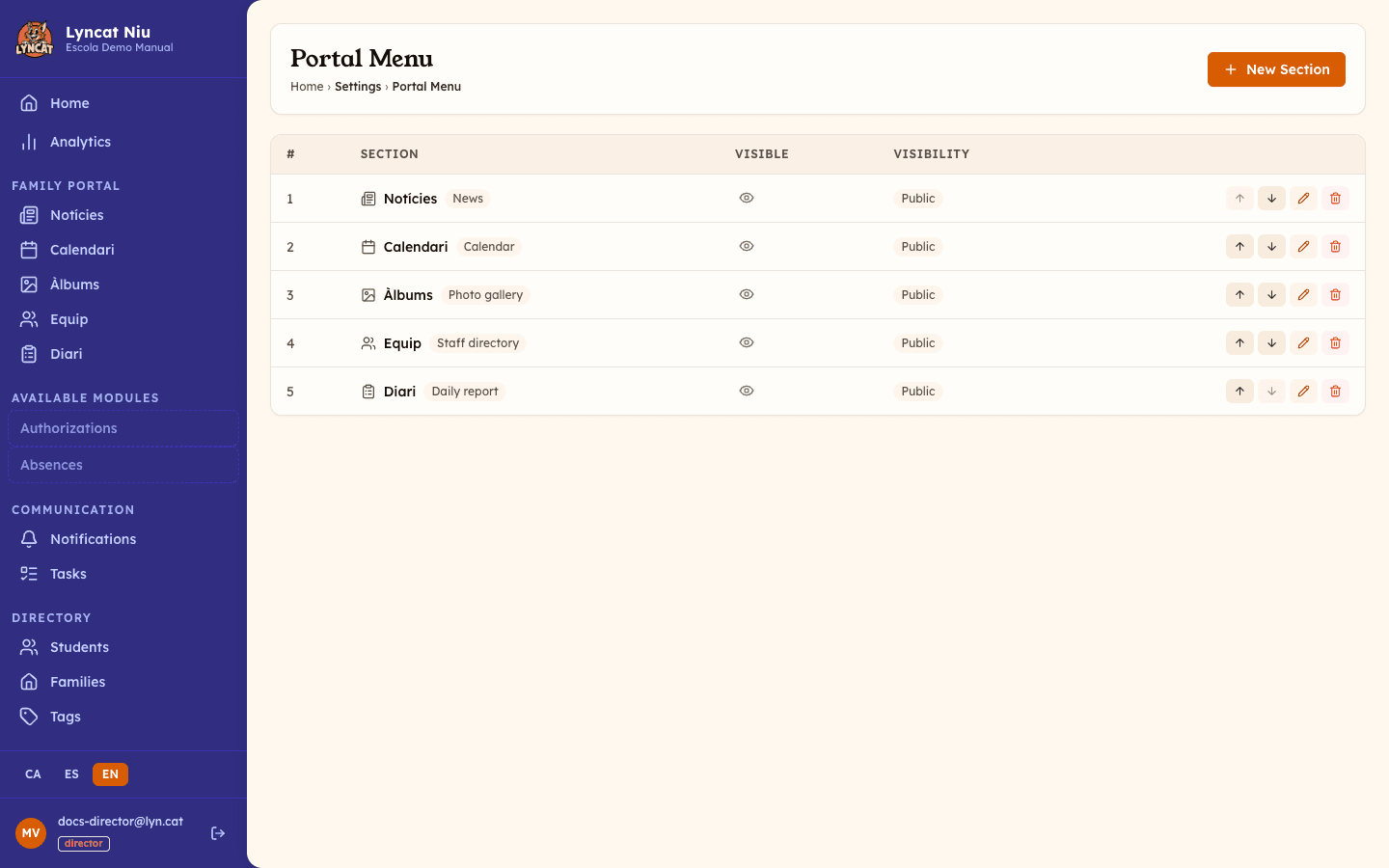
Open the Portal menu
In the panel's left sidebar, click Portal Menu (Settings section). You will see a list of all current portal sections.
Create a new section
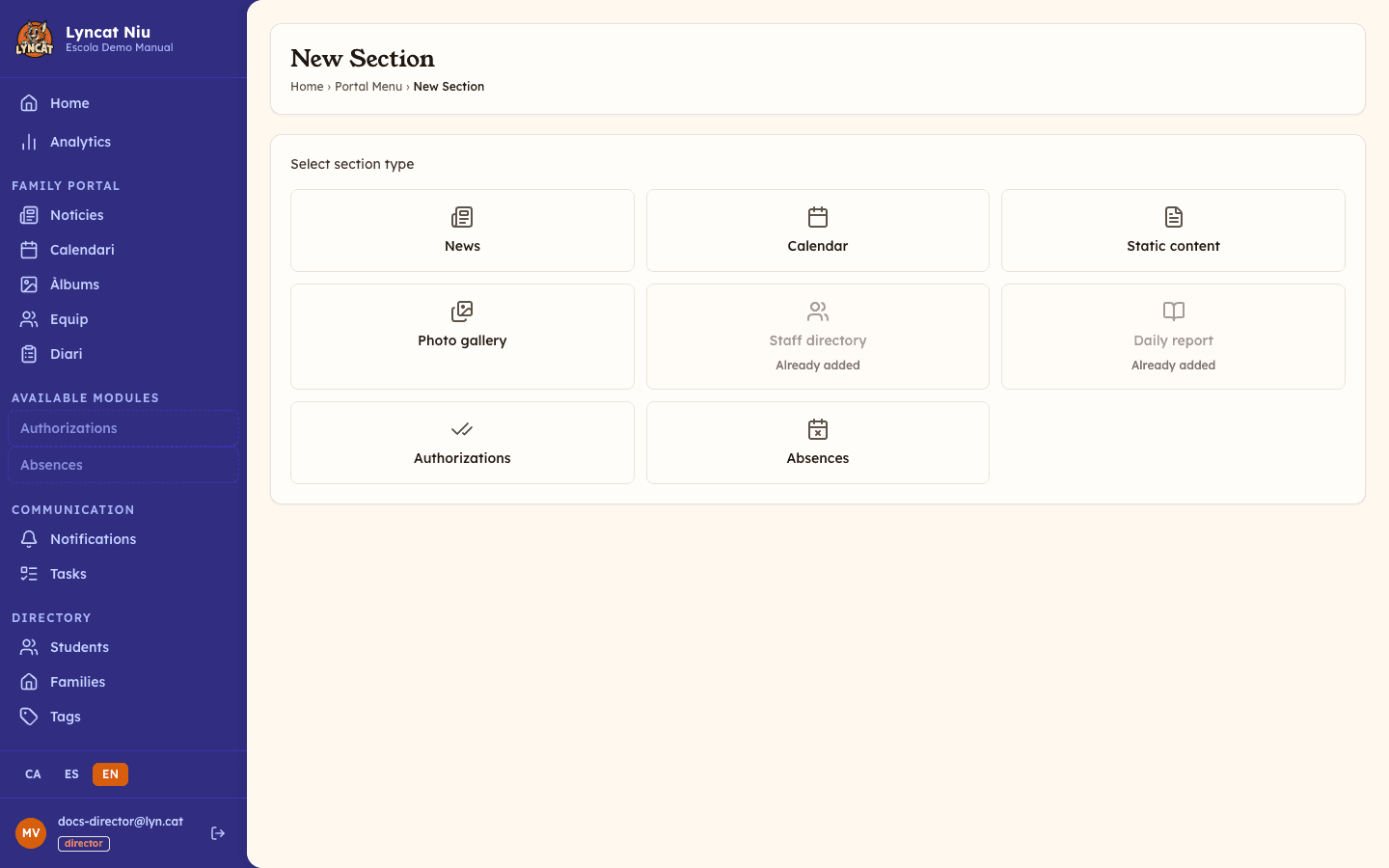
Click the New Section button (top right). A grid of available section types will appear:
- News — posts and announcements
- Calendar — events and dates
- Static content — pages with text, images or documents
- Photo gallery — photo albums
- Staff directory — staff list
- Daily report — daily log for educators
- Authorizations — consent management
- Questionnaires — collect responses without a yes/no authorization
- Absences — attendance tracking
- Messages — private messaging with families
- Lunch menu — the weekly lunch menu
Select the type you need. Types such as Staff directory, Daily report, Authorizations, Questionnaires, Absences, Messages and Lunch menu can only be added once.
The Messages type requires the Brot plan or higher: if your school is not there yet, it will appear disabled with the required minimum plan shown.
School schedule does not appear in this grid: it is activated from the School schedule link that appears under Available modules, further down the sidebar, which takes you directly to its own editor.
Fill in the section details
Choose an icon for the section (required) and enter the name that will appear in the portal. You will see one name field per language your school has enabled under My Account → Languages, so you can enter the name in every language you work with.
Set tag-based visibility (optional)
In the right sidebar, under Tag filter, you can restrict who sees this section. If you do not select any tags, the section will be Public and everyone with portal access will see it. If you select one or more tags, only families linked to those tags will see the section.
Publish the section
When everything is ready, click Publish. The section will become visible in the portal for the relevant families.
If you prefer to keep it ready but not yet visible, click Save draft.
Truc
If the menu is empty and you want a ready-made starting point, click Initialize default menu. This automatically creates sections for News, Calendar, Albums, Team and Daily report.
Reordering and managing existing sections
In the menu list, each section has the following actions:
- Up / Down — changes the order in which the section appears in the portal.
- Eye — toggles between visible and hidden without deleting the section.
- Edit — opens the form to modify the name, icon or tag filter.
- Delete — permanently removes the section (confirmation required).
Avís
Deleting a section also removes everything inside it: news, events, pages, albums and any photos or attached documents they hold. This is permanent and nothing can be recovered.
If you only want the section to stop showing, use the eye icon in the Visible column: the content is kept and you can show it again whenever you want.
Editing a published section
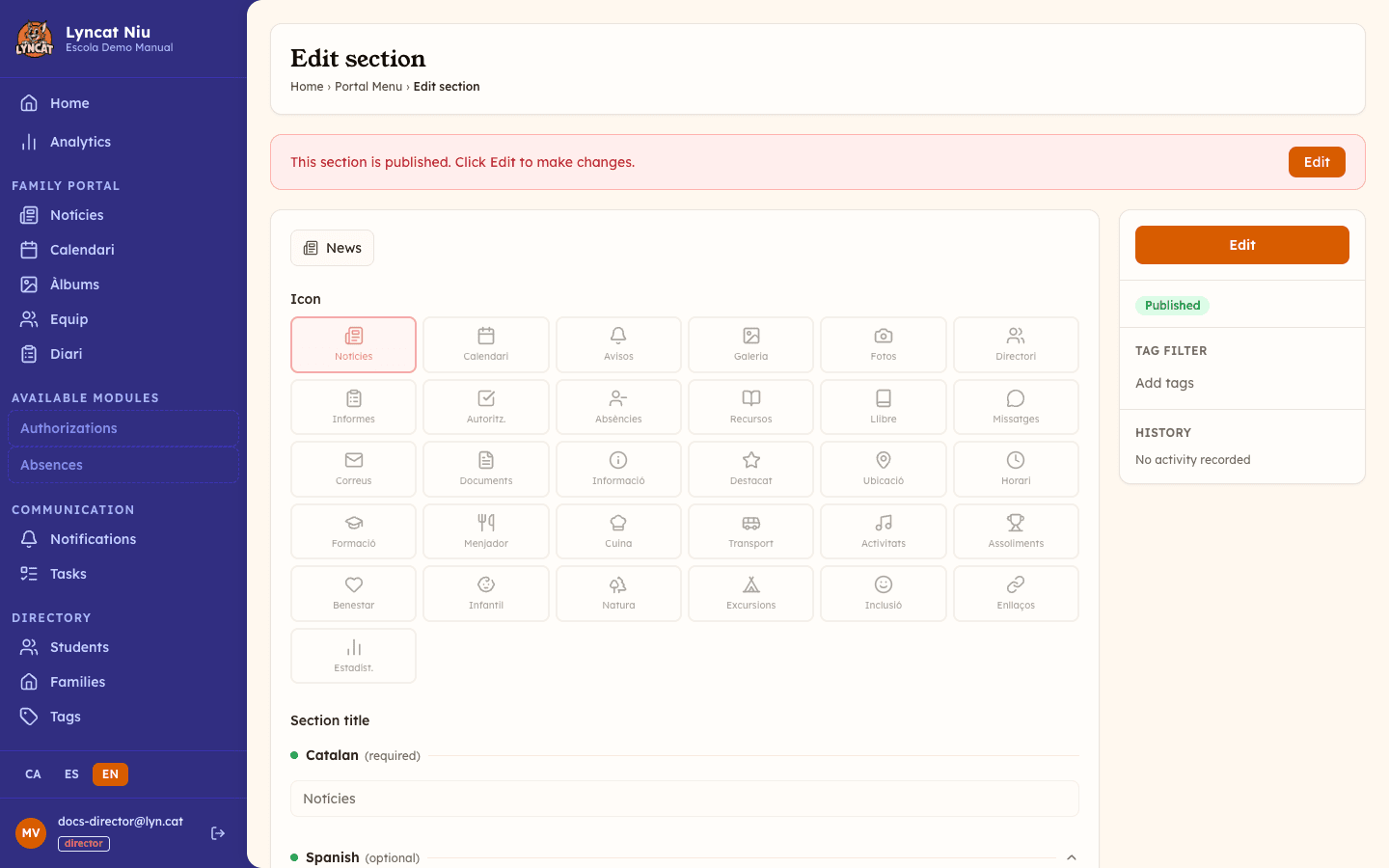
When you edit a section that is already published, the system shows a yellow banner indicating you are editing live content. Changes are not applied until you click Publish changes. If you decide not to apply them, click Discard changes to revert to the previous version.
What to do if…
The families' portal shows no sections
Check that at least one section is published (status Published) and that the eye icon shows it is visible. If all sections are in draft or hidden, the portal will appear empty.
I cannot add a second Staff directory or Daily report
These section types are unique: the system does not allow more than one of each. If one already exists in the menu but is hidden, edit it and mark it as visible instead of creating a new one.
I do not see the "New Section" button
Check that you have the director role. With the educator role, the Portal Menu entry appears greyed out in the sidebar and cannot be clicked; if you type the address straight into the browser, the panel sends you back to the dashboard. Ask your school's management to make the change or to review your role.
Frequently asked questions
Can I have the same content in two different sections? Not directly. Each section type (news, calendar, etc.) has its own content. If you want differentiated subsections by audience, create multiple sections of the same type and apply tag filters to each.
Do families see the section immediately when I publish it? Yes. Clicking Publish makes the section accessible in the portal straight away.
If I hide a section, is the content lost? No. The content (news, albums, etc.) is preserved. Hiding a section only makes it invisible in the portal; when you show it again, all content will still be there.
Can I change the type of a section after it has been created? No. The type is set at creation and cannot be changed. If you need a different type, create the new section first and delete the old one once it's ready — bear in mind that deleting it also erases all of its content.