
Families
Create and manage families linked to students, invite guardians by email and add emergency contacts.
2026-09-05
Before you start
- You need the director role to create families, send invitations and edit data. Educators can view the information but cannot make changes.
- Each family member (parent, guardian) receives an invitation by email and must accept it to access the family portal.
Truc
A student can only be linked to one family. If there is shared custody or several people are responsible for a student, add them all as users (with an invitation) or contacts within the same family record, instead of creating a second one.
Step by step
Create a new family
Open the Families section
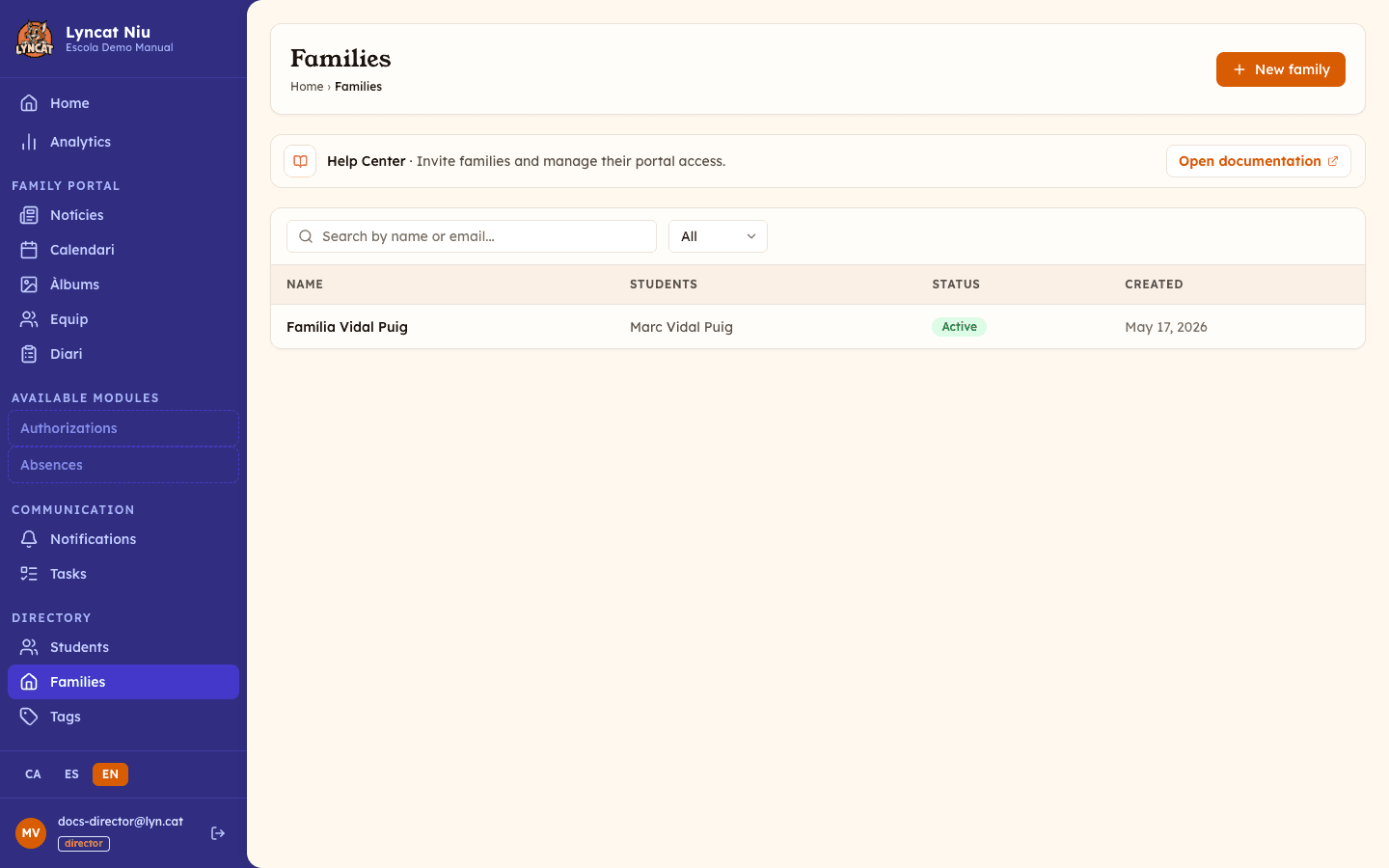
In the side menu, go to Directory → Families. You will see the list of all families at your school.
Click New family
In the top right, click the New family button.
Enter the family name
Type an identifying name for the family (for example, "Smith family"). Click Create family to save it.
The family is created without any linked users. The next step is to send invitations to family members.
Send an invitation to a family member
Open the family record
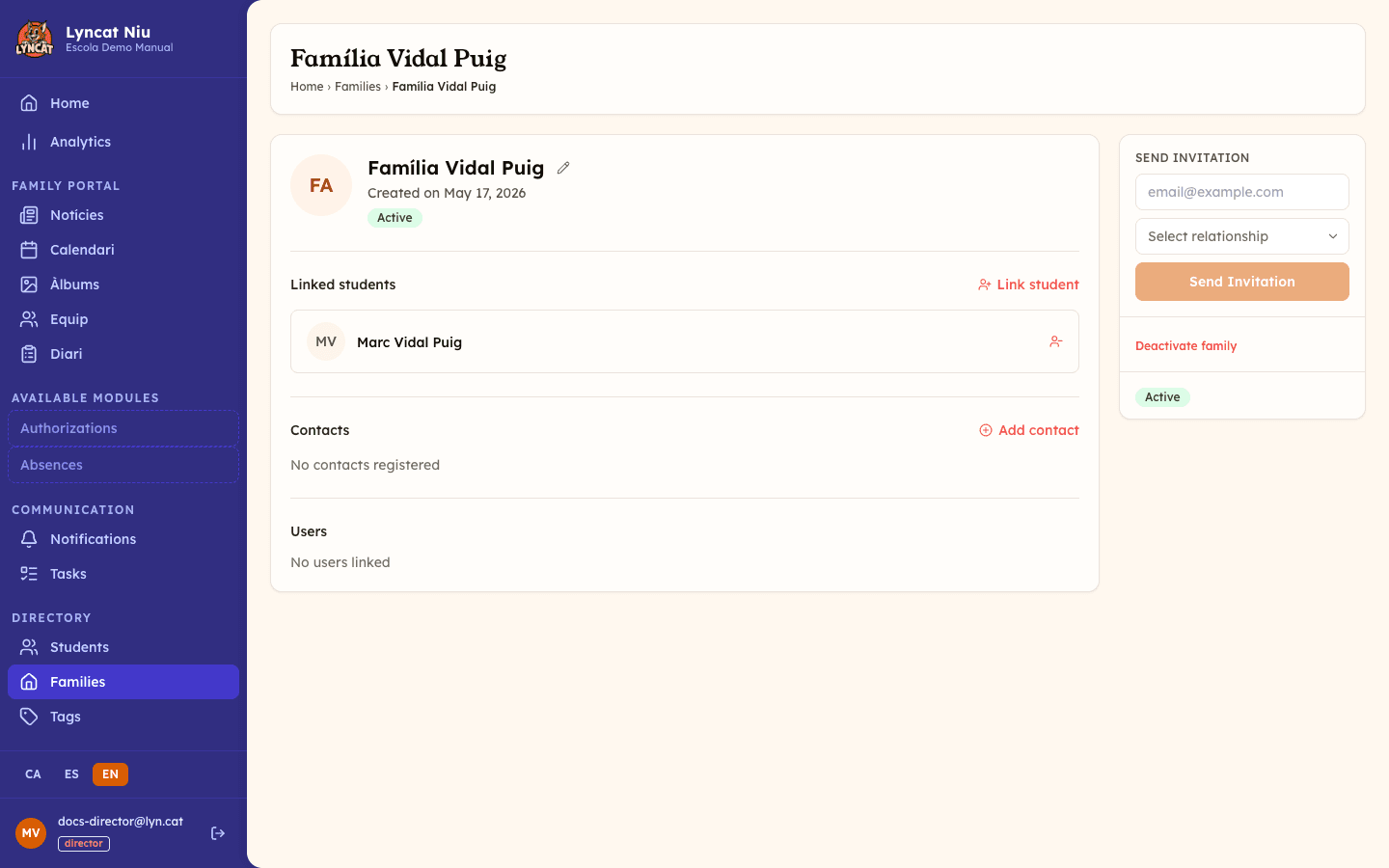
From the list, click the family name to open its detail view.
Fill in the invitation details
On the right column, find the Send invitation section. Enter the family member's email address and select their relationship (Father, Mother, Grandfather, Grandmother, Legal guardian, or Other family member).
Send the invitation
Click Send invitation. The family member will receive an email with a link to complete their registration. The link is valid for 7 days.
The Send invitation button stays disabled until you have filled in both details: the email address and the relationship.
Once the family member accepts the invitation, they appear in the Users section of the record as a card with their name, email address and phone number. Below the name you will find the relationship dropdown and the Emergency contact checkbox: both save instantly, with no confirmation button. The person manages the rest of their personal details from the portal, which is why the card shows the note "Details managed by the user".
Important
If the invitation expires (7 days without being accepted), there is no direct resend button on the record. Type the same address again in the Send invitation form in the sidebar: the person will receive a new link with another 7 days. If the old row stays in the Users list, delete it with the bin icon so it is not mistaken for the new one.
Link students to the family
Open the family record
From the families list, click the name to open the detail view.
Click Link student
In the Linked students section, click the Link student button.
Search and select the student
Type the student's name in the search field. When the student appears, click to link them to the family.
To unlink a student, click the unlink icon next to their name and confirm the action.
Add an emergency contact
Emergency contacts are reference people who do not need a Niu account (for example, grandparents or neighbours who will not receive an invitation).
Open the family record
In the detail view, locate the Contacts section.
Click Add contact
A new row is created for the contact. Fill in their name, phone number and relationship, and check the Emergency contact box if applicable.
Changes save automatically
Each field saves as soon as you leave it (no confirmation button needed). You can delete the contact at any time using the bin icon.
Unlink a user from the family
If someone is no longer part of the family (for example, because the wrong address was invited), you can remove them from the record without deleting their account. In the Users section, click the unlink icon next to their name and confirm Unlink user.
Important
Unlinking does not delete the person's account: it only breaks the link with this family, so they stop seeing the linked students from the family portal. If you change your mind, send them an invitation again.
Activate or deactivate a family
From the detail view, in the right column:
- If the family is active: click Deactivate family to suspend their access.
- If the family is inactive: click Activate family to restore their access.
Avís
Deactivating a family prevents its members from accessing the family portal, but no data is deleted. You can reactivate it at any time.
Filtering the list
The main page includes:
- Search by name or email — type part of the family name or any member's email address.
- Filter by status — show all families, or filter by active and inactive.
Exporting data to Excel
In the top-right corner of the list, the Export button (only visible with the director role) opens a dialog to generate an Excel document with school data:
- Emergency contacts — contacts marked as emergency, per student.
- Allergies/health — allergies, medications, and medical conditions (marked as sensitive).
- Class roster — students in the group with basic info and phone.
- Family directory — family members with contact details.
Select the lists you need, optionally filter by group/class, and check Include inactive if needed. Click Generate Excel to download the document.
Important
The document contains personal data of minors and, if you include Allergies/health, health data. Use of the file is the school's responsibility.
What to do if...
I can't see the "New family" button
You need the director role. If you have the educator role, you cannot create or modify families.
The invitation has expired
From the family record, type the same address again in the Send invitation form in the sidebar and pick the relationship: the family member will receive a new link, valid for 7 days. If the old row stays in the Users section marked as Expired, delete it with the bin icon.
The family member I'm inviting already has a Niu account
If the family member's email already has a Niu account (for example, they are also a family member at another school), they won't need to create a new password. When they open the invitation link, the system will ask them to sign in with the password they already use to link the invitation to their existing account.
I want a student to have two families (shared custody)
A student can only be linked to one family at a time. If there is shared custody, add every responsible person as a user (with an invitation) or a contact within the same family record, instead of creating a second one. If the student already appears linked to another family, the Link student search will show them disabled with a link to the family they are already linked to.
I want to delete a family
Deactivating it is the recommended option if you want to keep the history. If you need to delete it permanently, contact Niu support.
Frequently asked questions
What is the difference between a "user" and a "contact"? A user is a family member who has accepted the invitation and has a Niu account; they can receive notifications and access the portal. A contact is a reference person (for emergencies or pickups) who does not need an account.
Can I assign relationships to family members? Yes. In the Users section of the record, you can indicate whether each member is the Father, Mother, Grandfather, Grandmother, Legal guardian, or Other family member. You can also change the relationship on an invitation that is still pending, without waiting for it to be accepted.
Who can see families? Both directors and educators can browse the family list. Only directors can create families, send invitations or modify data.
Can I send the same invitation to several email addresses? Each invitation is sent to one email address. If two people in the family need access to the portal, you need to send two separate invitations.