
Absences
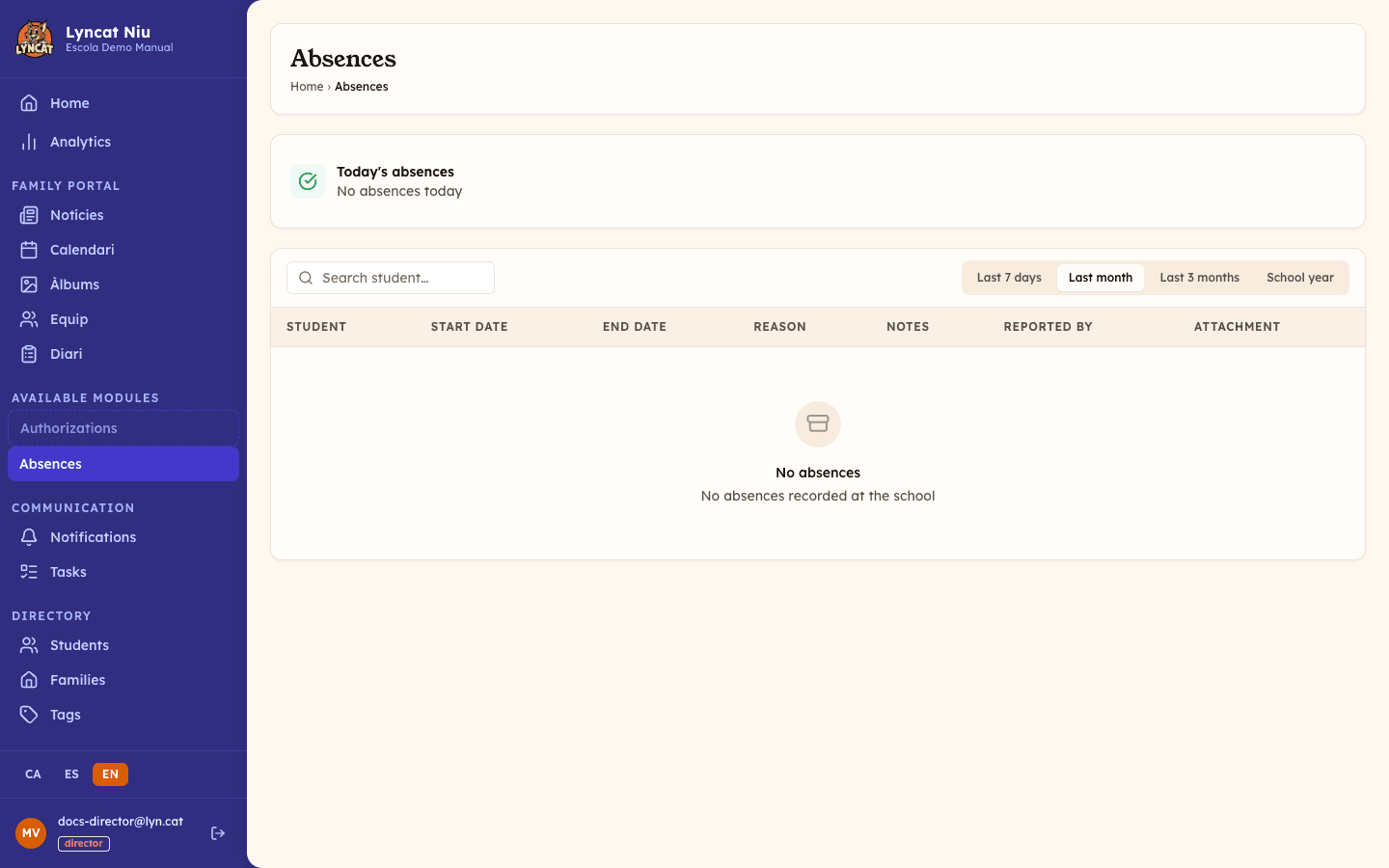
Check today's absences and the full registry for all students, with filters by student, tag, and period, and download it as a PDF.
2026-09-15
What you will find in this section
When you open Absences in the panel you see two main elements:
- Today's summary — at the top, a card showing how many students are absent today, listed with their absence reason highlighted in color.
- Registry table — the full list of absences sorted by start date (most recent first), with columns: Student, Start date, End date, Reason, Notes, Reported by, and Attachment.
Absence reasons
Each absence is assigned one of these four reasons:
| Reason | Description |
|---|---|
| Illness | The student is unwell |
| Family matter | Personal or family reason |
| Vacation | Holiday outside the school calendar |
| Other | Any reason not covered above |
Step by step
Open the Absences section
In the panel, click Absences in the left sidebar, under Family portal.
Check today's summary
The top card shows you at a glance whether any students are absent today. If there are none, the card appears in green. If there are, you see each student's name and reason.
Click on a student's name to open their profile directly.
Filter by student, tag, or period
Below the summary you have the filter bar:
- Search — type the student's name or surname to narrow down the table.
- Tag — select a group or year to see only students in that group.
- Period — choose a preset view (last week, last month, current year, etc.) to adjust the date range.
View the detail of an absence
The table shows all the information for each absence. If a document has been attached (for example, a medical certificate), you can open it by clicking the paperclip icon in the Attachment column.
Download the list as a PDF (optional)
Once the filters are the way you want them, click Download PDF, to the right of the period selector. The document contains exactly the absences shown in the table.
History per student
You can see all absences for a specific student from their profile:
- Go to Students and open the student's profile.
- Click the Absences tab.
- You will see that student's absence list with start date, end date, reason, notes, and who reported it.
Downloading absences as a PDF
The Download PDF button in the filter bar produces a document with the list you have on screen at that moment.
Set the filters the way you want them
The PDF has no filters of its own: it mirrors the search box, the tags, and the period applied to the table. If you want the list for one group, filter it before downloading.
Click Download PDF
The Absences as PDF window opens with a summary of what the document will contain: the number of absences, the period as real dates, and the scope (the selected tags, or whole school). If there is text in the search box, it is shown too.
Choose the document language
The Document language dropdown offers your school's content languages. If a language appears disabled with a "not available" note, it means we have no typeface for its alphabet and the document cannot be produced in that language.
Download it
Click Download PDF again. While it is being prepared you see Generating…, and once it is ready the document opens in a new browser tab.
Truc
What to do if...
I see no absences even though there should be some. Check that the period filter covers the dates you expect. If the period is set to "Last month" and the absence is older, widen the range.
The "Reported by" column is blank. This means the absence was recorded without linking it to a staff member. It does not affect the validity of the record. When the school records an absence from Attendance, the name of the person who recorded it appears here.
I want to open the attached document but nothing happens. Attachments open in a new browser tab. Check that your browser is not blocking pop-ups for the panel domain.
When producing the PDF it says the school logo is in a format it cannot embed. The document embeds your school logo and only accepts PNG or JPEG. Go to Settings → My Account and upload the logo again in one of those two formats.
When producing the PDF it says I do not have access to this school's absences. It means the account you signed in with has no permission over this school's data. Sign out, sign in again with the school account, and if it persists write to us from support.
The PDF does not open once it has been produced. The document opens in a new tab. Check that your browser is not blocking pop-ups for the panel domain.
Frequently asked questions
Where are absences recorded? Families usually record them from the portal or the app, when they report that their child will not attend. The school can also record one from Attendance: if you mark a student as absent and no absence has been reported for that day, the window that opens lets you record it on the school's behalf with the They already told us option. The Absences section itself is the centralised place to consult them: it has no form to create them.
Can I export the absence list? Yes. The Download PDF button in the filter bar produces a document with the absences the table is showing at that moment. There is no spreadsheet export from this section: if you need the data in Excel, the school-wide export lives in Settings → My Account.
Does the school get notified when a family records an absence? Yes. Active staff at the school receive a notification when a new absence is recorded, and can check its detail in the Absences section.