
Tag rotation
Assign a tag to multiple students at once using a three-step wizard.
2026-09-15
Before you start
- You need the director role to use this feature. Educators do not have access.
- Tags must already exist in the system. If you have not yet created the new year's tags, go to Directory → Tags and create them first.
- The operation adds the selected tag to the students; it does not remove any tags they already have. This ensures families retain access to historical content.
Truc
If you need to reorganise all students at the start of the year, you can run as many rotations as needed — one per new class or group.
Step by step
The wizard guides you through three steps.
Select students
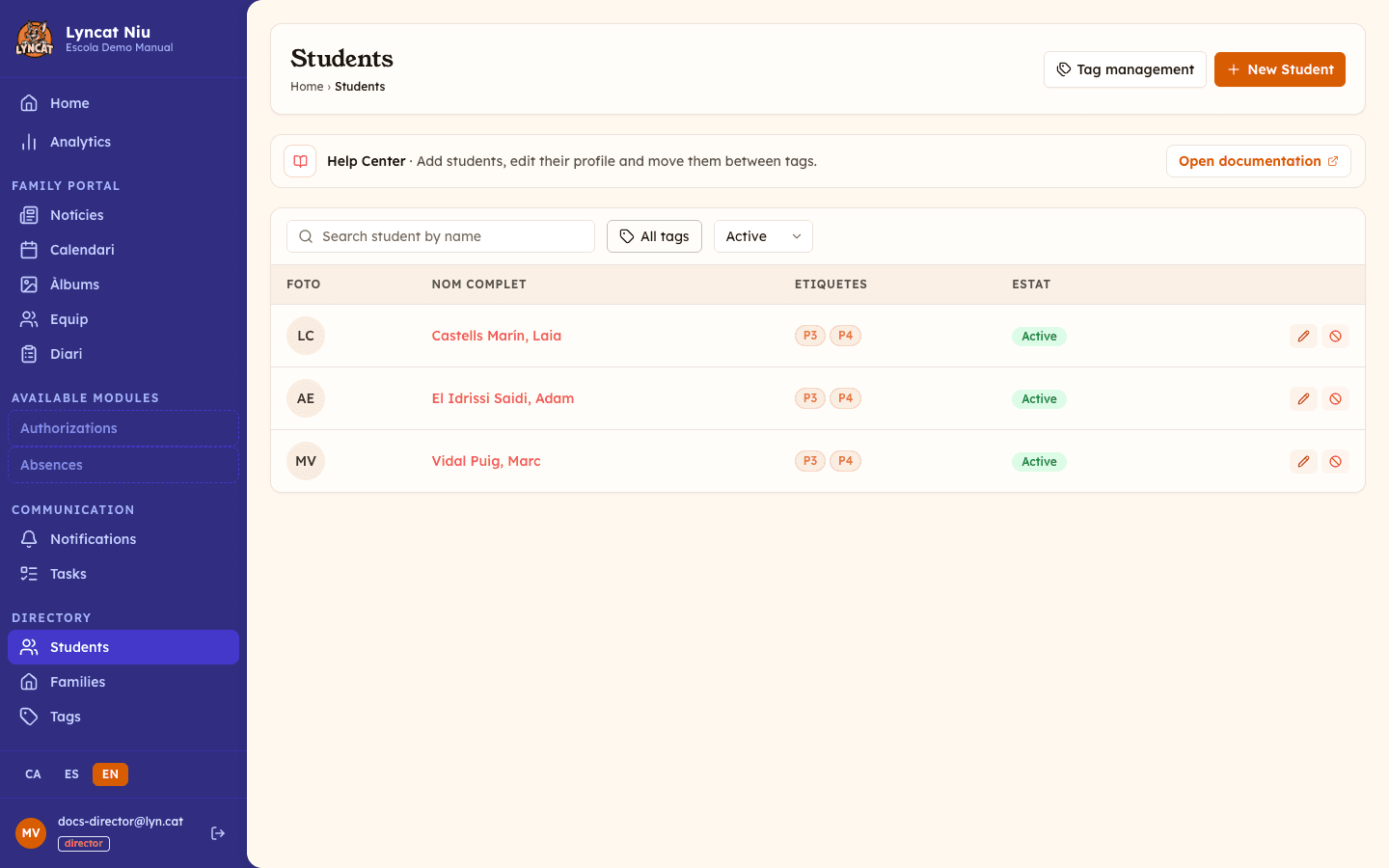
In the sidebar, go to Directory → Students and click the Tag management button at the top of the page.
The first screen shows the list of all active students with their current tags. You can filter by name or by existing tag to find the group you want to update.
Tick the checkbox next to each student you want to include, or use the header checkbox to select every student matching the current filters at once. The total number of selected students is shown at the bottom.
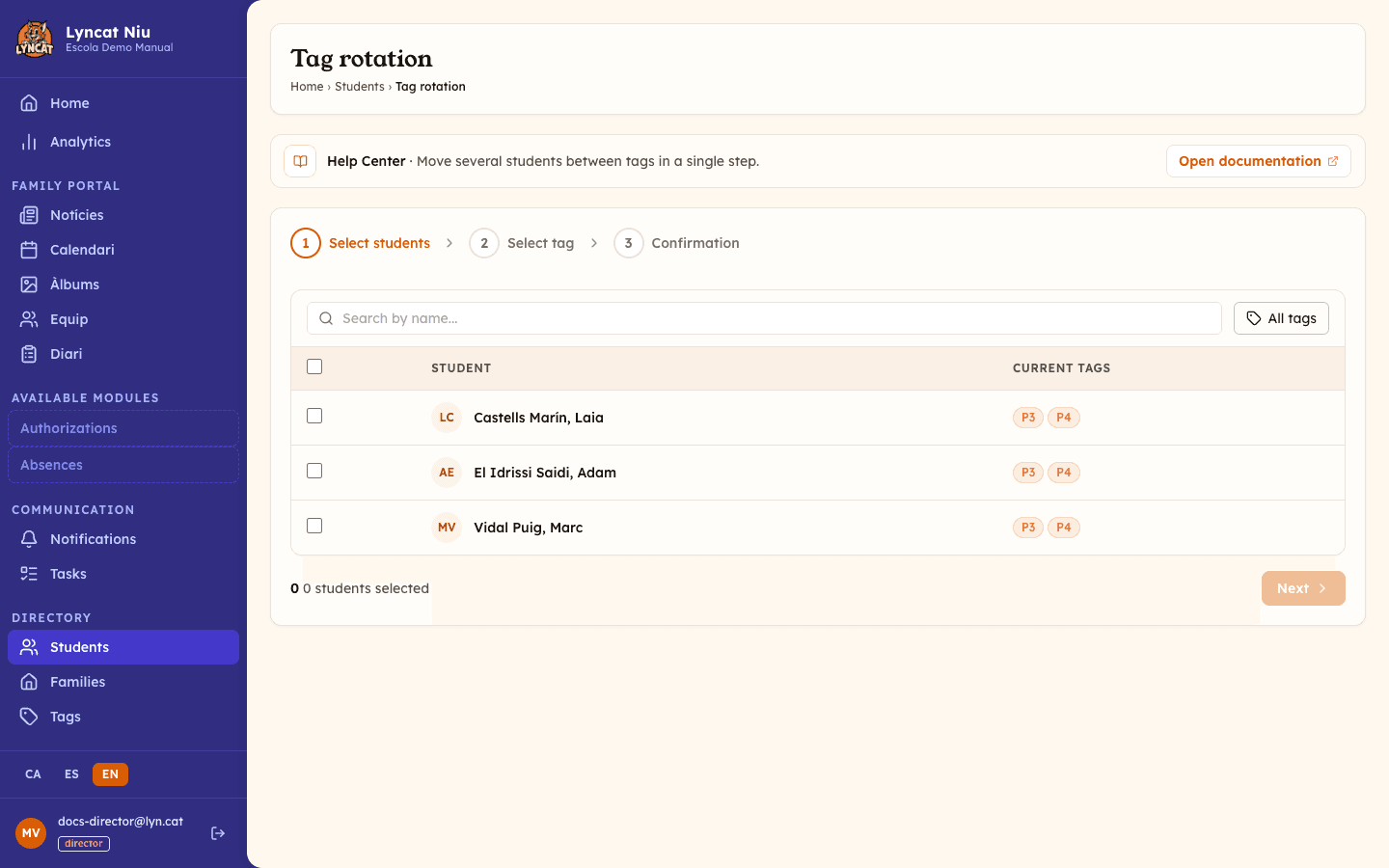
When you have finished your selection, click Next.
Select a tag
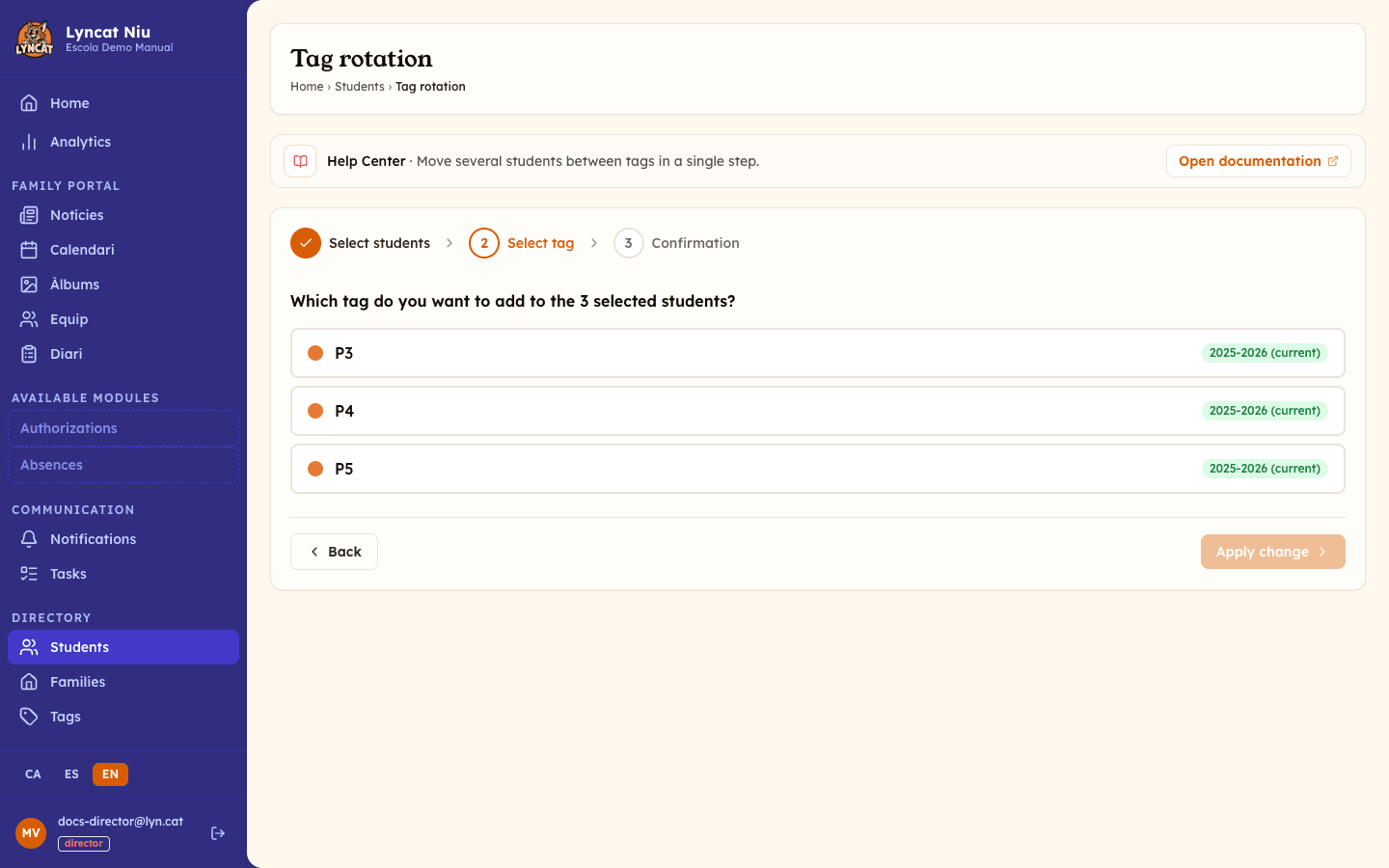
The list of all available tags appears, grouped by academic year. Tags belonging to the current year are marked with the current indicator.
Click the tag you want to assign to the selected students. If the tag has a student limit configured, you will see how many free places remain; if none are left, the system will warn you that the tag is full. Once chosen, click Apply change.
Confirmation
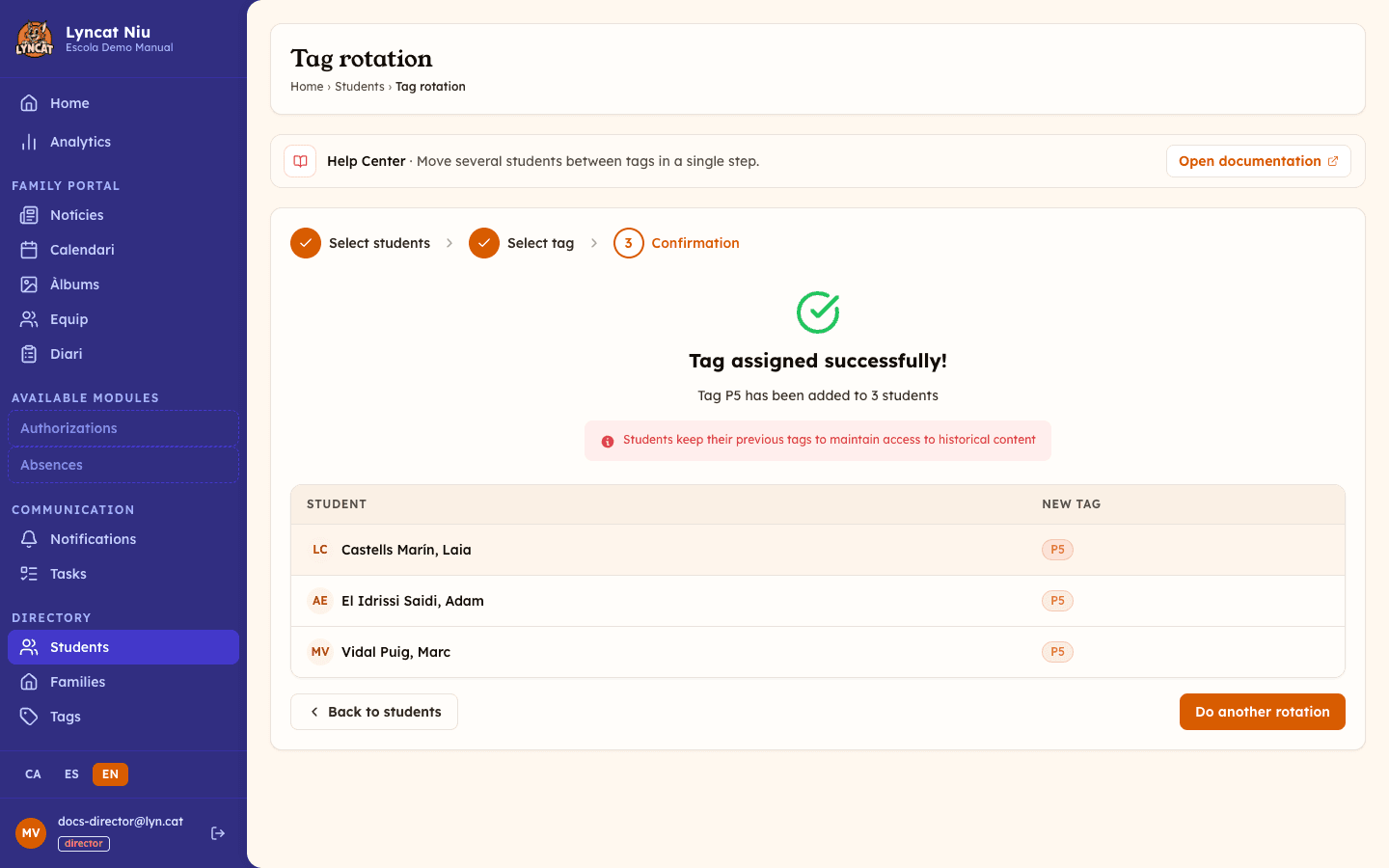
If the process completed successfully, you will see the confirmation screen with the list of students who received the new tag. If the tag has a student limit and some of the selected students were skipped for lack of places, the confirmation also shows how many students were skipped.
From here you can return to the student list with Back to students, or start another rotation with New rotation.
Important
The tag is added to students without removing their existing ones. If you want a student to stop having an old tag, you will need to edit their profile individually and remove it manually.
What to do if...
I cannot find the "Tag management" button
Check that you are logged in as a director. Educators do not see this option.
The tag list in step 2 is empty
This means the school has no tags yet. Go to Directory → Tags, create the tags you need, and then start the rotation again.
The tag I want to assign is full
Some tags have a student limit configured (under Directory → Tags). If the limit has already been reached, step 2 shows a warning that the tag is full and you will not be able to assign it to more students. If you selected more students than fit, the system assigns the tag to as many as fit and skips the rest — the confirmation screen tells you how many were skipped. To complete the rotation, raise the tag's limit or run a second rotation to a different tag for the remaining students.
The system shows an error when applying the change
If you see the message "Could not save the change", this may be a temporary connection issue. Try clicking Apply change again, or reload the page and repeat the process from the beginning.
I applied the wrong tag
The rotation cannot be undone from the wizard. You will need to edit each student profile individually and change the tag from the General data tab.
Frequently asked questions
Does the rotation remove existing tags? No. The operation adds the new tag without modifying existing ones. This allows families to keep accessing content published under the old tags.
Can I apply more than one tag at a time? No, each rotation assigns a single tag. If you need to add two tags to the same group of students, run two consecutive rotations.
Can I undo a rotation? There is no automatic undo. If you applied the wrong tag, you will need to edit each student manually to remove it.
Do deactivated students appear in the selection? No. The wizard shows only active students.