
Tags
Manage student groups and topic tags to control who sees each piece of content in the portal.
2026-09-05
Before you start
- You need a director role to manage tags.
- Student tags are organised by academic year. If this is the first year your school uses Niu, start by creating the current academic year.
- Topic tags are available independently of academic years.
Step by step
The Tags section has two tabs: Student and Topics.
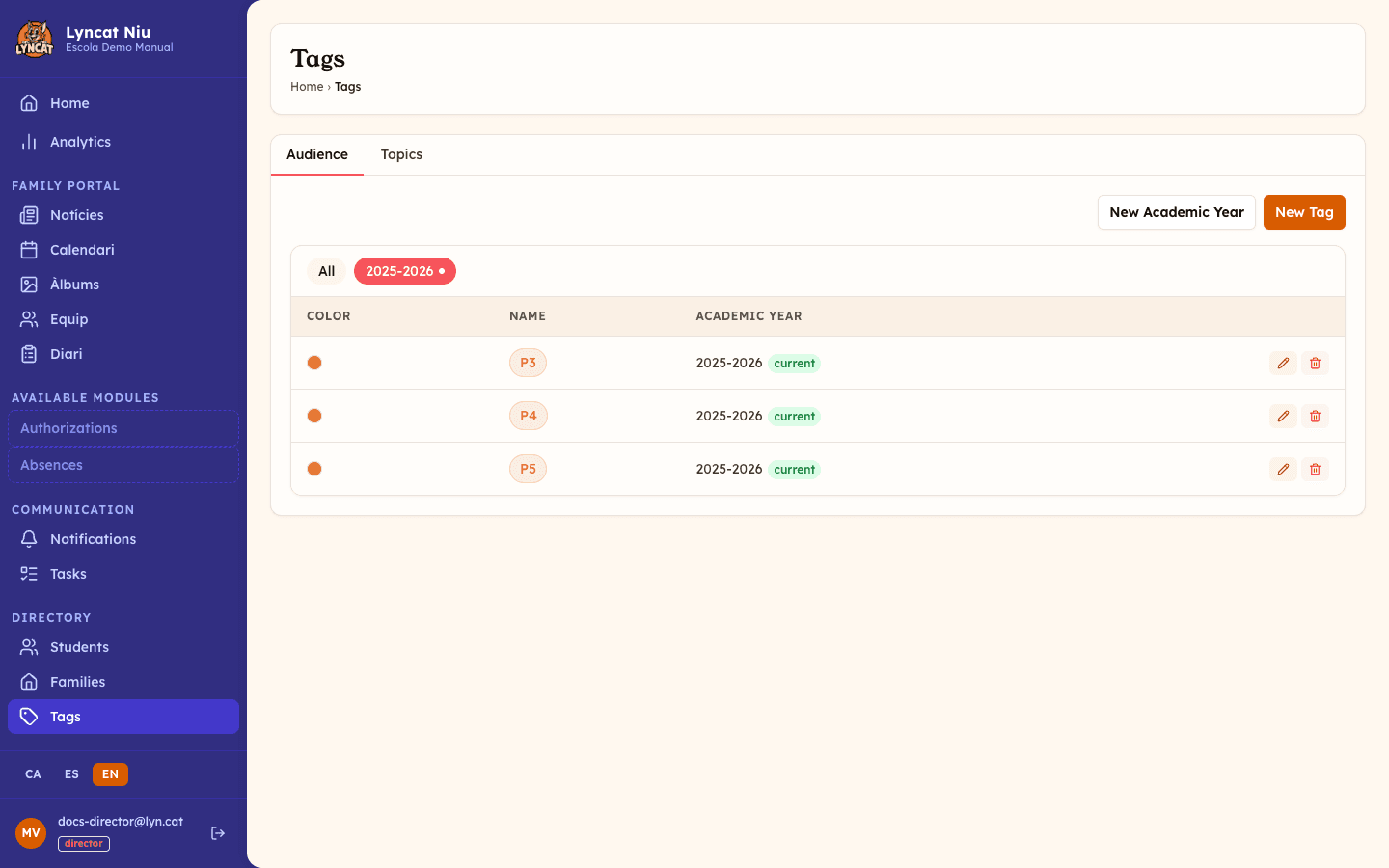
Student tags
These are used to group students (and their families) and to filter the visibility of content in the portal.
The table has the columns Color, Name, Academic Year (with the current badge on the year in force) and Usage. The Usage column shows how many active students carry the tag against the limit you have set, for example 8/10; with no limit it shows 8 / ∞. When a tag reaches its limit, the figure is highlighted in coral.
Create an academic year (if needed)
If you have no academic years yet, click New academic year. Fill in the name (e.g. 2025-2026), the start and end dates, and mark it as the current year if appropriate. Click Save.
Create a new tag
Click New tag. Fill in the name (e.g. Reception), choose a colour, and select the academic year. Optionally, set a student limit (e.g. 10) to cap the capacity of this classroom or group; leave it blank for unlimited. Click Save.
Assign tags to students
Tags are assigned from each student's record in the Students section. See the Student management guide.
Truc
You can filter the tag list by academic year using the buttons at the top of the table. This makes it easy to find the tags for a specific school year.
Topic tags
These are used to classify news articles, events, and static pages by topic.
Create a topic tag
Click New topic tag. Type the name in each available language (the name in the school's default language is required). Optionally, choose a colour: it defaults to automatic (the portal assigns one on its own), but you can set a specific one, useful to tell tags apart on the portal calendar. Click Save.
Assign the tag to content
In the news, event, or static-content editor, find the Topic tags field and select the relevant tags.
Editing and deleting tags
In the table on each tab, every row has two actions:
- Edit (pencil icon) — on student tags you can change the Name, the Color and the Student limit. The academic year is set when the tag is created and cannot be moved afterwards: if you picked the wrong year, create the tag again under the right one. On topic tags you can change the name in each language and the colour.
- Delete Tag (bin icon) — permanently remove the tag.
Truc
When you edit a student tag that has a limit, the field shows how many active students currently carry it. This helps you avoid setting a limit below the number already assigned.
Avís
Deleting a student tag does not delete the students, but it will remove that tag from every student and piece of content it has been assigned to. This action cannot be undone. For topic tags, if the tag is in use the confirmation tells you how many pieces of content it is assigned to before letting you continue.
What to do if…
I can't create tags
Check that you have the director role. Educators cannot manage tags.
I want to carry the same tag structure from one year to the next
Tags are not copied automatically between academic years. You will need to recreate the tags for the new year. If you use the same groups every year, consider using generic names (e.g. Morning, Afternoon) instead of year-specific ones.
Families can't see a piece of content
If you have set visibility tags on a piece of content, check that the affected families have the corresponding tag assigned to their child's record.
Frequently asked questions
How many tags can I create? There is no limit on the number of tags or academic years.
Can topic tags and student tags be combined? Yes. A piece of content can have both topic tags (classification) and visibility tags (who sees it) at the same time. They work independently.
Can I change the colour of a student tag? Yes. Click Edit and choose a new colour. The change takes effect immediately everywhere the tag appears.
What happens if a tag reaches its student limit?
The tag cannot be assigned to more students until one is removed or the limit is raised. You will see it in the Usage column of the tag table, which shows the current occupancy (e.g. 8/10) and highlights it in coral when the tag is full.