
Static content
Create fixed content pages on your school's portal — policies, resources, protocols — and reorder them freely.
2026-08-31
Before you start
- Static content sections are created and enabled from Portal Menu. If you haven't created one yet, see the Navigation menu guide.
- Each section can have an unlimited number of entries.
- You can restrict the visibility of each entry to specific family groups using tags.
Step by step
Open the section
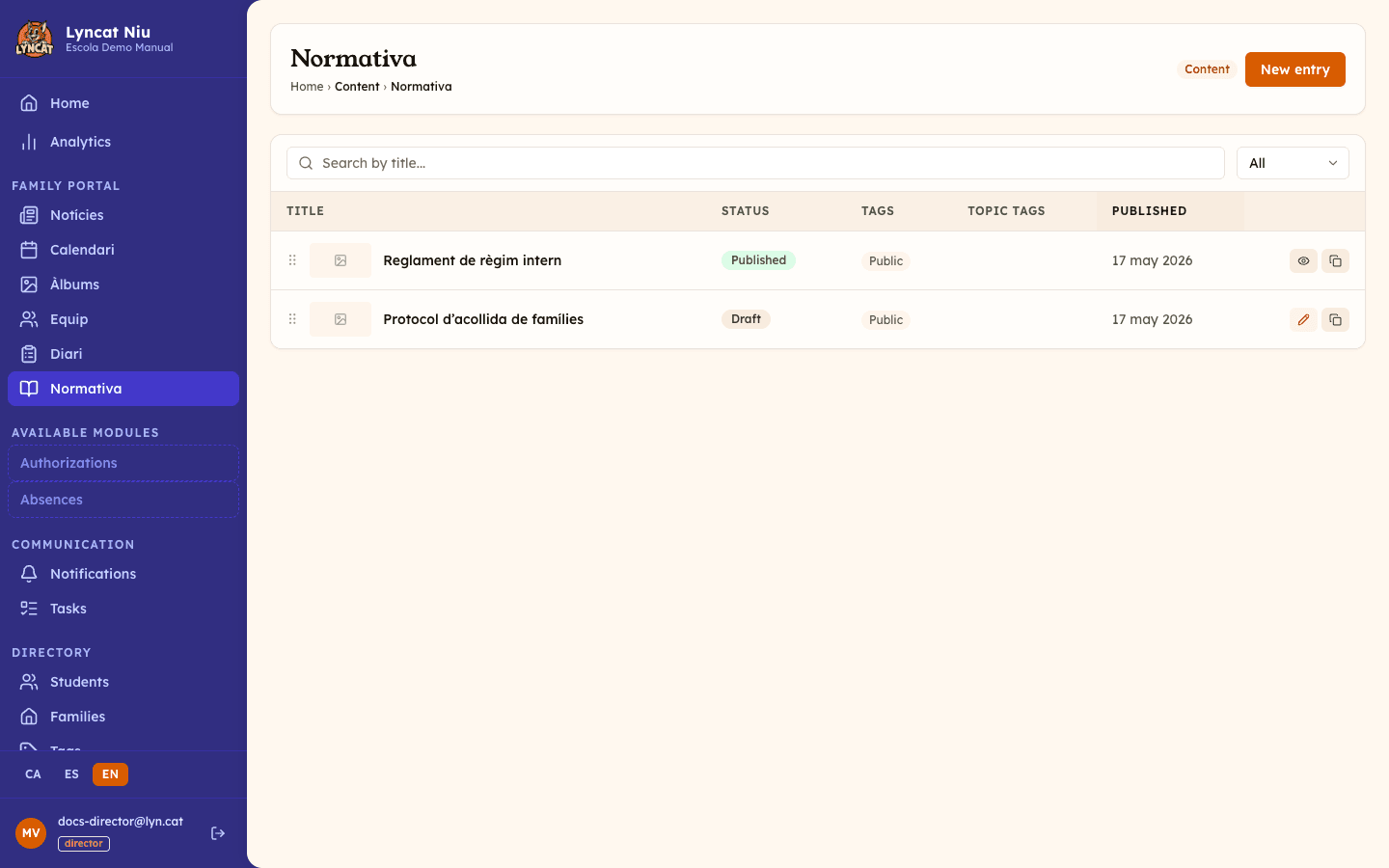
In the panel's left menu, click the name of the static content section you want to manage. You'll see a list of all existing entries with their status.
Create a new entry
Click the New entry button in the top right corner. The content editor will open.
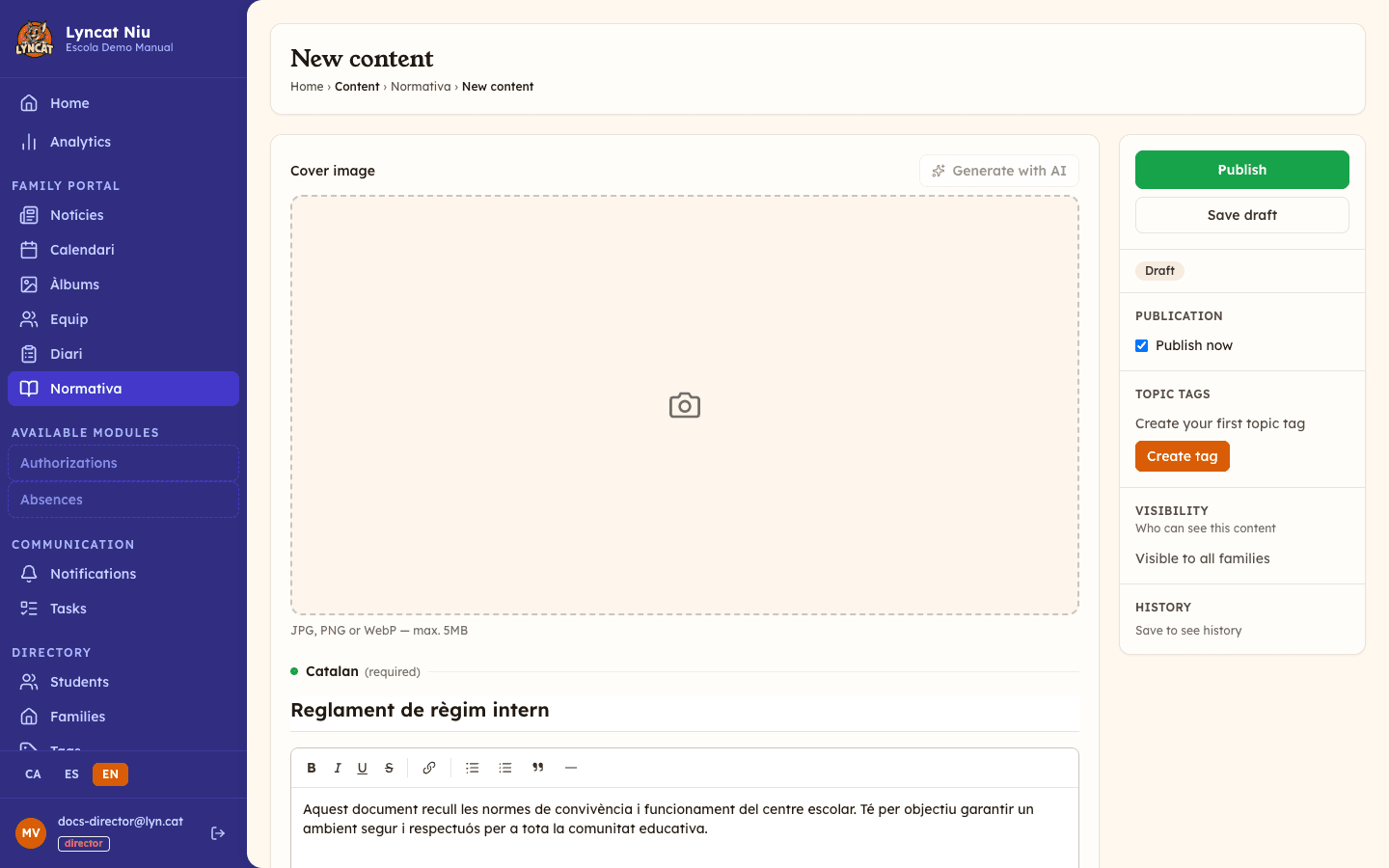
Write the title and content
Fill in the Title field and write the body text. The editor supports rich formatting: bold, lists, tables, links, and inline images.
If your school works in more than one language, you can add a translation with the Add [language] button (for example, Add Catalan) that appears below the editor for each pending language.
Add a cover image (optional)
Just above the title there is a Cover image field: the image used as a thumbnail in the section list. Files up to 5 MB are accepted. If you would rather not look for one, click Generate with AI and Niu will suggest one based on the title and text (the content must be saved first; it uses one of the month's AI tasks).
Add photos (optional)
Below the body text you'll find the Photos block, where you can upload several images that will show as a gallery inside the entry itself.
Configure visibility (optional)
By default everyone can see the entry on the portal. If you want to limit it to a specific group — for example, only upper-cycle families — select the corresponding tags in the Visibility field.
Publish the entry
When the content is ready, click Publish. The entry will appear on the families' portal immediately.
If you prefer the entry to go live on a future date, fill in the Publication date field — at the top of the editor — before clicking Publish. If you leave it empty, the entry is published straight away.
Truc
You can change the order of entries by dragging the ⠿ icon on the left side of each row. The order you set is what families see on the portal.
Managing existing entries
In the section list, each row has three actions:
- Edit (pencil icon) — available when the entry is a draft or has pending changes.
- View (eye icon) — lets you review a published entry without editing it.
- Duplicate (copy icon) — creates a copy in draft status so you can reuse the content.
You can filter the list by status (Draft, Published, Scheduled, Archived) or search by title using the search bar.
What to do if…
The entry doesn't appear on the portal
Check that the entry has Published status. If it has visibility tags, make sure the relevant families have the corresponding tag assigned to them.
I want to edit a published entry without families seeing the changes mid-way
Click the entry and select Edit. Niu will create a parallel draft that won't be visible on the portal until you click Publish changes.
I can't reorder entries
Drag and drop works in desktop browsers. Reordering is not available from mobile devices.
Frequently asked questions
Can I have multiple static content sections in the menu? Yes. You can create as many sections of this type as you need, each with its own set of entries and name.
Can I delete an entry? Yes. From the editor you can archive it or delete it permanently. Archiving is reversible; deletion is not.
Can I add buttons or highlighted links to an entry? Yes. In the editor you'll find the Actions section, where you can add buttons of several types: phone call, WhatsApp, email, map, document (upload a file), link (URL), photo album, or calendar event.
Are entries sorted automatically? No. The order of entries is entirely manual. You decide what content appears first by dragging the rows in the list.