
Translations
How Niu manages multilingual content: primary language, optional languages, and AI-powered automatic translation.
2026-09-20
Primary language and school languages
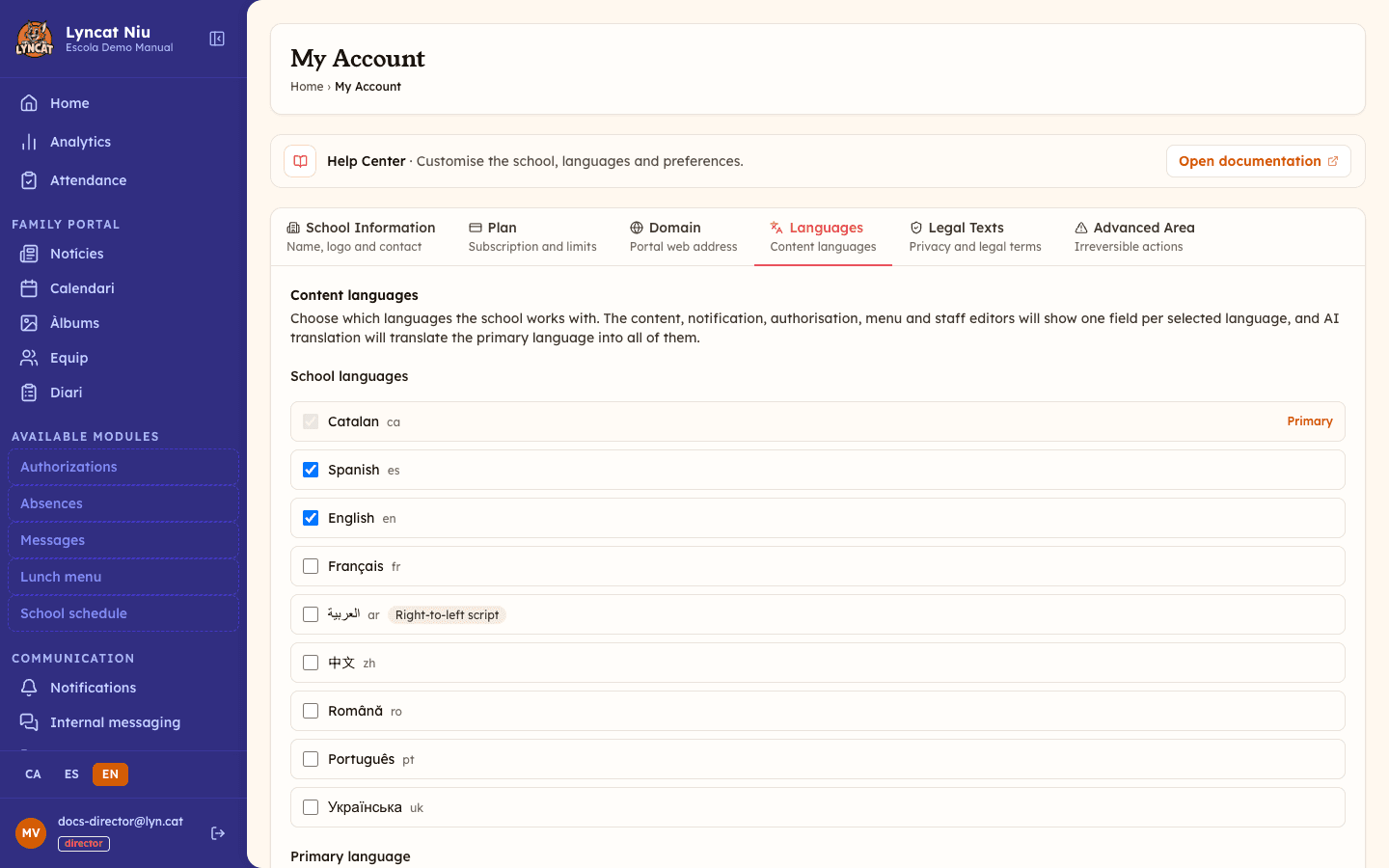
Before creating multilingual content, you need to configure the languages in My Account → Languages:
- Primary language: the one you use to write the original content, and the one AI translates from. You can only choose among the languages already enabled.
- School languages: the list of languages the school works with. Besides Catalan, Spanish, and English, you can enable eight more from a curated set: French, Arabic (with a right-to-left script warning), Chinese, Romanian, Portuguese, Ukrainian, German, and Italian.
Important
The primary language must be included in the school languages and cannot be disabled. If you disable another language, translations already saved are not deleted: they just stop showing in the editors until you re-enable it.
How the multilingual editor works
When you edit a news article, an event, or a static page, the editor shows a section for each language:
- The primary language section always appears first and is labelled (required).
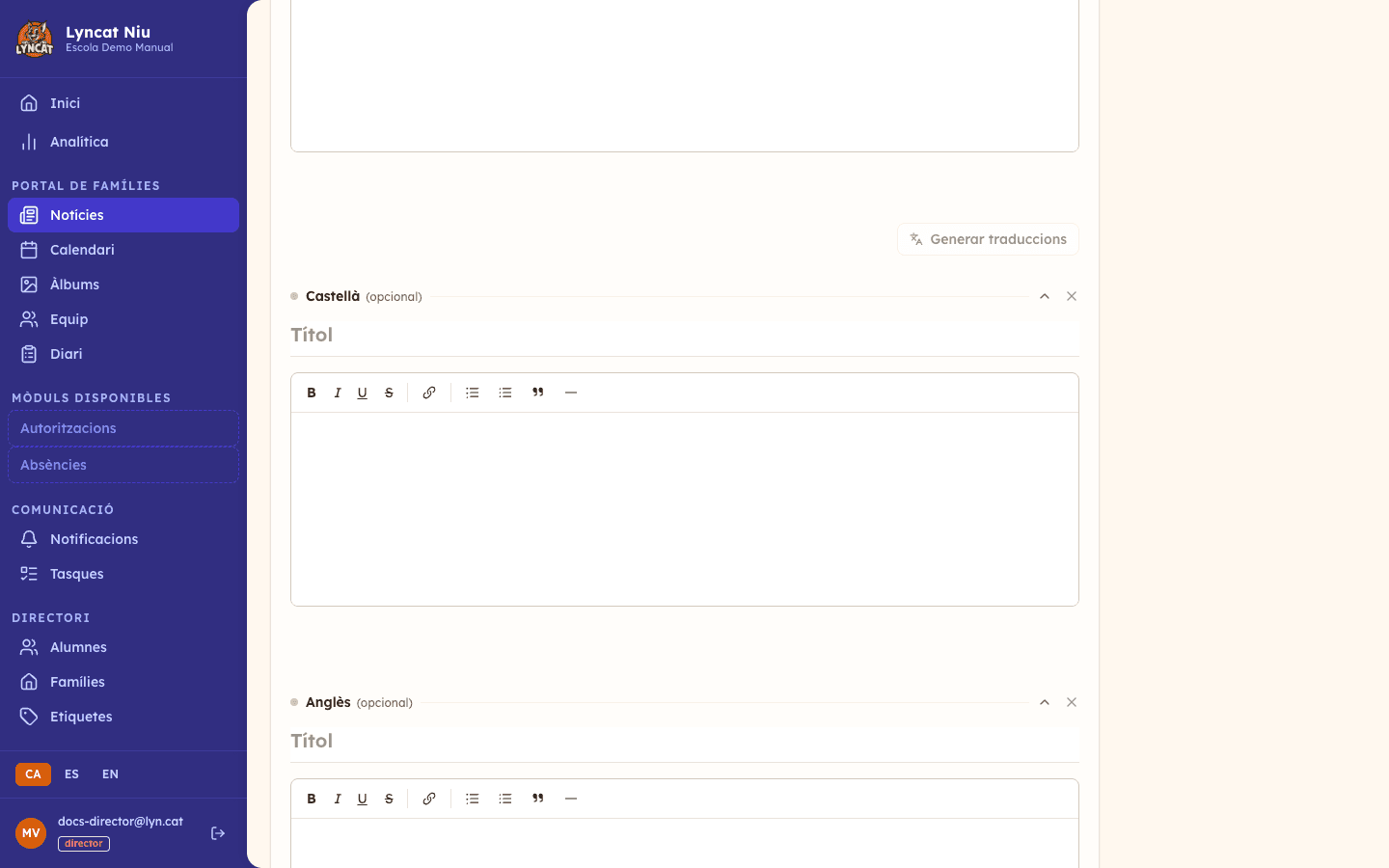
- Optional language sections are labelled (optional) and can be added per content item using the + Add [language] button.
- Each section can be collapsed or expanded to save screen space.
- If you don't need an optional language for a specific piece of content, you can remove it with the × icon.
- Each section has a coloured dot next to the language name: green once it has the minimum content written, muted while something is still missing.
Language names are always shown in their own language: Català, Español, English, Français, العربية… That way everyone recognises theirs, even when the panel is set to another language.
Generating automatic translations with AI
Once you have written the title and body in the primary language, you can use automatic translation.
Save the content
Save the content (or wait for autosave to trigger) before continuing. The translation button stays disabled until the content has been saved.
Click «Generate translations»
Next to the language selector in the editor, you will find the Generate translations button. Click it to start the process. If any optional language already has text, the button reads Regenerate translations instead.
Confirm if translations already exist
If the optional languages already had content, the Overwrite translations window opens and lists which languages will be rewritten. Confirm if you want to update the existing translations.
Wait for the result
The button will show «Queued...» and then «Translating...» while the process runs. When it finishes, translations will appear automatically in each language section.
Review and adjust
Automatic translation is a starting point. Review the result in each language and make any adjustments needed before publishing.
Truc
If you have many items to translate, you can generate translations one at a time and review them as you go. There is no need to wait for all translations to finish at once.
AI quota
Each automatic translation uses 2 AI quota units from your plan. You can check your available quota in My account → Plan.
As you approach the limit, hovering over the translation button warns you with X left of your monthly quota. If you run out, the button is disabled and a Monthly quota exhausted message appears with the renewal date and a View my account link. At that point you can either wait for the quota to renew or buy a top-up from the You're out of AI tasks window.
What to do if...
The «Generate translations» button does not appear Check that the school has more than one language enabled in My Account → Languages. If the school only uses one language, the button is not shown.
The button appears inactive (greyed out) Make sure the content has a title and body written in the primary language and that it has been saved at least once. The button is also disabled while a translation is already running and when the school has used up this month's AI quota.
The translation overwrote text you had edited manually The overwrite confirmation warns you of this risk. If you confirmed by mistake, you can rewrite the content manually in each language section.
Frequently asked questions
Which languages does Niu support? Catalan, Spanish, and English by default. From My Account → Languages you can enable up to eight more: French, Arabic, Chinese, Romanian, Portuguese, Ukrainian, German, and Italian.
Can I disable a language once it is enabled? Yes, except the primary language. In My Account → Languages you can uncheck any other language from the school languages. Content already written in that language is kept in the database but will no longer be visible in the editors or on the portal until you re-enable it.
Does automatic translation include rich-text body content? Yes. The AI translates both the title and the full body, including formatted text (bold, lists, and so on).
Can I publish automatic translations without reviewing them? You can, but we recommend always reviewing the result. The AI produces good-quality translations but may make mistakes with terminology specific to your school or very local expressions.