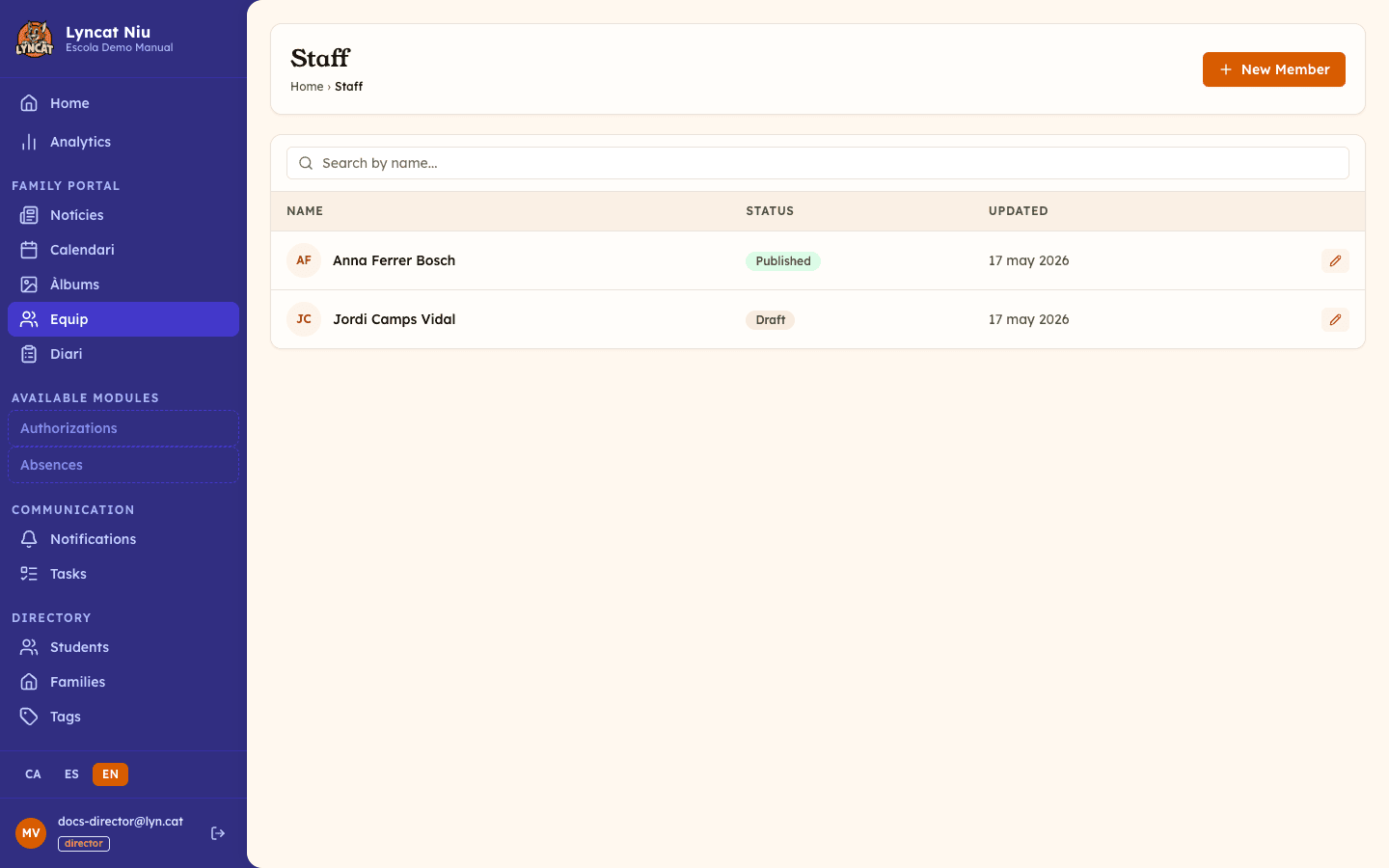
Staff directory
Manage staff profiles shown in the family portal: photo, role, bio, and contact buttons.
2026-09-03
Before you start
- Only directors can create, edit, archive, or delete directory profiles. Educators can only view the list.
- Profiles are never published until you explicitly do so — you always have time to review them first.
Step by step
Open the staff list
In the sidebar, go to the Staff directory section (under Family portal). You'll see all members listed with their current status (draft, published, or archived).
Create a new member
Click New Member in the top-right corner. The editor opens.
Fill in the profile
Upload a photo (cropped to a circle; JPG, PNG, or WebP, up to 5 MB) and enter the name. Then add a role (e.g. "Toddler room educator") and an optional bio, which supports formatted text. Role and bio are entered per language: the role in the school's default language is required, and you can add the school's other active languages with the corresponding button.
Assign a group (optional)
Use the Group dropdown to choose where the person appears in the portal. If you haven't created any groups yet, you'll only see No group; the Manage groups → link below takes you to the page where groups are created and ordered.
Add action buttons (optional)
In the Actions section, add buttons that families will see on the profile: phone, WhatsApp, email, map, document, or link. Each button has a label and a value (phone number, address, URL...).
Set visibility for families
In the right-hand sidebar, under Visibility, check or uncheck Visible to families. This checkbox saves instantly, with no need to publish: if you uncheck it, the profile stops appearing in the portal until you turn it back on.
Publish or save as draft
When ready, click Publish. The profile appears in the portal immediately. If you want to finish later, click Save draft — nothing is published until you decide.
Truc
Drafts are saved automatically every few seconds while you edit. You won't lose work if you close the window by mistake.
Editing a published profile
It takes two steps, not one. First, click the Edit icon next to the member in the list: the profile opens in read-only mode with the notice "This profile is published. Create a draft to edit it". Then click the Edit button in the right-hand sidebar: the system creates a parallel draft so families keep seeing the current version while you work.
While you edit the draft, a banner at the top offers two buttons: Publish changes, which applies your edits to the live profile, and Discard, which deletes the draft and leaves the published profile untouched.
Important
While you work on the draft, families still see the previously published version. Changes only go live when you publish.
Archiving, hiding, or deleting a member
- Archive: the profile disappears from the portal but stays in the Staff list with the Archived status. The Archive button only appears in the right-hand sidebar of a published profile. Use this when a staff member has left the school.
- Visible to families (off): the profile exists and is published, but is not shown in the portal. Use this to hide it temporarily without archiving.
- Delete: permanently removes the member, including their photo. Only directors can do this (educators don't see this button). Use the trash icon in the list, or the Delete button inside the edit form.
Avís
Archiving a profile removes it from the portal immediately, but it can be undone: open it from the Staff list and click Publish to show it again. Deleting it, on the other hand, removes it for good and cannot be recovered from the panel.
Frequently asked questions
Can I change the order members appear in?
Yes. Use the Groups button on the Staff page to create and reorder groups. Each person is assigned to a group from the Group dropdown in their profile. People without a group appear at the end of the portal, in an "Other" block.
Does the role need to be filled in for all languages?
The role in the school's default language is required. Other languages are optional; if no translation is provided, the portal falls back to the default language text.
Can families see draft profiles?
No. Only published and visible profiles appear in the portal.