Messaging
Private conversations between the school and each family from the panel, the portal and the app, with read receipts.
2026-08-31
Before you start
- This module requires the Brot plan or higher. On the Llavor plan, the section shows a notice to upgrade instead of the inbox.
- Messaging is optional: you need to add the Messages section to the portal menu from Settings → Portal menu for families to have access. Until you do, you can read existing threads from the panel, but no new messages can be sent.
- Directors and educators have access from the panel. A director sees all conversations at the school; an educator only sees those of families whose students carry their assigned tags.
- Families write from the portal or the app, not from the panel.
- Don't confuse it with two related tools: Internal messaging only connects management with educators, with no families involved; Notifications are one-way alerts that don't allow a reply.
Step by step
Open Messaging
In the sidebar, under Family portal, click Messages.
Check the inbox
Each row is a conversation with a family: it shows the family's name, the student (if only one is involved) and a preview of the last message. The Status column reads N pending or Read, and in between two icons may appear: a megaphone (Group message) and a paperclip (Has attachment).
The Pending tab filters to conversations with unread family messages, and carries the count next to its name.
Open a thread
Click a row to open the conversation. Opening it automatically marks the family's pending messages as read; no extra action is needed.
Write a new message
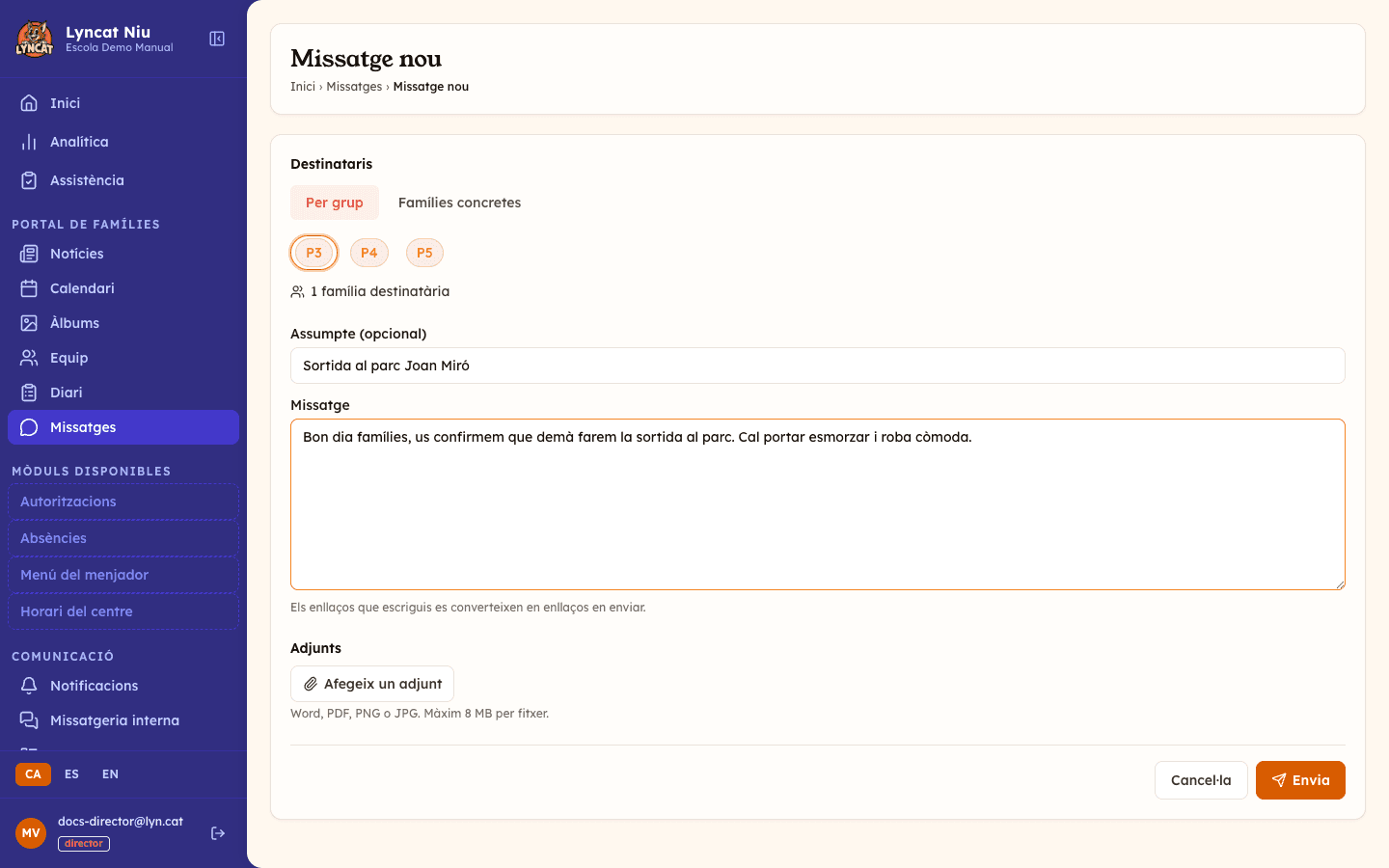
Click Compose. Choose recipients by group (one or more tags from the current school year) or specific families (search by family or student name). Write an optional subject and the message.
Ask for a Yes/No reply (optional)
Turn on the Ask for Yes/No reply checkbox if you want each family to confirm something with a single click. Families will see two buttons (Yes and No) under the message, and you'll be able to see who answered what.
Attach a file (optional)
Click Add attachment to attach a Word document, PDF, or a PNG/JPG image up to 8 MB.
Send
Click Send. If you chose more than one family, each one receives the message in its own independent private thread: families never see each other.
Truc
Links you write in the message body automatically become clickable links once you send it.
Replying and editing
Inside a thread, type your reply in the text box at the bottom and click Reply. You can attach files to a reply with the same limit (8 MB, Word/PDF/PNG/JPG).
If you make a mistake in a message you already sent, click Edit below the message to fix it. Messages can't be deleted, only edited.
Important
Families can also write first: if a family sends a message from the portal or the app before the school has written to them, the thread still appears in your inbox.
Read receipts
Messages you send from the school show whether the family has read them: a ✓ icon means Sent, and ✓✓ means Read by the family. Messages written by the family do not carry this indicator.
From the inbox you can mark several conversations as read at once: select them with the row checkbox and click Mark as read (N).
Group sends
When you send a message to more than one family by tag, each family gets its own private thread, but they all share the same send. Inside any of those threads, the Who has read it sidebar opens with a summary (X of Y families have read it) and, below it, the full list of recipients with a ✓✓ next to the ones who have opened it.
Yes/No replies
If you turned on Ask for Yes/No reply when writing the message, each family answers with one of the two buttons from the portal or the app. In each family's private thread, under the message, you'll see the Yes/No reply section with what they answered and when, or No reply yet if they haven't answered.
If the message was sent to more than one family, the Who has read it sidebar adds the combined tally (for example, "3 yes · 1 no · 2 pending") and each family's answer next to their name.
Truc
If a family has two guardians and both reply, only the latest answer counts: they don't need to agree before answering.
Translating a message
If a family's message is not in the school's language, you can translate it. Below the message, click Translate to [language] to see it translated into the school's default language. Once translated, you can switch between Show original and Show translation.
Translation is only available for messages written by the family (not for your own messages) and does not exist in Internal messaging threads. Each translation uses one unit of the school's AI quota; once it runs out, the button is disabled until next month.
Families get the same button in the other direction: on the portal and in the app, each family picks their communications language in their profile (from the curated set of 11 — German or Arabic, for example) and, whenever it differs from the school's language, they see Translate to [language] under the messages you send them. It is separate from their interface language (Catalan, Spanish or English), and these translations also use the school's AI quota.
FAQ
Can families see messages sent to other families?
No. Each family has its own private thread with the school, even if the message was sent to an entire group.
Can an educator write to any family at the school?
No. An educator can only write to and view conversations with families whose students carry their assigned tags. A director can see and write to all of them.
What happens if I disable the Messages section in the portal menu?
Existing threads are kept and you can keep reading them from the panel, but neither the school nor families can send new messages while it's disabled.
Can families attach files from the app?
Not yet: attaching files is only possible from the panel and the web portal. Families can open attachments they receive from the app, but can't send them yet.
Which attachment formats are supported?
Word (.doc/.docx), PDF, PNG and JPG, up to 8 MB per file.