
Publish a news item
Learn to write and publish a news item that reaches the families of the tags you choose.
2026-09-26
When to use a news item
A news item is for ad-hoc announcements: a schedule change, a field trip that went well, a centre update. For announcements that should appear permanently in the portal (like an "About us" page), use Static content.
Step by step
Open the editor
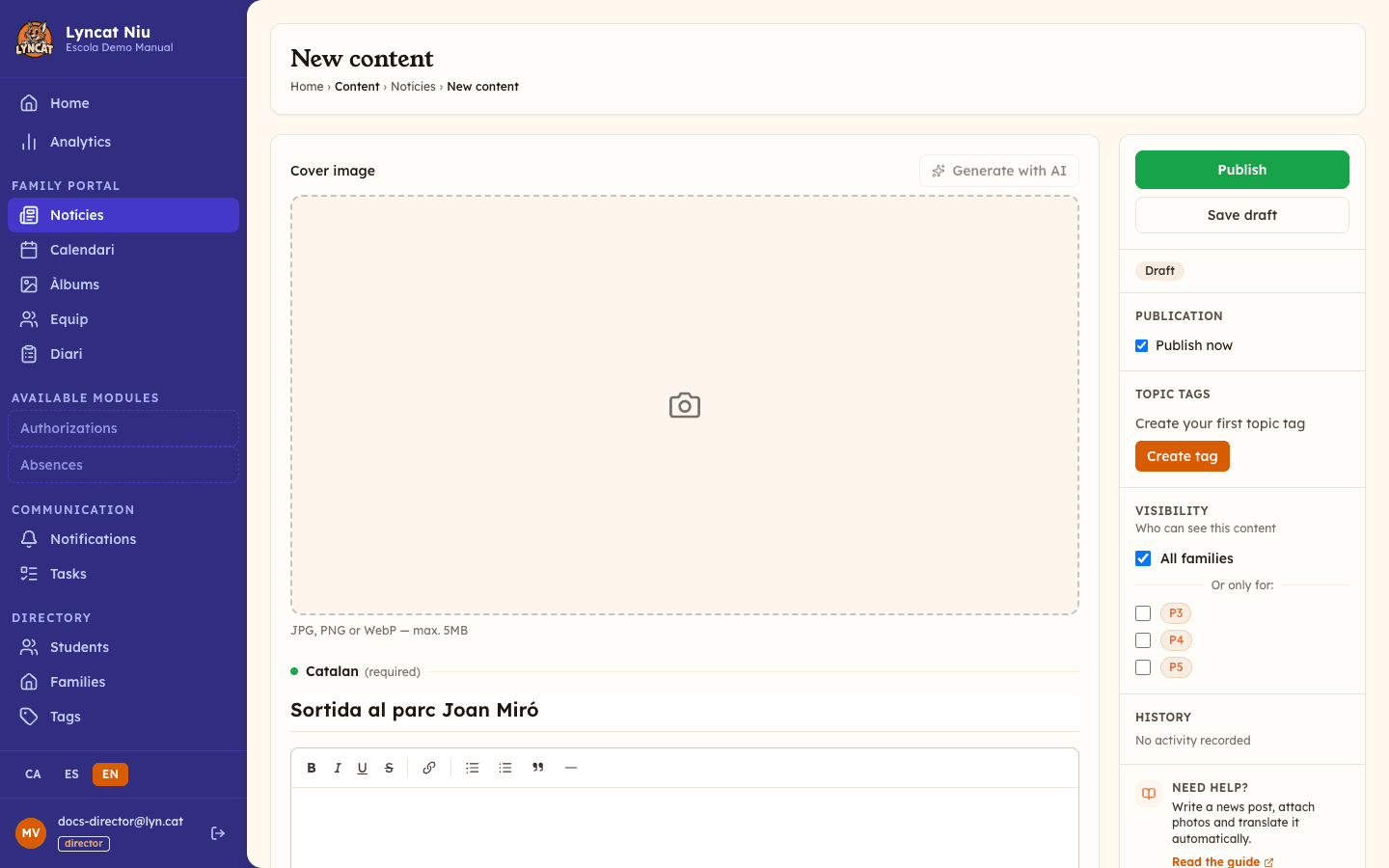
In the left-hand menu, click the News section in the portal. On the page that opens, click the button New entry in the top-right corner.
Write the title and the body
The title appears prominently in the portal and in the notification; make it explicit. The body supports bold, italic, lists, and links.
If your school works in more than one language, the editor shows one block per active language. The title in the main language is required; you can fill in the rest by hand or with the Generate translations button.
Add a cover image (optional)
Just above the title there is a Cover image field: this is the image that identifies the news item in the portal list. Files up to 5 MB are accepted. You can also click Generate with AI so Niu suggests one based on the title and text (the content must be saved first; it uses one of the month's AI tasks).
Add photos (optional)
Below the body you'll find the Photos block, where you can upload several images that will show as a gallery inside the news item itself.
Choose the recipient families
In the Visibility section of the right panel, select the tags that should receive it (for example, P3, P4…). If you don't select any, the news item is visible to all families of the centre.
Right above it there is an optional Topic tags field: it lets families filter content by subject on the portal. You can read more in Tags.
Schedule or publish
At the top of the editor you'll find the Publication date field. Leave it empty and press Publish to make it visible right away — families receive push and email instantly. If you'd rather delay it, set the date and time in that field before pressing Publish: the news item is scheduled, and families won't see it or get any notification until that moment arrives.
What families see
Families see the news item both in the centre's portal and in their app, and they receive a push notification. If a family had push disabled, they still receive an email with the content.
Edit or unpublish
While in published state you can edit the text and families will see the changes. You can also edit the Publication date from the same editor — useful if you want the news item to sort as if it had been published at a different time. If the news item no longer applies, mark it as Archived — it's removed from the portal but kept in the panel for history.
Avís
Deleting permanently a news item is irreversible: it disappears from the portal and the panel. It cannot be recovered. To confirm, you will have to type the word ELIMINAR in the window that appears. Only director accounts see this option. When in doubt, archive it first and delete it later.