
Dashboard
What each figure on the panel's Home screen means, and how to use it to start the day.
2026-08-31
Before you start
- Home is the first entry in the sidebar, Home, and also the screen you land on right after signing in.
- Every team member has access, both directors and educators. The figures you see are your school's.
- There is nothing to set up: the screen builds itself from what is already in the panel. You cannot customise which indicators appear.
Truc
If you ever get lost inside the panel, the breadcrumb at the top of every page always starts with Home and brings you back here in one click.
Step by step
Open Home
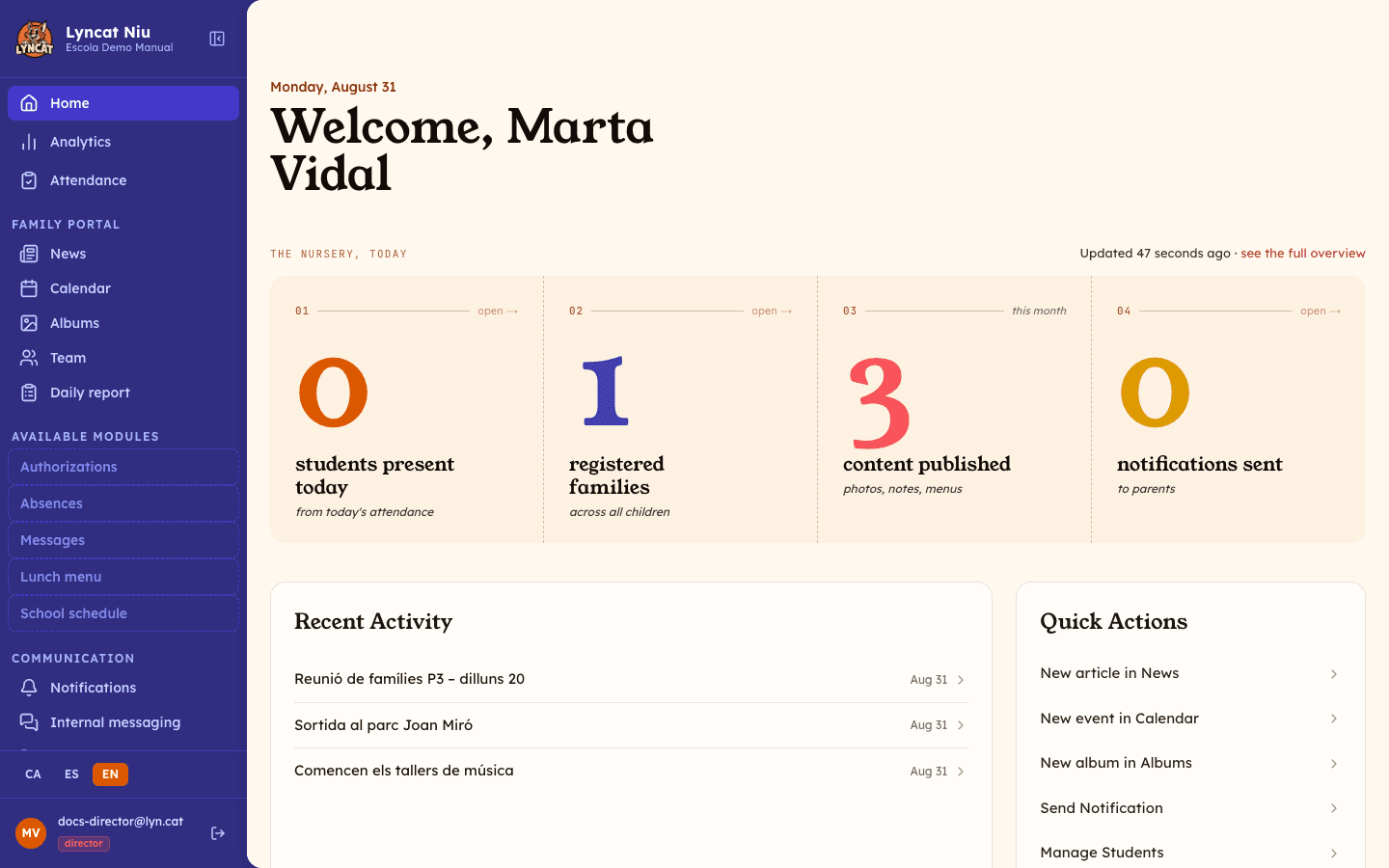
Click Home at the very top of the sidebar. In the header you will see today's date and a greeting with your name, the same one saved in My profile.
Read the four indicators
Just below there is a strip with four large figures. From left to right:
- Students present today — distinct students with at least one time slot marked as present in today's attendance. This is not the number of active students at the school.
- Registered families — active families in the directory. It counts families, not children or user accounts.
- Content published — content published this month, from any portal section.
- Notifications sent — notifications sent this month.
Three of the four are clickable: the first opens Attendance, the second Families, and the fourth Notifications. The published content one is informational and does not link anywhere.
Check when they were calculated
To the right of the strip it says Updated and how long ago the data was read, plus a see the full overview link that takes you to Analytics, where you will find the same data in more detail and by period.
Review recent activity
The large block on the left, Recent Activity, lists the five most recently published items with their publication date. Click any line to open it straight in the editor. If the school has not published anything yet, you will read "No published content yet".
Use the quick actions
The right-hand column, Quick Actions, creates new content without going through the menu. There is one entry for each news, calendar, static content, and gallery section your portal has —for example New article in News or New album in Gallery— using the name you gave the section.
Below them there are always three fixed entries: Send Notification, Manage Students, and Configure Menu.
Check the latest notifications
Under the quick actions, Latest Notifications shows the three most recent ones you have sent, with their date. This block only appears once the school has sent at least one.
What to do if...
It shows zero students present
It means attendance has not been taken yet today, not that nobody came. The figure comes from the day's attendance, so at weekends, on holidays, or first thing in the morning it is normally zero. See Attendance to mark who is in.
The number of families does not match the number of students
That is expected: the figure counts families in the directory, not children. A family with two siblings at the school counts once. Deactivated families are not included.
The figures do not change while I work
The data is read once, when the screen opens. The "Updated ... ago" text keeps ticking on its own, but it only tells you when the data was read: it does not mean the figures are being recalculated. Reload the page or go back into Home to see up-to-date numbers.
I am an educator and "Configure Menu" does not open anything
Only directors can change the portal menu. If you click it with an educator account, the panel sends you back to Home. The same happens with the Portal Menu sidebar entry, which appears greyed out.
Frequently asked questions
Can I choose which indicators appear, or add more? No. The four indicators and the blocks on the screen are fixed and the same for every school.
Do drafts and archived items count towards "content published"? No. Only published content with a publication date within the current month counts.
What about content scheduled for later? If you scheduled it for a date within this month, it already counts and appears at the top of recent activity, even though the date has not arrived and families cannot see it on the portal yet.
Why are there no sections in the quick actions? Because the portal does not have any news, calendar, static content, or gallery section yet. Create one from Navigation menu and it will show up here by itself.
Do families see this screen? No. Home belongs to the admin panel. Families have the portal and the app, with a different home screen.